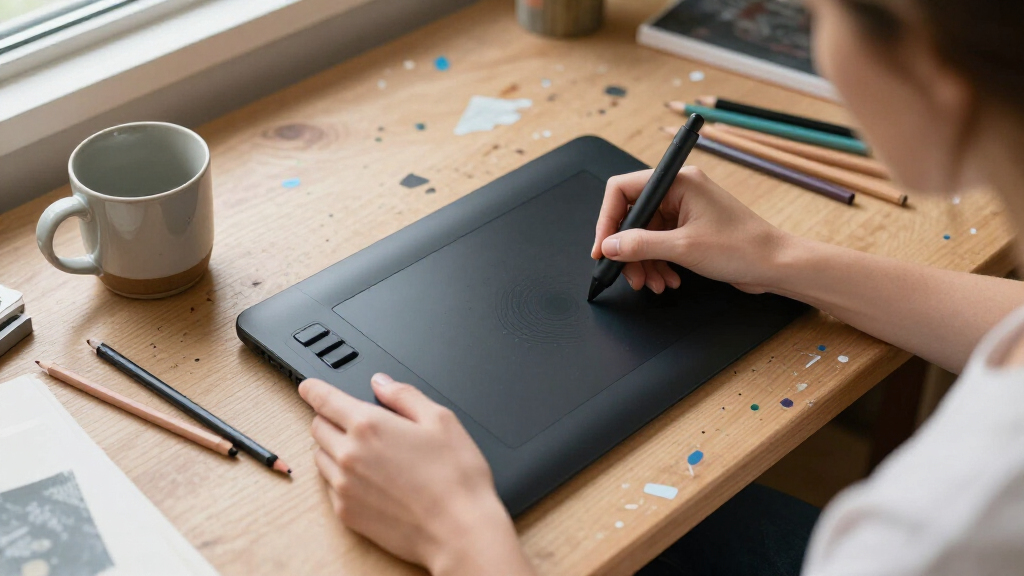
Professional drawing tablets range from screen-free pen tablets to large displays and standalone devices, so the right choice depends on how you work. I would start with the XPPen Artist Pro 16 Gen2 as the best overall balance of 2.5K screen detail, a manageable 16-inch workspace, and a Mini Keydial. The XPPen Artist Pro 22 (Gen 2) is a stronger fit for artists who want a roomy 2.5K display, while the XPPen Magic Drawing Pad suits people who need to draw without a computer. The main tradeoffs are screen size versus desk space, portability versus connected-device capability, and premium display features versus simpler tools. Read on for the full breakdown and recommendations by workflow.

Get art and craft supplies delivered free with Prime
- Fast, free delivery on millions of items
- Prime Video, Amazon Music and more included
- Member-only deals all year
Key Takeaways
- The Artist Pro 16 Gen2 is the most balanced pick: its 2.5K display and Mini Keydial offer a stronger mix of detail and workflow control than a basic pen display, without taking up the space of a 21.5-inch model.
- Large displays favor fixed workspaces: the 21.5-inch HUION Kamvas 22 and XPPen Artist Pro 22 Gen 2 provide more room for broad gestures and full-size canvases, but are less convenient to move or fit on a compact desk.
- Standalone tablets solve a different problem: the PicassoTab A10 and XPPen Magic Drawing Pad can work without a computer, while most Artist and Kamvas models rely on a connected device.
- Screen-free tablets remain useful professional tools: the HUION Inspiroy H1060P and XPPen Deco 01 V3 trade direct on-screen drawing for a lighter, simpler setup that can suit established hand-eye coordination and limited desk space.
- Closely related display models are not automatic upgrades: screen size, resolution, touch, surface, and shortcut controls vary across the Artist lineup, so the right choice depends on workflow priorities rather than the model name alone.
| XPPen Artist Pro 16 Gen2 2.5K 16-Inch Drawing Tablet with Screen and Mini Keydial |  | Best Overall | Display: 16-inch, 2560 × 1600, 16:10 | Screen surface: Fully laminated, anti-glare etched glass | Stylus: Battery-free X3 Pro | VIEW LATEST PRICE | See Our Full Breakdown |
| PicassoTab A10 10-Inch Standalone Drawing Tablet |  | Best for Computer-Free Work | Display: 10-inch laminated LCD, 2000 × 1200 | Operating system: Android 14 | Stylus pressure: 4096 levels | VIEW LATEST PRICE | See Our Full Breakdown |
| HUION Kamvas 22 21.5-Inch Drawing Tablet with Screen |  | Best for a Large Drawing Canvas | Display: 21.5-inch, 1920 × 1080 | Color gamut: 120% sRGB | Viewing angle: 178° | VIEW LATEST PRICE | See Our Full Breakdown |
| XP-Pen Artist 15.6 Pro V2 Drawing Tablet with Screen |  | Best for Shortcut-Controlled Workflows | Display: 15.4-inch, 16.7 million colors | Color gamut: 99% sRGB, 96% Adobe RGB, 96% Display P3 | Screen surface: Full-laminated anti-glare etched glass | VIEW LATEST PRICE | See Our Full Breakdown |
| XP-Pen Artist 13.3 Pro V2 Drawing Tablet with Screen |  | Best Compact Pen Display | Display: 13.3-inch Full HD IPS | Screen surface: Full-laminated with AG film | Stylus: Battery-free X3 Pro smart chip stylus | VIEW LATEST PRICE | See Our Full Breakdown |
| XPPen Magic Drawing Pad 12.2-Inch Standalone Drawing Tablet, 8GB RAM, 256GB Storage |  | Best Standalone for Mobile Work | Display: 12.2 inches, 2160 × 1440, 3:2 aspect ratio | Operating system: Android 14 | Memory and storage: 8GB RAM; 256GB storage | VIEW LATEST PRICE | See Our Full Breakdown |
| XPPen Artist Ultra 16 4K OLED Touchscreen Drawing Tablet |  | Best Premium Color-Accurate Display | Display: 15.6-inch AMOLED/OLED, 3840 × 2160 | Contrast and response: 100,000:1 contrast ratio; response time under 1 ms | Color: 10-bit, 1.07 billion colors; 99% Adobe RGB, 99% sRGB, 98% Display P3 | VIEW LATEST PRICE | See Our Full Breakdown |
| HUION Inspiroy H1060P Graphics Drawing Tablet |  | Best for Shortcut-Heavy Workflows | Working area: 10 × 6.25 inches | Stylus: PW100 battery-free stylus | Pressure and tilt: 8,192 pressure levels; ±60° tilt support | VIEW LATEST PRICE | See Our Full Breakdown |
| XPPen Deco 01 V3 Drawing Tablet, 10 x 6.25 in, with Battery-Free Stylus and 8 Shortcut Keys |  | Best Value Screenless Pick | Drawing area: 10 × 6.25 inches | Stylus: Battery-free; 16,384 pressure levels; up to 60° tilt | Shortcut keys: 8 customizable keys | VIEW LATEST PRICE | See Our Full Breakdown |
| XP-Pen Artist 15.6 Pro Drawing Monitor with Battery-Free Stylus |  | Best Mid-Size Pen Display for Physical Controls | Display: 15.6-inch full-laminated IPS, 1920 × 1080 | Color gamut: 88% NTSC / 120% sRGB | Viewing angle: 178 degrees | VIEW LATEST PRICE | See Our Full Breakdown |
| XP-Pen Artist 16 (3rd Gen) Drawing Display, 15.4-Inch FHD, 16K Pressure Stylus, Etched Glass, Shortcut Keys and Scroll Wheels |  | Best Overall for a Balanced Professional Setup | Display: 15.4-inch FHD | Surface: Fully laminated AG+AF nano-etched glass | Stylus pressure: 16,384 levels; 2 g initial activation force | VIEW LATEST PRICE | See Our Full Breakdown |
| XP-Pen Artist 12 3rd 11.9-Inch Drawing Tablet with Screen |  | Best Compact Professional Display | Display: 11.9-inch, 1920 × 1080 | Weight: 1.58 lb | Color: 99% sRGB; ΔE < 1.5 | VIEW LATEST PRICE | See Our Full Breakdown |
| XP-Pen Artist Pro 22 (Gen 2) 21.5-Inch 2.5K Drawing Display with 16K Pressure-Sensitive Stylus |  | Best Premium Large-Canvas Display | Display: 21.5-inch, 2560 × 1440 | Pixel density: 137 PPI | Color gamut: 99% Adobe RGB, 99% sRGB, 94% Display P3 | VIEW LATEST PRICE | See Our Full Breakdown |
| XP-Pen Artist 13.3 Pro Drawing Tablet with Screen |  | Best for Dial-Based Workflow Control | Display: 13.3-inch fully laminated FHD | Color gamut: 88% NTSC; Adobe RGB ≥91%; sRGB ≥123% | Viewing angle: 178 degrees | VIEW LATEST PRICE | See Our Full Breakdown |
| HUION Kamvas Pro 16 Drawing Tablet with Screen |  | Best for a Textured Drawing Surface | Screen: 15.6-inch fully laminated anti-glare glass | Color gamut: 120% sRGB; 92% Adobe RGB | Contrast ratio: 1000:1 | VIEW LATEST PRICE | See Our Full Breakdown |
| professional drawing tablet | Display | Compatibility | Stylus | Connectivity |
|---|---|---|---|---|
| XPPen Artist Pro 16 Gen2 2.5K | 16-inch, 2560 × 1600, 16:10 | Windows, macOS, Android, Chrome OS, Linux | Battery-free X3 Pro | Requires a computer; Android support requires USB 3.1 DP 1.2 |
| PicassoTab A10 10-Inch Standal | 10-inch laminated LCD, 2000 × 1200 | — | — | Wi-Fi |
| HUION Kamvas 22 21.5-Inch Draw | 21.5-inch, 1920 × 1080 | macOS 10.12 or later, Windows 7 or later, compatible Android devices | Battery-free PW517 | Two USB-C ports and one USB-A port |
| XP-Pen Artist 15.6 Pro V2 Draw | 15.4-inch, 16.7 million colors | — | — | — |
| XP-Pen Artist 13.3 Pro V2 Draw | 13.3-inch Full HD IPS | Windows, macOS, Chrome OS, supported Android devices, Linux with driver support | Battery-free X3 Pro smart chip stylus | — |
| XPPen Magic Drawing Pad 12.2-I | 12.2 inches, 2160 × 1440, 3:2 aspect ratio | — | X3 Pro Slim Stylus; 16,384 pressure levels; 60° tilt recognition | — |
| XPPen Artist Ultra 16 4K OLED | 15.6-inch AMOLED/OLED, 3840 × 2160 | Windows 7 or later, macOS 12 or later, Android 10.0 or later, ChromeOS 88 or later, Windows ARM, and Linux | — | Dual reversible USB-C; HDMI input supported |
| HUION Inspiroy H1060P Graphics | — | Windows 7 or later; macOS 10.12 or later; Android 6.0 or later; Ubuntu Linux with Xorg | PW100 battery-free stylus | — |
| XPPen Deco 01 V3 Drawing Table | — | Windows 7 or later, macOS 10.13 or later, Android 10.0 or later, ChromeOS 88 or later, and Linux | Battery-free; 16,384 pressure levels; up to 60° tilt | USB-C to USB-C; USB-C-to-USB-A cable and adapter included |
| XP-Pen Artist 15.6 Pro Drawing | 15.6-inch full-laminated IPS, 1920 × 1080 | Windows 7 or later, Mac OS X 10.10 or later, and Chrome OS 88 or later | Battery-free with tilt support; up to 16,384 pressure levels | — |
| XP-Pen Artist 16 | 15.4-inch FHD | Windows, macOS, Android, ChromeOS, and Linux | — | Full-featured USB-C or included 3-in-1 cable |
| XP-Pen Artist 12 3rd 11.9-Inch | 11.9-inch, 1920 × 1080 | Windows, macOS, Android, ChromeOS, Linux, and Windows ARM | — | — |
| XP-Pen Artist Pro 22 | 21.5-inch, 2560 × 1440 | — | 16K pressure levels and 60-degree tilt | USB-C and HDMI |
| XP-Pen Artist 13.3 Pro Drawing | 13.3-inch fully laminated FHD | Windows, macOS, ChromeOS, and Linux | Battery-free; 16,384 pressure levels | — |
| HUION Kamvas Pro 16 Drawing Ta | — | Windows, macOS, and Linux (Ubuntu) | — | 3-in-1 USB-C cable with HDMI signal |
More Details on Our Top Picks
XPPen Artist Pro 16 Gen2 2.5K 16-Inch Drawing Tablet with Screen and Mini Keydial
I’d rank the Artist Pro 16 Gen2 first for professionals who want a detailed, color-focused pen display without moving to a much larger desk setup. Its 2560 × 1600 resolution gives a 16-inch canvas more working detail than the Kamvas 22’s Full HD panel, while the laminated etched glass helps keep the pen tip visually close to the cursor. The X3 Pro stylus offers 16,384 pressure levels, and the included wireless shortcut remote and wrist rest make the package more workflow-ready than the Artist 15.6 Pro V2. The tradeoff is that this is a computer-connected display, not a standalone tablet; its 16-inch size also gives less room for broad gestures than the Kamvas 22. I’d choose it for precision and resolution, not computer-free portability.
Pros:- 2560 × 1600 resolution provides more workspace detail than the Full HD Kamvas 22.
- Fully laminated, anti-glare etched glass helps reduce visible cursor offset and reflections.
- Battery-free X3 Pro stylus supports 16,384 pressure levels.
- Wireless shortcut remote, foldable stand, and wrist rest are included.
Cons:- Requires connection to a compatible computer or supported device.
- Android use depends on USB 3.1 DP 1.2 support.
- A 16-inch screen offers less expansive workspace than the 21.5-inch Kamvas 22.
Best for: Digital illustrators and design professionals who want a high-resolution 16-inch work surface, strong sRGB coverage, and included workflow accessories for a computer-based setup.
Not ideal for: Artists who need a standalone tablet, a larger drawing area, or Android connectivity without USB 3.1 DP 1.2 support.
- Display:16-inch, 2560 × 1600, 16:10
- Screen surface:Fully laminated, anti-glare etched glass
- Stylus:Battery-free X3 Pro
- Pressure levels:16,384
- Color coverage:99% sRGB; ΔE < 2.2
- Included accessories:Foldable stand, wireless shortcut remote, X-Edge wrist rest
- Connectivity:Requires a computer; Android support requires USB 3.1 DP 1.2
- Compatibility:Windows, macOS, Android, Chrome OS, Linux
Our verdict“Choose the Artist Pro 16 Gen2 if you want a detailed, well-equipped 16-inch computer-connected display rather than a standalone tablet or a larger Full HD canvas.”
PicassoTab A10 10-Inch Standalone Drawing Tablet
The PicassoTab A10 fills a different role from the computer-connected Artist Pro 16 Gen2 and Kamvas 22: it runs Android 14 on its own, so sketches and studies don’t depend on a desktop or laptop. Its 10-inch laminated display, preloaded creative apps, and beginner lessons make it a practical portable kit for learning and casual creation. The 6GB of RAM and expandable storage also leave room for schoolwork and general tablet tasks. For professional drawing, however, its smaller canvas and 4096 pressure levels are more limiting than the XP-Pen displays’ 16,384-level styluses. The supplied software update support date is unknown, which adds uncertainty for buyers planning a long-term professional setup. I’d treat it as an accessible standalone sketching option, not a substitute for a larger studio pen display.
Pros:- Operates independently without a computer.
- Laminated screen is designed to reduce glare and parallax.
- Includes drawing apps, beginner lessons, a case, glove, and screen protector.
- Expandable storage supports additional files and apps.
Cons:- The 10-inch display is cramped for detailed artwork and expansive timelines.
- The 4096-level pen has fewer pressure levels than the XP-Pen pen displays in this roundup.
- The product data does not specify its software update support period.
Best for: Students, beginner illustrators, and artists who want to sketch, practice, or work on the go without carrying a computer.
Not ideal for: Professional illustrators who need a large detailed canvas, a high-pressure-level stylus, or a clearly specified long-term software update policy.
- Display:10-inch laminated LCD, 2000 × 1200
- Operating system:Android 14
- Stylus pressure:4096 levels
- Processor:Octa-core
- Memory:6GB RAM
- Storage:64GB, expandable up to 1TB
- Connectivity:Wi-Fi
- Included items:Digital pen, glove, case, power adapter, USB cable, screen protector, creative apps
Our verdict“Pick the PicassoTab A10 for portable, computer-free drawing and learning, but choose a larger XP-Pen display for intensive professional illustration.”
HUION Kamvas 22 21.5-Inch Drawing Tablet with Screen
When drawing space matters more than pixel density, the HUION Kamvas 22 is the standout: its 21.5-inch screen gives more room for full-size artwork, palettes, and reference material than the 16-inch Artist Pro 16 Gen2. The adjustable 20°–80° stand supports a range of working postures, while the matte surface reduces reflections and offers a less glossy drawing feel. Its battery-free pen detects tilt and supports 8192 pressure levels, which is capable for detailed illustration but below the 16,384 levels offered by the XP-Pen models here. The main compromise is resolution: 1920 × 1080 spread across a larger panel looks less detailed than the Artist Pro 16 Gen2’s 2560 × 1600 screen. It also needs a computer or compatible device, so this is a desk-oriented choice rather than a portable standalone tool.
Pros:- 21.5-inch display provides more drawing area than the 16-inch Artist Pro 16 Gen2.
- Matte anti-glare surface helps limit reflections.
- Battery-free stylus supports tilt and 8192 pressure levels.
- Stand adjusts from 20° to 80°.
Cons:- 1920 × 1080 resolution is less detailed than the Artist Pro 16 Gen2’s 2560 × 1600 panel.
- Requires a computer or compatible device to operate.
- Android use requires USB 3.1 Gen 1 or DisplayPort 1.2 support.
Best for: Desktop illustrators and designers who prefer a broad drawing surface for full-size compositions, reference windows, and palettes.
Not ideal for: Artists prioritizing high pixel density, a compact setup, or drawing without a connected computer or compatible device.
- Display:21.5-inch, 1920 × 1080
- Color gamut:120% sRGB
- Viewing angle:178°
- Stylus:Battery-free PW517
- Pen input:8192 pressure levels with tilt response
- Stand:Adjustable from 20° to 80°
- Connectivity:Two USB-C ports and one USB-A port
- Compatibility:macOS 10.12 or later, Windows 7 or later, compatible Android devices
Our verdict“Choose the Kamvas 22 when a spacious desktop canvas matters more than the sharper resolution and higher pen pressure count of the Artist Pro 16 Gen2.”
XP-Pen Artist 15.6 Pro V2 Drawing Tablet with Screen
The Artist 15.6 Pro V2 is the workflow-focused pick for artists who want physical controls close to the drawing surface. Its red dial and eight customizable keys can put common tools and commands within reach, unlike the Kamvas 22, which prioritizes a larger screen over listed shortcut controls. The full-laminated etched display and 16,384-level stylus suit precise illustration, while its stated coverage across sRGB, Adobe RGB, and Display P3 gives color-conscious creators useful gamut information. Compared with the Artist Pro 16 Gen2, this model has a smaller 15.4-inch Full HD display and lacks the included wireless remote and wrist rest, but its on-device dial and keys provide direct access without a separate remote. It still depends on a computer, and the supplied 3-in-1 cable and foldable stand make it better suited to a fixed workstation than an untethered setup.
Pros:- Red dial and eight customizable keys support quick access to drawing commands.
- Full-laminated anti-glare etched glass helps reduce reflections and parallax.
- Battery-free stylus supports 16,384 pressure levels.
- Stand adjusts from flat to 90°.
Cons:- Requires a computer connection to work.
- 15.4-inch Full HD screen offers less resolution than the Artist Pro 16 Gen2.
- Does not include the Artist Pro 16 Gen2’s wireless remote or wrist rest.
Best for: Illustrators who use frequent tool changes and want programmable physical controls on a mid-sized computer-connected display.
Not ideal for: Artists seeking a standalone tablet, a high-resolution panel, or the bundled wireless remote and wrist rest included with the Artist Pro 16 Gen2.
- Display:15.4-inch, 16.7 million colors
- Color gamut:99% sRGB, 96% Adobe RGB, 96% Display P3
- Screen surface:Full-laminated anti-glare etched glass
- Stylus pressure:16,384 levels
- Controls:Red dial and eight customizable keys
- Brightness and contrast:250 cd/m²; 1000:1
- Stand:Foldable, adjustable from 0° to 90°
- Connectivity and compatibility:Computer connection via included 3-in-1 cable; Windows, macOS, Chrome OS
Our verdict“Choose the Artist 15.6 Pro V2 if its built-in dial and programmable keys matter more to your workflow than a higher-resolution screen or bundled remote.”
XP-Pen Artist 13.3 Pro V2 Drawing Tablet with Screen
The Artist 13.3 Pro V2 suits artists who need a smaller pen display that still retains workflow controls usually associated with larger models. Its red dial, eight customizable keys, and 16,384-level battery-free stylus make it a compact alternative to the Artist 15.6 Pro V2, which gives more screen area but occupies more desk space. The full-laminated 13.3-inch IPS screen is Full HD, so it remains practical for focused illustration and travel between work locations, though detailed projects may feel constrained compared with the Kamvas 22’s 21.5-inch canvas. It is not standalone: a compatible computer or laptop is required, and Android use depends on supported USB-C video output. Linux also needs driver support, so buyers should check their device setup before choosing this smaller display.
Pros:- Compact 13.3-inch size takes up less desk space than the Artist 15.6 Pro V2.
- Battery-free X3 Pro stylus supports 16,384 pressure levels.
- Red dial and eight customizable keys provide direct workflow controls.
- Full-laminated IPS screen with AG film is designed to reduce parallax and glare.
Cons:- Requires a compatible computer or laptop; it does not operate standalone.
- Smaller screen is less comfortable for expansive or highly detailed projects than the Kamvas 22.
- Android needs supported USB-C video output, and Linux use requires driver support.
Best for: Illustrators with limited desk space or a mobile computer-based workflow who still want a screen, pen controls, and programmable shortcuts.
Not ideal for: Artists who want a standalone tablet, a large canvas for complex projects, or plug-and-play Android or Linux compatibility.
- Display:13.3-inch Full HD IPS
- Screen surface:Full-laminated with AG film
- Stylus:Battery-free X3 Pro smart chip stylus
- Pressure levels:16,384
- Controls:Red dial and eight customizable keys
- Color gamut:125% sRGB, 107% Adobe RGB, 95% Display P3
- Brightness and contrast:250 cd/m²; 1000:1
- Compatibility:Windows, macOS, Chrome OS, supported Android devices, Linux with driver support
Our verdict“Pick the Artist 13.3 Pro V2 for a compact, shortcut-equipped computer display, but choose the Artist 15.6 Pro V2 or Kamvas 22 for more canvas space.”
XPPen Magic Drawing Pad 12.2-Inch Standalone Drawing Tablet, 8GB RAM, 256GB Storage
The Magic Drawing Pad is the clear pick here for artists who want to draw without a computer. Its Android 14 system runs compatible Google Play apps, while the 12.2-inch AG-etched display and included X3 Pro stylus offer a more paper-like, direct drawing setup than the screenless HUION Inspiroy H1060P. The stylus has 16,384 pressure levels and tilt support, and the 8,000 mAh battery is rated for up to 13 hours, so it can suit sketching away from a desk. The tradeoff is workspace: its screen is smaller than the connected 15.6-inch Artist displays, and it depends on Android apps rather than a desktop workflow. Storage starts at 256GB; expansion requires a separately sourced microSD card.
Pros:- Runs compatible drawing apps directly on Android 14 without a computer.
- AG-etched 12.2-inch display is designed to give drawing a paper-like feel.
- Included X3 Pro stylus supports 16,384 pressure levels and 60° tilt without charging or pairing.
- 8,000 mAh battery is rated for up to 13 hours of use.
Cons:- The 12.2-inch display provides less drawing room than the 15.6-inch Artist 15.6 Pro.
- Desktop software workflows are not a substitute for Android apps.
- A microSD card for storage expansion is not included.
Best for: Illustrators and students who want a self-contained Android drawing device for sketching, note-taking, and compatible creative apps away from a computer.
Not ideal for: Artists who need a large desktop canvas, rely on desktop-only creative software, or want a tablet that connects to a computer as a pen display.
- Display:12.2 inches, 2160 × 1440, 3:2 aspect ratio
- Operating system:Android 14
- Memory and storage:8GB RAM; 256GB storage
- Expandable storage:Up to 1TB via microSD card
- Stylus:X3 Pro Slim Stylus; 16,384 pressure levels; 60° tilt recognition
- Display color gamut:97% sRGB
- Battery:8,000 mAh; rated for up to 13 hours
- Weight and thickness:599 g; 6.9 mm slim
Our verdict“Choose the Magic Drawing Pad if independent Android drawing matters more than a large screen or desktop software compatibility.”
XPPen Artist Ultra 16 4K OLED Touchscreen Drawing Tablet
For a professional who prioritizes image detail and color work, the Artist Ultra 16 brings the strongest display specifications in this group: a 15.6-inch 4K OLED panel, 10-bit color, and stated coverage of 99% Adobe RGB and 98% Display P3. Its Delta E is listed below 1.1, making this a more color-focused choice than the 1080p IPS Artist 15.6 Pro. Multi-touch, two pressure-sensitive styluses, and a remote with 40 customizable keys give artists several ways to control their workflow. The central compromise is that this is a pen display, not a standalone tablet: it needs a compatible computer or device. Its higher-resolution screen also makes host-device compatibility and setup worth checking before choosing it.
Pros:- 15.6-inch 4K OLED display provides fine detail and deep contrast.
- Broad stated gamut coverage and Delta E below 1.1 suit color-conscious workflows.
- Includes two 16,384-level pressure styluses with 60° tilt.
- Multi-touch support and a remote with 40 customizable shortcut keys add workflow controls.
Cons:- Requires a connected computer or compatible device; it cannot run drawing apps independently.
- Touch support is limited to specified operating system versions.
- A 15.6-inch display offers less working area than larger pen displays in the roundup.
Best for: Professional illustrators, animators, and photo editors who need a high-resolution, wide-gamut pen display for color-sensitive work and already have a compatible computer.
Not ideal for: Artists seeking a portable standalone tablet, or those whose computer setup cannot support the listed operating systems and connections.
- Display:15.6-inch AMOLED/OLED, 3840 × 2160
- Contrast and response:100,000:1 contrast ratio; response time under 1 ms
- Color:10-bit, 1.07 billion colors; 99% Adobe RGB, 99% sRGB, 98% Display P3
- Color accuracy:Delta E <1.1
- Styluses:X3 Smart Chip Pro Stylus and X3 Pro Slim Stylus; 16,384 pressure levels; 60° tilt
- Controls:Multi-touch; ACK05 remote with 40 customizable shortcut keys
- Connectivity:Dual reversible USB-C; HDMI input supported
- Compatibility:Windows 7 or later, macOS 12 or later, Android 10.0 or later, ChromeOS 88 or later, Windows ARM, and Linux
Our verdict“Pick the Artist Ultra 16 for a compact professional desk setup where 4K OLED detail and color coverage matter more than standalone use.”
HUION Inspiroy H1060P Graphics Drawing Tablet
The Inspiroy H1060P is a screenless tablet for artists who prefer drawing on a work surface while looking at a separate monitor. Its 10 × 6.25-inch active area matches the Deco 01 V3, but HUION supplies 12 programmable press keys plus 16 soft keys, giving shortcut-focused users more on-table controls than the Deco’s eight keys. The battery-free stylus supports 8,192 pressure levels and ±60° tilt, which covers the main pen gestures without a charging routine. The tradeoff is a less direct hand-to-image connection than either XPPen screen model, and its computer setup has specific limits: Mac users need a USB adapter, while Ubuntu use requires Xorg. I’d choose it over the Deco for the extra controls, not for higher pen sensitivity.
Pros:- 12 programmable press keys and 16 soft keys offer extensive shortcut customization.
- Battery-free stylus supports 8,192 pressure levels and ±60° tilt.
- Symmetrical design accommodates right- and left-handed users.
- Works with Windows, macOS, Android, and Ubuntu Linux with Xorg.
Cons:- Screenless design requires coordinating hand movement with a separate display.
- Mac connection requires a USB adapter.
- Ubuntu compatibility requires Xorg and does not include Wayland support.
Best for: Desktop illustrators who draw on a screenless tablet, want many programmable controls, and use a supported Windows, macOS, Android, or Xorg-based Ubuntu setup.
Not ideal for: Artists who need to see their strokes directly beneath the pen, use Ubuntu Wayland, or want an iPhone or iPad connection.
- Working area:10 × 6.25 inches
- Stylus:PW100 battery-free stylus
- Pressure and tilt:8,192 pressure levels; ±60° tilt support
- Shortcut controls:12 programmable press keys and 16 programmable soft keys
- Compatibility:Windows 7 or later; macOS 10.12 or later; Android 6.0 or later; Ubuntu Linux with Xorg
- Included accessories:Micro USB cable, USB-C adapter, pen holder, and 8 pen nibs
- Warranty:1 year manufacturer warranty
Our verdict“Choose the H1060P if plentiful on-device shortcuts matter more to your desktop workflow than a built-in screen or the Deco 01 V3’s higher pressure-level count.”
XPPen Deco 01 V3 Drawing Tablet, 10 x 6.25 in, with Battery-Free Stylus and 8 Shortcut Keys
The Deco 01 V3 makes sense for a professional or developing artist who wants a straightforward screenless tablet with a capable pen and broad device compatibility. Its 10 × 6.25-inch drawing area is the same size as the HUION Inspiroy H1060P’s, while its 16,384 pressure levels exceed that model’s 8,192. The tradeoff is physical control count: the Deco has eight customizable keys, not the H1060P’s 12 press keys and 16 soft keys. Its slim 8 mm body and included USB-C-to-USB-A cable and adapter make it easier to fit into a portable kit, though Android use requires version 10.0 or later. Like the HUION, it has no display, so it suits artists comfortable looking at a separate monitor rather than drawing directly on-screen.
Pros:- Battery-free stylus offers 16,384 pressure levels and up to 60° tilt.
- 10 × 6.25-inch drawing area provides room for broad strokes and detailed work.
- Eight customizable keys support both right- and left-handed use.
- Slim 8 mm profile and included USB-C connection accessories suit portable setups.
Cons:- Screenless design means drawing while looking at a separate monitor.
- Provides fewer physical shortcut controls than the HUION Inspiroy H1060P.
- Android compatibility starts at version 10.0.
Best for: Artists who want a portable, screenless drawing surface with a high-pressure-level battery-free stylus and connections for a range of supported devices.
Not ideal for: Artists who need a built-in display, want more than eight shortcut keys, or plan to use Android below version 10.0.
- Drawing area:10 × 6.25 inches
- Stylus:Battery-free; 16,384 pressure levels; up to 60° tilt
- Shortcut keys:8 customizable keys
- Thickness:8 mm
- Connectivity:USB-C to USB-C; USB-C-to-USB-A cable and adapter included
- Compatibility:Windows 7 or later, macOS 10.13 or later, Android 10.0 or later, ChromeOS 88 or later, and Linux
- Included accessories:10 replacement nibs, stylus stand, glove, and protective film
Our verdict“Choose the Deco 01 V3 if you want a portable screenless tablet with a high-sensitivity pen and can work with eight shortcuts instead of the HUION’s larger control set.”
XP-Pen Artist 15.6 Pro Drawing Monitor with Battery-Free Stylus
The Artist 15.6 Pro suits artists who want to draw directly on a display but do not need the 4K OLED specification of the Artist Ultra 16. Its 15.6-inch laminated 1080p IPS screen puts the artwork beneath the stylus, while eight shortcut keys and a programmable red dial give common commands a place on the device. The battery-free pen supports tilt and up to 16,384 pressure levels, making this a more direct drawing setup than either screenless tablet in this batch. Its meaningful compromise is display capability: resolution and stated color coverage are more modest than the Artist Ultra 16’s 4K, wide-gamut OLED. It also depends on a connected computer or laptop, so the standalone Magic Drawing Pad is the better fit for drawing away from a desk.
Pros:- Full-laminated 15.6-inch IPS display provides a direct drawing surface.
- Battery-free stylus supports tilt and up to 16,384 pressure levels.
- Eight customizable shortcut keys and a programmable red dial provide hands-on workflow controls.
- 178-degree viewing angle supports viewing the display from different positions.
Cons:- Requires a computer or laptop and cannot run drawing apps on its own.
- Its 1920 × 1080 resolution is lower than the Artist Ultra 16’s 4K display.
- The 15.6-inch screen is smaller than larger pen displays in the roundup.
Best for: Illustrators and photo editors who want a mid-size, direct-on-screen drawing setup with a dial and shortcut keys, and already work from a compatible computer.
Not ideal for: Artists who need a standalone tablet, a larger drawing surface, or the 4K OLED and broader stated color coverage of the Artist Ultra 16.
- Display:15.6-inch full-laminated IPS, 1920 × 1080
- Color gamut:88% NTSC / 120% sRGB
- Viewing angle:178 degrees
- Stylus:Battery-free with tilt support; up to 16,384 pressure levels
- Controls:8 customizable shortcut keys and programmable red dial
- Profile thickness:11 mm
- Compatibility:Windows 7 or later, Mac OS X 10.10 or later, and Chrome OS 88 or later
- Connection requirement:Must connect to a computer or laptop; not standalone
Our verdict“Pick the Artist 15.6 Pro if you want a connected pen display with useful physical controls and do not need the Artist Ultra 16’s higher-resolution OLED.”
XP-Pen Artist 16 (3rd Gen) Drawing Display, 15.4-Inch FHD, 16K Pressure Stylus, Etched Glass, Shortcut Keys and Scroll Wheels
The Artist 16 (3rd Gen) is my most balanced pick here for artists who want a substantial work surface without moving up to a large studio display. Its 15.4-inch fully laminated FHD screen keeps the drawing point close to the cursor, while etched glass cuts glare and adds surface texture. The broad color coverage suits illustration work where display color matters, and the two scroll wheels plus eight keys put common adjustments within reach. Compared with the portable Artist 12 3rd, it gives more room for palettes and detailed strokes; compared with the 21.5-inch Artist Pro 22, it takes up less desk space but has lower resolution. It still depends on a connected computer or compatible device, and USB-C convenience depends on having a full-featured port.
Pros:- Fully laminated, etched-glass display reduces glare and cursor offset.
- Wide stated coverage across sRGB, Adobe RGB, and Display P3.
- Two scroll wheels and eight customizable keys support quick workflow adjustments.
- Includes a foldable stand and supports several desktop and mobile operating systems.
Cons:- FHD resolution is less detailed than the 2.5K Artist Pro 22.
- Requires a connected computer or compatible device to function.
- Some devices may need the included 3-in-1 cable rather than a single USB-C connection.
Best for: Digital illustrators who want a mid-size, color-capable pen display with hands-on shortcuts for a fixed or shared workstation.
Not ideal for: Artists who need a standalone tablet, a high-resolution 2.5K canvas, or a compact screen for frequent travel.
- Display:15.4-inch FHD
- Surface:Fully laminated AG+AF nano-etched glass
- Stylus pressure:16,384 levels; 2 g initial activation force
- Color gamut:99% sRGB, 98% Adobe RGB, 97% Display P3
- Controls:8 customizable shortcut keys and 2 scroll wheels
- Connectivity:Full-featured USB-C or included 3-in-1 cable
- Compatibility:Windows, macOS, Android, ChromeOS, and Linux
- Included stand:Foldable stand
Our verdict“Choose the Artist 16 (3rd Gen) for a well-equipped mid-size workstation display; choose the Artist Pro 22 if screen resolution and workspace matter more than footprint.”
XP-Pen Artist 12 3rd 11.9-Inch Drawing Tablet with Screen
For a professional who needs a screen-based tablet that can move between desks, the Artist 12 3rd makes portability its main advantage. At 1.58 pounds with an 11.9-inch display, it is easier to pack than the Artist 16 (3rd Gen), while retaining etched glass, dual X-Dial wheels, eight customizable keys, and a pressure-sensitive pen with tilt support. Its FHD resolution and stated color accuracy give it a useful drawing surface for focused illustration and edits on the go. The tradeoff is workspace: tool panels and reference images will crowd the canvas sooner than on the larger Artist 16, and the Artist Pro 22 offers a much roomier 2.5K surface for desk-based work. Some setups may also need the supplied multi-interface cables.
Pros:- Lightweight 1.58-pound build is easier to carry than the larger displays.
- Etched-glass FHD screen includes stated ΔE < 1.5 color accuracy.
- Pen supports 16,384 pressure levels and 60-degree tilt.
- Dual X-Dial wheels and eight customizable keys provide useful on-device controls.
Cons:- The 11.9-inch canvas can feel cramped for complex projects and extensive tool panels.
- Requires a connected computer or compatible device.
- Some connections may require the included multi-interface cables.
Best for: Illustrators, students, and traveling professionals who need a lightweight pen display for focused work away from a permanent studio desk.
Not ideal for: Artists who keep multiple palettes open, work on large compositions, or want a standalone tablet without a computer connection.
- Display:11.9-inch, 1920 × 1080
- Weight:1.58 lb
- Color:99% sRGB; ΔE < 1.5
- Pen pressure:16,384 levels
- Pen tilt:60 degrees
- Controls:Dual X-Dial wheels and 8 customizable keys
- Included stand angle:20 degrees
- Compatibility:Windows, macOS, Android, ChromeOS, Linux, and Windows ARM
Our verdict“Pick the Artist 12 3rd when portability outranks canvas size; choose the Artist 16 (3rd Gen) for more comfortable everyday studio drawing.”
XP-Pen Artist Pro 22 (Gen 2) 21.5-Inch 2.5K Drawing Display with 16K Pressure-Sensitive Stylus
The Artist Pro 22 (Gen 2) is the strongest fit here for professionals who want a large canvas and finer screen detail. Its 21.5-inch 2.5K display gives more room for artwork and interface panels than the Artist 16 (3rd Gen), and its color specifications are better suited to color-sensitive workflows, including a stated Delta E below 1. The included adjustable stand and wireless 40-key remote with a physical dial help make a large workstation more manageable. That extra workspace comes with a substantial footprint, and the display remains dependent on a computer connection; the Artist 12 3rd is far easier to carry. At 250 cd/m² peak brightness, it is also a desk-focused screen rather than a bright portable option. Its 2.5K resolution is useful, though it is not 4K.
Pros:- Large 21.5-inch 2.5K workspace leaves room for both artwork and software panels.
- Calman-verified color accuracy with broad stated gamut coverage.
- Wireless remote provides 40 customizable keys and a physical dial.
- Included stand adjusts from 15 to 88 degrees and supports VESA mounting.
Cons:- Large screen takes up considerably more desk space than the Artist 16 or Artist 12.
- Requires a computer connection through USB-C or HDMI.
- Peak brightness is listed at 250 cd/m², limiting suitability for bright work areas.
Best for: Studio illustrators, concept artists, and color-focused professionals who want a large pen display with a generous shortcut system.
Not ideal for: Traveling artists, small-desk users, or buyers seeking a standalone device or the finer pixel density of a 4K display.
- Display:21.5-inch, 2560 × 1440
- Pixel density:137 PPI
- Color gamut:99% Adobe RGB, 99% sRGB, 94% Display P3
- Color accuracy:Delta E < 1
- Stylus:16K pressure levels and 60-degree tilt
- Shortcut remote:40 customizable keys, physical dial, Bluetooth 5.0
- Stand:Included ACS02 adjustable from 15° to 88°
- Connectivity:USB-C and HDMI
Our verdict“Choose the Artist Pro 22 for a spacious, color-focused studio setup; choose the Artist 16 (3rd Gen) if you need a smaller display that is easier to fit and move.”
XP-Pen Artist 13.3 Pro Drawing Tablet with Screen
The Artist 13.3 Pro suits artists who prefer direct hardware controls but do not need the newer, broader color specifications of the Artist 16 (3rd Gen). Its red dial and eight customizable keys make brush adjustments and shortcuts easy to assign, while the fully laminated FHD screen is designed to reduce the apparent gap between pen tip and cursor. The battery-free pen adds 16,384 pressure levels and tilt support, so the basic drawing toolkit is capable for illustration and design. Compared with the Artist 12 3rd, it offers a larger 13.3-inch screen but is less portable; compared with the newer Artist 16, its listed 88% NTSC gamut is narrower. It also requires a computer and uses a more involved cable setup, so it is best treated as a compact desk display rather than a standalone device.
Pros:- Fully laminated FHD display is designed to minimize parallax.
- Battery-free stylus supports 16,384 pressure levels and up to 60-degree tilt.
- Red dial and eight customizable keys provide direct workflow controls.
- Includes a foldable stand, pen holder, and replacement nibs.
Cons:- Listed 88% NTSC color gamut is narrower than the Artist 16 (3rd Gen)’s stated coverage.
- Requires connection to a computer or laptop.
- The included cable and power setup can be less convenient than a full-featured single-cable USB-C connection.
Best for: Artists who want a modest-size computer-connected display with a physical dial and programmable keys for frequent tool adjustments.
Not ideal for: Color-critical professionals who need wider stated gamut coverage, or anyone seeking standalone operation or a highly portable setup.
- Display:13.3-inch fully laminated FHD
- Color gamut:88% NTSC; Adobe RGB ≥91%; sRGB ≥123%
- Viewing angle:178 degrees
- Stylus:Battery-free; 16,384 pressure levels
- Tilt support:Up to 60 degrees
- Controls:Red dial and 8 customizable shortcut keys
- Compatibility:Windows, macOS, ChromeOS, and Linux
- Computer connection:Required
Our verdict“Choose the Artist 13.3 Pro if a physical dial matters more than broad color coverage; the Artist 16 (3rd Gen) is the better fit for a larger, more color-capable display.”
HUION Kamvas Pro 16 Drawing Tablet with Screen
The HUION Kamvas Pro 16 stands out for artists who want some tactile resistance under the pen rather than a slick glass feel. Its fully laminated anti-glare screen has a textured surface, and the listed 120% sRGB gamut and 92% Adobe RGB coverage give it a useful color range for illustration and design. A battery-free pen with tilt recognition pairs with six express keys and a touch bar, while the included adjustable stand supports several working angles. Against the XP-Pen Artist 16 (3rd Gen), the Kamvas offers a touch bar and a slightly larger 15.6-inch screen, but fewer express keys and no stated dual scroll wheels. Its 3-in-1 cable and computer requirement make it a desk-oriented display, not a standalone tablet, and the listed compatibility is narrower than the XP-Pen options.
Pros:- Textured, fully laminated anti-glare surface offers a less slippery drawing feel.
- Listed color gamut is 120% sRGB and 92% Adobe RGB.
- Battery-free pen supports 60-degree tilt and has two programmable side buttons.
- Included stand adjusts from 20 to 60 degrees.
Cons:- Requires a connected computer or laptop and does not operate standalone.
- Six express keys provide fewer dedicated controls than the Artist 16 (3rd Gen).
- 3-in-1 cable setup is less direct than a full-featured single-cable USB-C connection.
Best for: Digital painters and illustrators who prefer a textured pen surface, an adjustable stand, and a touch bar for common adjustments.
Not ideal for: Artists who need standalone use, broad mobile-device compatibility, or more on-screen shortcut buttons and dial controls.
- Screen:15.6-inch fully laminated anti-glare glass
- Color gamut:120% sRGB; 92% Adobe RGB
- Contrast ratio:1000:1
- Controls:6 express keys and touch bar
- Pen:Battery-free PW507 with 60-degree tilt and 2 programmable side buttons
- Stand:Adjustable ST200, 20°–60°
- Connectivity:3-in-1 USB-C cable with HDMI signal
- Compatibility:Windows, macOS, and Linux (Ubuntu)
Our verdict“Pick the Kamvas Pro 16 if surface texture and the touch bar are priorities; choose the Artist 16 (3rd Gen) for more shortcut controls and broader stated system support.”
How We Picked
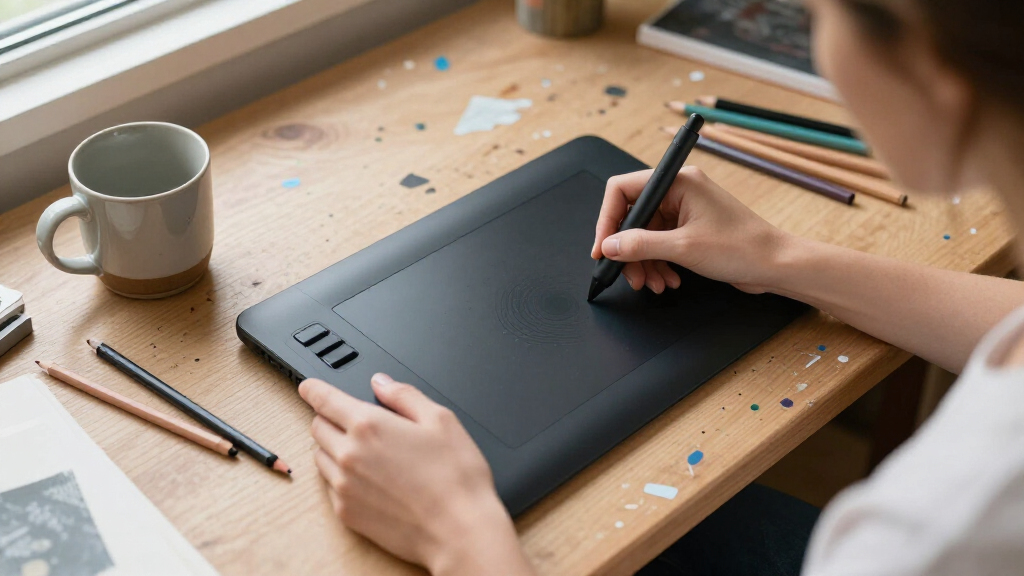
I compared these professional drawing tablets by the work they support, rather than treating every device with a stylus as interchangeable. The main criteria were display size and resolution where applicable, whether a computer is required, portability, pen and shortcut workflow features, and how readily the device can fit a home, studio, or mobile setup. I also weighed usability and practical tradeoffs: a large display can improve workspace comfort but needs more room, while a standalone device offers freedom from a computer but differs from a desktop drawing monitor.
The ranking gives priority to versatility for professional art workflows, then separates specialized choices by their strongest use case. The Artist Pro 16 Gen2 leads for its blend of screen detail, working size, and control features. Larger 21.5-inch displays rank well for desk-based work but are less adaptable, while compact screens and standalone tablets are better for portability or specific setups. Screen-free options are included because they can be capable work tools, though they suit artists who are comfortable drawing away from the display. The exact best fit still depends on software and host-device compatibility, which buyers should check before choosing.
Factors to Consider When Choosing Professional Drawing Tablets
Before choosing a model, I would map the tablet to the conditions you actually draw in: where it will sit, what device runs your software, and how you prefer to control the canvas. These broader tradeoffs can matter more than a long feature list.
Choose Between a Pen Display and a Screen-Free Tablet
A pen display lets you draw directly on the image, which can feel intuitive for sketching, line work, and detailed edits. A screen-free tablet puts the drawing surface on the desk while the image appears on a separate monitor; that hand-eye coordination can take practice, but the device is often easier to position and transport. Do not assume that a professional workflow requires a screen: many artists prefer the posture and separation of a pen tablet. The common mistake is paying for a display when your monitor already provides a comfortable, color-managed workspace. If you have not used a screen-free tablet, allow time to adapt before judging its suitability.
Match Display Size to Your Desk and Drawing Posture
A larger display gives broad gestures more room and can keep tool panels from crowding the canvas, but it also takes more desk space and may encourage a less comfortable viewing angle. A compact screen can fit a laptop setup or smaller workspace, though artists who keep palettes and reference windows open may feel constrained. Measure the usable desk area, including space for a keyboard, before choosing a large display. Also think about whether you draw with the tablet flat, on a stand, or beside a monitor; those positions change how much screen area feels comfortable. A big panel is not automatically an upgrade if it forces awkward posture or leaves too little room for input devices.
Treat Resolution as a Workflow Choice, Not a Quality Shortcut
Higher resolution can make interface elements and fine detail look sharper, especially on a larger screen, but it does not by itself determine the quality of your finished artwork. The benefit depends on panel size, viewing distance, software scaling, and the computer driving the display. A 2.5K screen may be useful when you want a detailed canvas without moving to a very large monitor, while a Full HD panel can still suit a smaller drawing display. Check how your preferred software handles scaling and interface size before deciding that a higher-resolution model is necessary. Buyers can overspend on pixel count while overlooking ergonomics, color workflow, or the computer connection their setup requires.
Decide Whether Standalone Operation Is Worth the Tradeoff
A standalone drawing tablet can reduce cable clutter and let you work away from a desktop, but its software environment, storage, and performance are tied to the device itself. A connected pen display relies on a separate computer, which can give you access to a familiar desktop application setup and existing files. Before choosing a standalone model, confirm that it supports the apps and file-handling habits your work depends on. Check storage needs too if you keep large projects or reference libraries locally. A common mistake is choosing for portability alone, then finding that a preferred desktop workflow is unavailable or inconvenient.
Compare Workflow Controls With Your Actual Shortcuts
Shortcut keys, wheels, dials, and touch controls can reduce repeated trips to a keyboard, but their value depends on whether they match the actions you use every day. Artists who rely on frequent brush-size changes, zooming, undo, or canvas rotation may benefit from physical controls. Others may prefer a full keyboard or a clean surface with fewer controls to learn. Check whether the controls can be assigned in the applications you use, and whether their placement suits your drawing hand. Do not pay extra for controls simply because they sound advanced; a well-mapped keyboard shortcut routine may already be faster for you.
Check Compatibility, Connections, and Ergonomics Before Buying
A drawing display can depend on more than one connection, and the exact requirements vary by model and host device. Verify operating-system support, application compatibility, available video and USB ports, and whether adapters or a suitable stand are needed for your setup. For standalone tablets, confirm app availability and how projects move between devices. Ergonomics matter just as much: consider screen angle, glare, cable routing, desk height, and whether you need room to rest your hand. These checks help avoid a capable tablet becoming awkward to set up or uncomfortable for long sessions.
Frequently Asked Questions
Should I choose a 2.5K pen display or a larger Full HD display?
I would decide based on how you use canvas space, not resolution alone. A 2.5K display can show finer detail and more usable workspace at a comparable size, while a larger Full HD screen may feel more spacious for broad gestures and visible palettes. The Artist Pro 16 Gen2 and Artist Pro 22 Gen 2 represent the 2.5K direction in this lineup; the bigger 21.5-inch class favors a roomier desk setup. Check your viewing distance and software scaling, since tiny interface elements can offset the benefit of extra pixels. If you work mostly with large gestures, physical screen area may matter more than pixel density.
Can I use a pen display without a computer?
Most pen displays in this roundup are designed to connect to a computer rather than run drawing software by themselves. The PicassoTab A10 and XPPen Magic Drawing Pad are the standalone options here, so they make more sense if you need to work without a desktop or laptop. Before buying one, confirm that its available apps support your projects and that its file workflow fits how you deliver or archive work. A connected display may be the better choice if you depend on desktop software, a large project library, or existing computer peripherals. Portability alone does not make a standalone device a replacement for every desktop workflow.
Is a screen-free tablet a reasonable choice for professional work?
Yes, if you are comfortable looking at a monitor while drawing on a separate surface. Screen-free tablets such as the HUION Inspiroy H1060P and XPPen Deco 01 V3 can suit artists who value a simple, light setup or already have a monitor they like. The main adjustment is coordinating hand movement with the cursor on another screen, which may take practice for new users. They also do not provide the direct on-screen feel of the Artist or Kamvas displays. Choose one for its workflow fit, not because it offers the same drawing experience as a pen display.
How large a drawing display should I get for a small desk?
Start by measuring the space left after accounting for your keyboard, mouse, and normal drawing posture. A 21.5-inch display can provide a broad canvas, but it may dominate a compact desk or force you to move other tools. The 12- to 16-inch options are easier to fit into laptop-oriented or shared workspaces, though they leave less room for canvas and interface panels. Include stand placement and cable clearance in your measurements rather than judging by screen diagonal alone. If possible, compare the device’s full footprint with your desk layout before committing to a larger model.
What should I verify before replacing my current drawing tablet?
First check whether your computer has the required connections and supports the tablet’s operating system and driver. Then confirm compatibility with your art software, especially if you rely on custom pen behavior, shortcut mappings, or a particular touch workflow. Compare the new tablet’s active area and screen position with your current setup; a larger device can change posture and reach even when it seems like a clear upgrade. Check how the new model handles cables, stands, and any adapters your desk requires. Replacing a tablet is a good moment to reassess workflow, but a feature upgrade is only useful if it works with the rest of your system.
Conclusion
For the broadest mix of detail, working size, and workflow controls, I recommend the XPPen Artist Pro 16 Gen2 as the best overall. The HUION Inspiroy H1060P or XPPen Deco 01 V3 are the value-oriented picks for artists who want a straightforward screen-free setup, while the XPPen Artist Ultra 16 4K OLED is the premium choice for buyers specifically seeking a high-end OLED touchscreen. Beginners who want to draw directly on a screen can start with a smaller connected display such as the XP-Pen Artist 12 3rd; artists who need to work without a computer should compare the XPPen Magic Drawing Pad and PicassoTab A10. For a large fixed studio workspace, choose between the HUION Kamvas 22 and XPPen Artist Pro 22 (Gen 2) based on your display and workflow needs. My final advice is to pick for your software, desk, and drawing habits first, then pay for premium features only when they solve a real limitation.