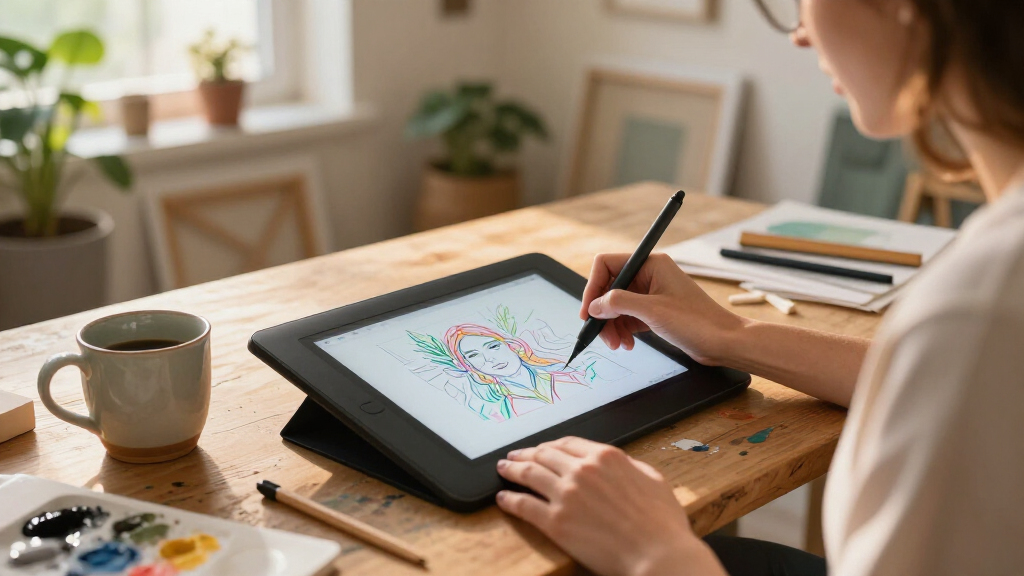
The best digital drawing tablets for artists depend on whether you want to draw directly on a screen, work on a computer-connected pen tablet, or use a standalone device. My best overall pick is the Huion Kamvas 13 (Gen 3), which pairs an on-screen workflow with a pressure-sensitive pen and control dials. The XP-Pen Artist 15.6 Pro V2 gives artists more drawing space, while the Wacom Intuos Small is a simpler, screen-free choice for a compact desk setup. The main tradeoffs are portability, display size, computer dependence, and how much setup you are willing to manage. Read on for the full breakdown of all 15 options and guidance on matching a tablet to your art practice.

Get art and craft supplies delivered free — and shop member deals
- Fast, free delivery on millions of items
- Access to Prime Big Deal Days deals on October 6–7
- Prime Video, Amazon Music and more included
Key Takeaways
- The Kamvas 13 (Gen 3) models lead the screen-based group: their pen features and shortcut controls make them better suited to extended computer-connected drawing than small screen-free tablets.
- Drawing directly on a display is not the same as working standalone: most XP-Pen Artist and Huion Kamvas picks need a connected computer, while the PicassoTab and RubensTab models are designed to work without one.
- The Artist 15.6 Pro V2 favors canvas space over portability, while the Artist 12 models are more compact for desks with limited room.
- Screen-free tablets trade visual immediacy for a smaller, simpler setup: the Wacom Intuos Small is compact, while the H1060P and M708 offer larger active areas and more shortcut controls.
- Several products share closely related names or versions, especially the Artist 13.3 Pro V2 and Kamvas 13 (Gen 3); check the exact model and included controls before choosing.
| PicassoTab X11 11-Inch Standalone Drawing Tablet |  | Best Standalone for Storage-Heavy Projects | Screen: 11-inch LCD, laminated | Resolution: 2560 × 1440 | Processor: Octa-core | VIEW LATEST PRICE | See Our Full Breakdown |
| XP-Pen Artist 13.3 Pro V2 Drawing Tablet with Screen, 16K, Fully Laminated |  | Best Computer-Connected Screen Tablet | Display: 13.3-inch fully laminated screen | Resolution: 1920 × 1080 | Color gamut: 88% NTSC, Adobe RGB ≥ 91%, sRGB ≥ 123% | VIEW LATEST PRICE | See Our Full Breakdown |
| Huion Inspiroy H640P 6×4 Inch Drawing Tablet with 8192 Levels Pen Pressure |  | Best Compact Screenless Tablet | Active area: 6 × 4 inches | Pressure sensitivity: 8192 levels | Resolution: 5080 LPI | VIEW LATEST PRICE | See Our Full Breakdown |
| HUION Inspiroy H1060P Graphics Drawing Tablet, 10 x 6.25 in, 12+16 Hot Keys |  | Best Screenless Tablet for Shortcut Control | Working area: 10 × 6.25 inches | Pressure levels: 8192 | Stylus: Battery-free PW100 with ±60° tilt support | VIEW LATEST PRICE | See Our Full Breakdown |
| PicassoTab A10 10-Inch Standalone Drawing Tablet |  | Best Standalone Tablet for Beginners | Screen: 10-inch laminated LCD | Resolution: 2000 × 1200 | Processor: Octa-core | VIEW LATEST PRICE | See Our Full Breakdown |
| XP-PEN Artist 15.6 Pro V2 16K Drawing Tablet |  | Best Overall for a Spacious Pen Display | Screen size: 15.4 inches | Pressure levels: 16,384 | Color coverage: 99% sRGB, 96% Adobe RGB, 96% Display P3 | VIEW LATEST PRICE | See Our Full Breakdown |
| XP-PEN Artist 12 (3rd Gen) 11.9″ Drawing Tablet with Screen, 16K Resolution, X4 Pen, AG Etched Glass |  | Best Compact Pen Display | Screen size: 11.9 inches | Resolution: 1920 × 1080 Full HD | Weight: 1.58 lb | VIEW LATEST PRICE | See Our Full Breakdown |
| XP-Pen Artist 13.3 Pro V2 Drawing Tablet |  | Best for Color-Focused Illustration | Screen size: 13.3 inches | Resolution: 1920 × 1080 Full HD | Color coverage: 125% sRGB, 107% Adobe RGB, 95% Display P3 | VIEW LATEST PRICE | See Our Full Breakdown |
| Frunsi RubensTab T11 Pro Standalone Drawing Tablet |  | Best Standalone Option | Display: 10.1-inch Full HD IPS | Resolution: 1920 × 1200 | Processor: Octa-core | VIEW LATEST PRICE | See Our Full Breakdown |
| Wacom Intuos Small Wired Drawing Tablet with Pen |  | Best Entry-Level Screenless Tablet | Model: CTL4100 | Connectivity: Wired USB-A | Pen: Battery-free Wacom Pen 4K | VIEW LATEST PRICE | See Our Full Breakdown |
| Huion Kamvas 13 (Gen 3) Drawing Tablet with Screen, 16K Pressure PenTech 4.0 |  | Best Overall for Color-Accurate Drawing | Screen: 13.3 inches | Glass: Full-laminated anti-glare Canvas Glass 2.0 | Pressure sensitivity: 16,384 levels; 2 g initial activation force | VIEW LATEST PRICE | See Our Full Breakdown |
| XP-PEN Artist12 11.6-inch FHD Pen Display Drawing Tablet |  | Best for Beginners | Display: 11.6-inch IPS | Resolution: 1920 × 1080 | Color gamut: 72% NTSC; 100% sRGB | VIEW LATEST PRICE | See Our Full Breakdown |
| HUION Kamvas 13 (Gen 3) Drawing Tablet with Screen, Dual Dial, 13.3″ Black |  | Best for Ergonomic Controls | Screen: 13.3 inches | Display type: Full-lamination Canvas Glass 2.0 | Color gamut: 99% sRGB / Rec.709 | VIEW LATEST PRICE | See Our Full Breakdown |
| XP-Pen Artist 13.3 Pro V2 Drawing Tablet with Screen |  | Best for Multi-Platform Workflows | Display: 13.3-inch Full HD, 1920 × 1080 | Color gamut: 99% sRGB, 89% Adobe RGB, 95% P3 | Pressure sensitivity: 16,384 levels | VIEW LATEST PRICE | See Our Full Breakdown |
| UGEE M708 Drawing Tablet, 10×6 inch Large Space for Digital Drawing |  | Best Value Pen Tablet for a Large Work Area | Active area: 10 × 6 inches | Surface: Papery texture | Stylus: Passive | VIEW LATEST PRICE | See Our Full Breakdown |
| digital drawing tablets for artist | Connectivity | Compatibility | Resolution |
|---|---|---|---|
| PicassoTab X11 11-Inch Standal | Wi-Fi | — | 2560 × 1440 |
| XP-Pen Artist 13.3 Pro V2 Draw | USB-C (3-in-1 cable) | — | 1920 × 1080 |
| Huion Inspiroy H640P 6×4 Inch | — | Windows, macOS, Linux, Android 6.0+ | 5080 LPI |
| HUION Inspiroy H1060P Graphics | Micro USB cable; USB-C adapter required for Mac | Windows 7+, macOS 10.12+, Android 6.0+, Ubuntu Xorg | — |
| PicassoTab A10 10-Inch Standal | Wi-Fi | — | 2000 × 1200 |
| XP-PEN Artist 15.6 Pro V2 16K | HDMI and USB-C via 3-in-1 cable | Windows, macOS, Chrome OS, Linux, Android | — |
| XP-PEN Artist 12 | Single USB-C cable with 3-in-1 multi-interface | Windows, macOS, Android, ChromeOS, Linux, Windows ARM | 1920 × 1080 Full HD |
| XP-Pen Artist 13.3 Pro V2 Draw | — | Windows, macOS, Chrome OS, Android via USB-C, Linux | 1920 × 1080 Full HD |
| Frunsi RubensTab T11 Pro Stand | Wi-Fi | — | 1920 × 1200 |
| Wacom Intuos Small Wired Drawi | Wired USB-A | Mac, Windows, Chromebook, select Android devices | — |
| Huion Kamvas 13 | USB-C; 3-in-1 cable included | Windows 10+, macOS 10.12+, supported Android devices, and Linux Ubuntu 20.04 LTS | — |
| XP-PEN Artist12 11.6-inch FHD | — | Windows 7/8/10/11, macOS 10.10 or later, and Linux | 1920 × 1080 |
| HUION Kamvas 13 | — | — | — |
| XP-Pen Artist 13.3 Pro V2 Draw | Full-featured USB-C; legacy HDMI setup supported with separately sold 3-in-1 cable | Windows, macOS, Chrome OS, Android, and Linux | — |
| UGEE M708 Drawing Tablet | USB to USB-C; adapters included | Windows 7–11, macOS 10.12+, Android 10+, Chrome OS 88+, and Linux | — |
More Details on Our Top Picks
PicassoTab X11 11-Inch Standalone Drawing Tablet
The PicassoTab X11 suits artists who want to sketch away from a computer and keep a larger working library on the device. Its 11-inch laminated 2K screen offers more resolution than the A10’s 2000 × 1200 display, while the 128GB built-in storage gives it more room for apps and files before using expandable storage. Creative apps and tutorials also make it a more guided starting point than the computer-dependent XP-Pen Artist 13.3 Pro V2. The tradeoff is flexibility: that XP-Pen works with several desktop operating systems, while the X11 runs a custom tablet OS whose app options may be more limited. The listed 4096 pressure levels are also below the XP-Pen’s 16,384. I’d choose the X11 for untethered convenience and storage, but not for a desktop-style workflow or if battery runtime is a deciding factor; none is specified.
Pros:- Works without a computer, making it suited to drawing in different locations.
- 11-inch laminated 2560 × 1440 display provides a detailed canvas.
- 128GB storage with expansion up to 1TB supports larger app and file libraries.
- Creative apps, tutorials, and included accessories provide a more guided setup.
Cons:- Custom Graphics Tablet OS may not offer the same app choices or workflow as Windows or macOS.
- 4096 pressure levels are fewer than the XP-Pen Artist 13.3 Pro V2’s 16,384.
- Battery-life information is not provided.
Best for: Artists who want a self-contained drawing device with room for a substantial collection of apps and project files, plus tutorials for learning as they work.
Not ideal for: Artists who rely on a particular desktop drawing program, need broad computer-OS compatibility, or want published battery-life information before buying.
- Screen:11-inch LCD, laminated
- Resolution:2560 × 1440
- Processor:Octa-core
- RAM:6GB
- Storage:128GB, expandable up to 1TB
- Pen pressure:4096 levels
- Operating system:Custom Graphics Tablet OS
- Connectivity:Wi-Fi
- Warranty:1 year
Our verdict“Choose the X11 if you want a standalone tablet with a detailed screen and generous expandable storage, and can work within its custom OS.”
XP-Pen Artist 13.3 Pro V2 Drawing Tablet with Screen, 16K, Fully Laminated
For artists who already draw on a computer and want the image directly beneath the pen, the XP-Pen Artist 13.3 Pro V2 is a stronger fit than the standalone PicassoTab X11. Its fully laminated 13.3-inch screen reduces the visual gap between nib and cursor, and the listed color-gamut coverage supports color-focused work. The battery-free pen adds 16,384 pressure levels and tilt, while the red dial and eight customizable keys put common actions within reach. That control set can make long sessions smoother than using the more portable, screenless Huion Inspiroy H640P. The main compromise is dependence on a computer: this is a pen display, not a self-contained tablet, and its 1920 × 1080 resolution is lower than the X11’s 2K panel. I’d favor it for desktop workflows, not for drawing untethered.
Pros:- Fully laminated 13.3-inch display helps keep the cursor visually close to the pen tip.
- 16,384 pressure levels and tilt support provide fine control over strokes.
- Red dial and eight customizable keys give quick access to repeated actions.
- Compatible with Windows, macOS, Chrome OS, and Linux.
Cons:- Requires a computer connection and cannot run drawing apps on its own.
- 1920 × 1080 resolution is lower than the PicassoTab X11’s 2560 × 1440.
- The screen-and-cable setup is less portable than a small screenless tablet such as the Huion H640P.
Best for: Artists with a compatible computer who want a laminated on-screen canvas, customizable controls, and a pressure-sensitive pen for detailed desktop work.
Not ideal for: People who need a standalone tablet, prefer a higher-resolution display, or want a compact screenless device for travel.
- Display:13.3-inch fully laminated screen
- Resolution:1920 × 1080
- Color gamut:88% NTSC, Adobe RGB ≥ 91%, sRGB ≥ 123%
- Pen pressure:16,384 levels
- Tilt support:Up to 60°
- Stylus:Battery-free
- Controls:Eight customizable keys and red dial
- Connectivity:USB-C (3-in-1 cable)
- Operating system compatibility:Windows 7+, macOS 10.10+, Chrome OS 88+, Linux
Our verdict“Pick the Artist 13.3 Pro V2 for a computer-based workflow where a laminated screen and configurable controls matter more than standalone use.”
Huion Inspiroy H640P 6×4 Inch Drawing Tablet with 8192 Levels Pen Pressure
The Huion Inspiroy H640P is the most compact, screenless choice here: its 6 × 4-inch active area and 0.61-pound weight suit a backpack, small desk, or Android-compatible setup. Unlike the XP-Pen Artist 13.3 Pro V2, it has no display to connect to, so artists draw while looking at a computer or compatible Android screen. That keeps the tablet light and simple, but takes some hand-eye adjustment and offers a much smaller drawing surface than the HUION Inspiroy H1060P’s 10 × 6.25 inches. The battery-free pen, tilt support, and six shortcut keys give it useful control for its size; the 8192 pressure levels are ample on paper, though the XP-Pen’s pen offers more. I’d pick this for portability and a restrained workspace, not for expansive brushwork.
Pros:- Lightweight, 0.61-pound body is easy to carry.
- Battery-free stylus includes tilt support and side buttons.
- Six customizable shortcut keys help speed up common actions.
- Works with Windows, macOS, Linux, and Android 6.0 or later.
Cons:- The 6 × 4-inch active area can feel cramped for large compositions and sweeping strokes.
- No built-in display; drawing requires looking at a connected screen.
- Not compatible with iPhone or iPad.
Best for: Students and mobile artists who need a lightweight screenless tablet for a laptop or compatible Android device and can work comfortably on a small active area.
Not ideal for: Artists who want to draw directly on a display, need a large surface for broad gestures, or use an iPhone or iPad.
- Active area:6 × 4 inches
- Pressure sensitivity:8192 levels
- Resolution:5080 LPI
- Report rate:233 PPS
- Stylus:Battery-free PW100 with tilt and side buttons
- Shortcut keys:Six customizable keys
- Compatibility:Windows, macOS, Linux, Android 6.0+
- Weight:0.61 lb
- Thickness:0.3 inches
Our verdict“Choose the H640P if portability and a small footprint matter more than drawing on-screen or having a generous working area.”
HUION Inspiroy H1060P Graphics Drawing Tablet, 10 x 6.25 in, 12+16 Hot Keys
Artists who prefer a screenless tablet but want more room to draw than the H640P provides should look at the HUION Inspiroy H1060P. Its 10 × 6.25-inch active area is better suited to broad strokes and larger compositions, and its 12 press keys plus 16 soft keys offer far more shortcut customization than the H640P’s six keys. The battery-free pen supports 8192 pressure levels and ±60° tilt, while the symmetrical design can be rotated for left-handed use. Compared with the screen-equipped XP-Pen Artist 13.3 Pro V2, the H1060P costs artists the direct-on-screen drawing experience, but keeps the setup focused on a connected computer or supported Android device. Its connection details deserve a check before buying: Mac use requires a USB-C adapter, and Linux support is limited to Ubuntu Xorg, not Wayland.
Pros:- 10 × 6.25-inch working area gives more room than the H640P for larger gestures.
- Twelve press keys and 16 soft keys provide extensive shortcut customization.
- Battery-free pen supports 8192 pressure levels and ±60° tilt.
- Symmetrical design supports left- and right-handed use through rotation.
Cons:- No display, so artists must watch a connected monitor while drawing.
- Mac connectivity requires a USB-C adapter.
- Linux support is limited to Ubuntu Xorg; Ubuntu Wayland is not supported.
Best for: Desktop artists who prefer a screenless tablet, want a larger drawing area, and will make practical use of many programmable shortcuts.
Not ideal for: Artists who need a built-in display, rely on Ubuntu Wayland, or want simple Mac connectivity without an adapter.
- Working area:10 × 6.25 inches
- Pressure levels:8192
- Stylus:Battery-free PW100 with ±60° tilt support
- Shortcut controls:12 programmable press keys and 16 programmable soft keys
- Connectivity:Micro USB cable; USB-C adapter required for Mac
- Compatibility:Windows 7+, macOS 10.12+, Android 6.0+, Ubuntu Xorg
- Left-handed support:180° rotation via driver
- Warranty:1 year
Our verdict“Choose the H1060P if you want a spacious screenless drawing area and extensive shortcuts, and its connection requirements match your setup.”
PicassoTab A10 10-Inch Standalone Drawing Tablet
The PicassoTab A10 is the approachable standalone pick for artists who want to start drawing without assembling a computer-and-display setup. Its 10-inch laminated screen, included pen, creative apps, and guided tutorials make it more self-contained than the HUION Inspiroy H1060P, which needs a connected screen and computer. Compared with the PicassoTab X11, the A10 runs Android 14 and has a 2000 × 1200 display, but starts with 64GB of storage rather than 128GB. Both support expansion up to 1TB, so the A10 can hold more files over time, though the smaller built-in capacity may call for earlier storage management. The listed pen pressure is 4096 levels, below the XP-Pen Artist 13.3 Pro V2’s 16,384. I’d choose it for guided, untethered drawing, while checking app needs and update support before committing.
Pros:- Standalone design lets artists draw without a computer.
- Laminated 10-inch display reduces the gap between pen tip and image.
- Android 14, creative apps, and guided tutorials suit a self-contained starter setup.
- Storage can be expanded up to 1TB.
Cons:- 64GB built-in storage is half the X11’s 128GB before expansion.
- 4096 pressure levels are fewer than the XP-Pen Artist 13.3 Pro V2’s 16,384.
- Software update support date is unknown.
Best for: Beginners and casual artists who want an Android-based drawing tablet with tutorials, included accessories, and no need to connect a computer.
Not ideal for: Artists who need a high-pressure-level pen, extensive built-in storage, or confirmed long-term software update support.
- Screen:10-inch laminated LCD
- Resolution:2000 × 1200
- Processor:Octa-core
- RAM:6GB
- Storage:64GB, expandable up to 1TB
- Pen pressure:4096 levels
- Operating system:Android 14
- Connectivity:Wi-Fi
- Warranty:1 year
Our verdict“Pick the A10 if you want a guided standalone drawing setup on Android and can accept its lower built-in storage and unspecified update support.”
XP-PEN Artist 15.6 Pro V2 16K Drawing Tablet
The 15.4-inch full-laminated screen gives artists more room for layered compositions and fine detail than the compact XP-PEN Artist 12 (3rd Gen), while its wide color coverage suits illustration and color-focused work. The X3 Pro stylus with 16,384 pressure levels, red dial, and eight customizable keys offer plenty of control for artists who want shortcuts close at hand. Its foldable stand adjusts up to 90 degrees, giving this display a more flexible drawing position than a basic flat setup. The tradeoff is that it must connect to a computer; unlike the standalone Frunsi RubensTab T11 Pro, it cannot serve as an all-in-one portable workstation. At 250 cd/m², the screen is designed for indoor use rather than especially bright environments.
Pros:- 15.4-inch laminated anti-glare display provides a broad drawing area with reduced gap between pen tip and image.
- Wide sRGB, Adobe RGB, and Display P3 coverage supports color-focused illustration work.
- Red dial and eight customizable keys provide quick access to frequent controls.
- Foldable stand offers angle adjustment up to 90 degrees.
Cons:- Requires a connected computer and cannot run drawing apps on its own.
- The included 3-in-1 connection uses HDMI and USB-C, so setup is less simple than a single-cable workflow.
- 250 cd/m² brightness may be limiting in bright rooms.
Best for: Artists who draw at a desk, want a larger workspace than an 11.9- or 13.3-inch pen display, and already have a compatible computer.
Not ideal for: Artists seeking a self-contained tablet for travel or sketching away from a computer; the RubensTab T11 Pro is better suited to that use.
- Screen size:15.4 inches
- Pressure levels:16,384
- Color coverage:99% sRGB, 96% Adobe RGB, 96% Display P3
- Brightness:250 cd/m²
- Contrast ratio:1000:1
- Stand:Foldable, adjustable up to 90 degrees
- Connectivity:HDMI and USB-C via 3-in-1 cable
- Compatibility:Windows, macOS, Chrome OS, Linux, Android
- Warranty:1 year
Our verdict“Choose this for a roomy, shortcut-rich desk display, but pick the RubensTab T11 Pro if working without a computer matters more.”
XP-PEN Artist 12 (3rd Gen) 11.9″ Drawing Tablet with Screen, 16K Resolution, X4 Pen, AG Etched Glass
For artists who value a light kit over a broad canvas, the 1.58-pound Artist 12 (3rd Gen) is easier to carry than the XP-PEN Artist 15.6 Pro V2 and takes up less desk space. Its 11.9-inch Full HD screen is smaller, but the AG etched glass reduces glare and fingerprints, while factory-calibrated 99% sRGB color coverage supports dependable color work. The magnetic X4 pen adds tilt support and 16,384 pressure levels; dual X-Dial wheels make brush-size and zoom changes more direct than reaching for menus. Eight programmable keys add further control. The obvious compromise is canvas room: detailed projects can feel cramped compared with the 13.3-inch XP-Pen Artist 13.3 Pro V2. It also needs a connected device, so portability does not mean standalone operation.
Pros:- Light 1.58-pound design is easier to carry than the larger Artist 15.6 Pro V2.
- AG etched glass reduces glare and fingerprints for a more controlled drawing surface.
- Dual X-Dial wheels speed up brush-size and canvas-zoom adjustments.
- X4 pen supports 16,384 pressure levels and 60-degree tilt.
Cons:- 11.9-inch screen leaves less room for detailed artwork and interface panels.
- Requires connection to a computer or compatible device rather than operating on its own.
- Single USB-C setup depends on a compatible connection and may not suit every workstation.
Best for: Students, traveling illustrators, and artists with limited desk space who want a portable screen tablet for use with a compatible computer or device.
Not ideal for: Artists who routinely work on large, detail-heavy canvases or need a tablet that runs drawing apps independently.
- Screen size:11.9 inches
- Resolution:1920 × 1080 Full HD
- Weight:1.58 lb
- Color coverage:99% sRGB, ΔE<1.5
- Pen pressure:16,384 levels
- Tilt support:60 degrees
- Controls:Dual X-Dial wheels and 8 programmable keys
- Connectivity:Single USB-C cable with 3-in-1 multi-interface
- Compatibility:Windows, macOS, Android, ChromeOS, Linux, Windows ARM
Our verdict“Choose this when portability and tactile screen glass matter more than the larger workspace of the Artist 13.3 Pro V2.”
XP-Pen Artist 13.3 Pro V2 Drawing Tablet
The 13.3-inch Full HD display is a practical middle ground between the portable Artist 12 (3rd Gen) and the roomier Artist 15.6 Pro V2. Its standout is the unusually broad stated gamut—125% sRGB, 107% Adobe RGB, and 95% Display P3—which gives color-focused illustrators a strong on-screen palette. Full-laminated AG glass helps reduce glare and the apparent gap between the pen tip and cursor, while the battery-free X3 Pro pen and 16,384 pressure levels support controlled strokes without pen charging. The red dial and eight customizable keys make frequent adjustments easier than menu-driven workflows. Compared with the Artist 12, this model has more drawing space, but it is less focused on portability; like the Artist 15.6 Pro V2, it cannot work without a connected device.
Pros:- 13.3-inch laminated AG screen offers more working room than the Artist 12 (3rd Gen).
- Broad stated sRGB, Adobe RGB, and Display P3 coverage suits color-focused artwork.
- Battery-free X3 Pro pen offers 16,384 pressure levels.
- Red dial and eight customizable keys keep common drawing controls accessible.
Cons:- Requires a connected computer or compatible device; it is not standalone.
- Full HD resolution across 13.3 inches offers less pixel density than a higher-resolution display of similar size.
- Its 250 cd/m² brightness may be less comfortable in strongly lit workspaces.
Best for: Digital illustrators and color-conscious artists who want a mid-size pen display with broad stated color coverage and physical shortcut controls.
Not ideal for: Artists who need a standalone tablet or prioritize a very light, compact travel setup; the Artist 12 (3rd Gen) is smaller to carry.
- Screen size:13.3 inches
- Resolution:1920 × 1080 Full HD
- Color coverage:125% sRGB, 107% Adobe RGB, 95% Display P3
- Brightness:250 cd/m²
- Contrast ratio:1000:1
- Pressure levels:16,384
- Stylus:Battery-free X3 Pro Pen
- Included accessories:Stand, USB-C cable, power adapter, cleaning cloth, drawing glove, pen holder with replacement nibs
- Compatibility:Windows, macOS, Chrome OS, Android via USB-C, Linux
Our verdict“Pick this over the Artist 12 for more canvas space and broad color coverage, provided you are comfortable drawing while tethered to another device.”
Frunsi RubensTab T11 Pro Standalone Drawing Tablet
The RubensTab T11 Pro runs drawing apps without a computer, which sets it apart from all three XP-PEN pen displays in this group. For sketching away from a desk, classroom notes, or casual drawing, the included apps, Wi-Fi, stand case, and battery-free pen make it a more self-contained kit than the Artist 13.3 Pro V2. Its 10.1-inch Full HD IPS display is compact, though smaller than the XP-PEN Artist 12 (3rd Gen), and the stated battery life of up to five hours makes long sessions away from an outlet difficult. The standalone design trades the desk-display workflow and shortcut controls of the larger XP-PEN models for independence and convenience. It makes the most sense for mobile, flexible use, not artists who want a large canvas or a computer-based studio setup.
Pros:- Runs drawing apps independently, unlike the XP-PEN Artist 13.3 Pro V2 and other connected pen displays.
- Full HD IPS touchscreen supports drawing and general tablet use.
- Includes a battery-free pen, stand case, gloves, and cleaning cloth.
- Wi-Fi and included apps support drawing and note-taking away from a computer.
Cons:- Battery life is rated for up to five hours, limiting longer sessions away from power.
- The 10.1-inch display provides less canvas room than the XP-PEN Artist 12 (3rd Gen).
- The supplied specs do not state pen pressure levels or color-gamut coverage, leaving less detail for judging drawing and color performance.
Best for: Beginners, students, and casual sketchers who want drawing apps on a self-contained tablet for travel, notes, or classroom work.
Not ideal for: Artists who need a large work surface, extended unplugged sessions, or a pen display tied into a computer-based studio workflow.
- Display:10.1-inch Full HD IPS
- Resolution:1920 × 1200
- Processor:Octa-core
- Battery capacity:5800 mAh
- Battery life:Up to 5 hours
- Charging:USB-C
- Pen:Battery-free pressure-sensitive pen
- Connectivity:Wi-Fi
- Included accessories:Digital pen, stylus, gloves, cleaning cloth, adjustable stand case
Our verdict“Choose the RubensTab T11 Pro for independent, portable drawing, but favor an XP-PEN pen display for a larger computer-based workspace.”
Wacom Intuos Small Wired Drawing Tablet with Pen
The Wacom Intuos Small takes a different approach from the XP-PEN Artist displays: it has no screen, so artwork appears on a connected computer or compatible device while the pen moves across the tablet surface. That split view can take adjustment, but it also makes this a compact choice for drawing, photo editing, and learning digital workflows without buying a display tablet. Its battery-free Wacom Pen 4K and four ExpressKeys cover core input needs, while software access and online training give beginners a starting point. Compared with the standalone Frunsi RubensTab T11 Pro, the Intuos depends on another device; compared with the Artist 12, it has no on-table display to draw directly on. Its small active area and wired USB-A connection are the main limits for larger gestures and flexible placement.
Pros:- Battery-free Wacom Pen 4K avoids charging the stylus.
- Four ExpressKeys provide quick access to common shortcuts.
- Works with Mac, Windows, Chromebook, and select Android devices.
- Includes access to creative software and online training.
Cons:- No built-in display; artists must watch the connected device while drawing on the tablet.
- Small active area can constrain broad gestures and detailed workflows.
- Wired USB-A connection limits placement and requires a compatible port or adapter.
Best for: New digital artists and photo editors who already have a compatible computer and want a compact, screenless tablet for learning or everyday creative work.
Not ideal for: Artists who want to draw directly on a display, work untethered, or need a large active area for sweeping strokes.
- Model:CTL4100
- Connectivity:Wired USB-A
- Pen:Battery-free Wacom Pen 4K
- Shortcut keys:4 ExpressKeys
- Compatibility:Mac, Windows, Chromebook, select Android devices
- Included accessories:USB-A cable, 3 replacement nibs, nib removal tool, quick start guide
- Software and learning:Creative software access and online training
- Warranty:1 year manufacturer warranty
Our verdict“Choose the Intuos Small for a compact, screenless start on a compatible computer, but pick an XP-PEN display if drawing directly on-screen is a priority.”
Huion Kamvas 13 (Gen 3) Drawing Tablet with Screen, 16K Pressure PenTech 4.0
The Kamvas 13 (Gen 3) is the strongest all-rounder here for artists who want a compact display without giving up color control. Its factory-calibrated screen covers 99% sRGB, while the full-laminated anti-glare glass keeps the pen tip visually close to the stroke. Compared with the smaller XP-PEN Artist12, its 13.3-inch workspace gives palettes and reference images more room; the 16,384-level pen input also offers finer pressure gradation than that model’s 8,192 levels. Dual dials and shortcut keys help reduce menu trips while drawing. The tradeoff is that this is still a computer-dependent pen display, not a portable standalone tablet, and its 865 g body is less convenient to carry than a bare pen tablet such as the UGEE M708.
Pros:- Factory-calibrated color with 99% sRGB coverage and ΔE < 1.5
- Full-laminated anti-glare glass reduces the visible gap between pen tip and cursor
- PenTech 4.0 offers 16,384 pressure levels and tilt support
- Dual dials and shortcut keys provide quick access to common drawing controls
Cons:- Requires a compatible computer or connected device to run drawing software
- The 13.3-inch screen gives less room for artwork and interface panels than larger displays
- Single-year warranty is shorter than the UGEE M708’s stated two-year warranty
Best for: Digital illustrators who want a portable 13.3-inch display, accurate sRGB color, and tactile controls for a laptop-based workflow.
Not ideal for: Artists who need a tablet that runs drawing apps on its own or who want a large desktop canvas.
- Screen:13.3 inches
- Glass:Full-laminated anti-glare Canvas Glass 2.0
- Pressure sensitivity:16,384 levels; 2 g initial activation force
- Color coverage:99% sRGB / Rec.709; 90% Adobe RGB
- Color accuracy:Factory calibrated, ΔE < 1.5
- Weight and thickness:865 g; 11.7 mm
- Connectivity:USB-C; 3-in-1 cable included
- Compatibility:Windows 10+, macOS 10.12+, supported Android devices, and Linux Ubuntu 20.04 LTS
Our verdict“Choose the Kamvas 13 Gen 3 if you want a compact, color-conscious pen display with more screen and pen refinement than the XP-PEN Artist12.”
XP-PEN Artist12 11.6-inch FHD Pen Display Drawing Tablet
The XP-PEN Artist12 is a straightforward first pen display: its 11.6-inch Full HD screen lets beginners draw directly on their work, while six shortcut keys and a touch bar put common actions within reach. The battery-free stylus has an eraser and 8,192 pressure levels, enough for learning line weight and brush control without managing pen charging. Compared with the Huion Kamvas 13 (Gen 3), the Artist12 has a smaller screen and half the listed pressure levels, so it gives less workspace and less headroom for nuanced input. Its practical advantage is a simple, compact setup with 100% sRGB coverage. The main constraint is connection: it needs a computer and HDMI plus USB-A, or a suitable adapter, which can make a newer USB-C-only laptop awkward.
Pros:- 11.6-inch Full HD IPS display provides a direct-on-screen drawing workflow
- Battery-free stylus includes an eraser and 8,192 pressure levels
- Six customizable shortcut keys and a programmable touch bar support quick edits
- 100% sRGB color gamut suits general illustration and screen-based artwork
Cons:- Smaller display offers less room for artwork and software panels than the 13.3-inch models
- Requires a computer and HDMI/USB-A ports or an appropriate adapter
- Lower listed pressure sensitivity than the Huion Kamvas 13 Gen 3 and XP-Pen Artist 13.3 Pro V2
Best for: New digital artists who want an affordable-feeling, compact screen workflow with physical shortcuts and a simple battery-free pen.
Not ideal for: Artists seeking a larger workspace, high-end pen sensitivity, or a tidy one-cable connection to a modern laptop.
- Display:11.6-inch IPS
- Resolution:1920 × 1080
- Color gamut:72% NTSC; 100% sRGB
- Stylus:Battery-free stylus with eraser
- Pressure sensitivity:8,192 levels
- Controls:Six customizable shortcut keys and programmable touch bar
- Connection:Computer required; HDMI and USB-A ports or suitable adapter
- Compatibility:Windows 7/8/10/11, macOS 10.10 or later, and Linux
Our verdict“Pick the Artist12 as a compact entry point if you want a screen-based drawing setup and can accommodate its computer and port requirements.”
HUION Kamvas 13 (Gen 3) Drawing Tablet with Screen, Dual Dial, 13.3″ Black
This Kamvas 13 Gen 3 configuration is a particularly appealing fit for artists who value a comfortable drawing angle and hands-on controls. It pairs a 13.3-inch laminated Canvas Glass 2.0 display with an adjustable ST300 stand, five programmable keys, and a dual dial, so zooming or changing brush size can be easier than reaching for keyboard shortcuts. Its 16,384-level pen and 99% sRGB coverage put it in the same broad performance class as the XP-Pen Artist 13.3 Pro V2; the latter lists a wider P3 gamut and more shortcut keys, while this Huion includes the stand in its described package. The screen resolution is not specified in the supplied data, making direct sharpness comparisons difficult. Like the other pen displays here, it needs a connected computer or compatible device.
Pros:- ST300 adjustable stand supports more comfortable drawing angles
- 16,384 pressure levels and tilt support suit varied brush strokes
- Five programmable keys and dual dial provide direct workflow controls
- 99% sRGB coverage with factory calibration supports consistent color work
Cons:- Requires a connected computer or compatible device to run drawing apps
- Resolution is not specified in the supplied product data
- The XP-Pen Artist 13.3 Pro V2 lists eight shortcut keys, giving it more dedicated buttons
Best for: Laptop-based illustrators who want an adjustable stand and dial controls included for a more ergonomic desk setup.
Not ideal for: Artists who need confirmed screen-resolution details, standalone operation, or a larger display for complex interface layouts.
- Screen:13.3 inches
- Display type:Full-lamination Canvas Glass 2.0
- Color gamut:99% sRGB / Rec.709
- Pressure sensitivity:16,384 levels
- Pen:Three side buttons; tilt support
- Controls:Five programmable keys and dual dial
- Stand:Adjustable ST300
- Connectivity and compatibility:USB-C; Windows 10+, macOS 10.12+, supported Android devices, and Linux Ubuntu 20.04+
Our verdict“Choose this Kamvas configuration if an included adjustable stand and dual-dial workflow matter more than extra shortcut keys or a specified resolution.”
XP-Pen Artist 13.3 Pro V2 Drawing Tablet with Screen
The Artist 13.3 Pro V2 suits artists who want a capable screen tablet and expect to move between different operating systems. Its 13.3-inch Full HD display combines full lamination with a listed 99% sRGB, 89% Adobe RGB, and 95% P3 gamut, while the battery-free X3 Pro stylus supports 16,384 pressure levels. Eight shortcut keys and a red dial give it more dedicated controls than the Huion Kamvas 13 Gen 3 configuration with five keys, though Huion lists 90% Adobe RGB coverage and factory calibration details. The XP-Pen includes a foldable stand, which helps with desk positioning. Connection flexibility has limits: direct USB-C needs a compatible USB 3.1 DP 1.2 port, and HDMI setups require a separately sold 3-in-1 cable.
Pros:- 13.3-inch Full HD laminated screen reduces the apparent gap between stylus and cursor
- 16,384-level battery-free stylus includes a built-in eraser
- Eight customizable keys and a red dial support hands-on adjustments
- Foldable stand and broad listed operating-system compatibility add setup flexibility
Cons:- Cannot run drawing software without a computer or compatible connected device
- HDMI setup requires a separately sold 3-in-1 cable
- Direct USB-C connection needs a compatible USB 3.1 DP 1.2 port
Best for: Artists who use compatible Windows, macOS, Chrome OS, Android, or Linux devices and want a compact display with extensive shortcut controls.
Not ideal for: Buyers who need a standalone tablet, lack a compatible video-capable USB-C port, or want every connection cable included for HDMI use.
- Display:13.3-inch Full HD, 1920 × 1080
- Color gamut:99% sRGB, 89% Adobe RGB, 95% P3
- Pressure sensitivity:16,384 levels
- Stylus:Battery-free X3 Pro smart chip stylus with eraser
- Controls:Eight customizable keys and red dial roller
- Connectivity:Full-featured USB-C; legacy HDMI setup supported with separately sold 3-in-1 cable
- Included accessories:Foldable stand, pen holder with replacement nibs, artist glove, cables, and power adapter
- Compatibility:Windows, macOS, Chrome OS, Android, and Linux
Our verdict“Choose the Artist 13.3 Pro V2 if you want more shortcut controls and broad device compatibility, provided your ports and cable setup match.”
UGEE M708 Drawing Tablet, 10×6 inch Large Space for Digital Drawing
The UGEE M708 V3 takes a different route from the screen-based Huion and XP-Pen options: it gives artists a 10 × 6-inch active area but leaves the artwork on a separate monitor. That layout can suit illustrators who prefer a broad hand movement area and do not need to look directly beneath the pen. Its papery surface and passive stylus with 16,384 pressure levels make it well equipped for sketching, while eight customizable side keys provide quick access to common actions. Compared with the Huion Kamvas 13 Gen 3, it lacks a display, tilt support, and the direct-on-screen feel, but it avoids dedicating desk space to a pen display. The tablet also works across several operating systems, though its passive pen may feel less capable for nuanced brush control.
Pros:- 10 × 6-inch active area offers more drawing room than small-format pen tablets
- Papery surface texture gives the working area a tactile drawing feel
- Passive stylus supports 16,384 pressure levels without pen charging
- Eight customizable side keys and broad operating-system support suit varied workflows
Cons:- No built-in display, so artists must look at a separate monitor while drawing
- Stylus lacks tilt support and may feel less responsive than the display models’ pens
- Requires a connected computer or compatible device and cannot run drawing apps alone
Best for: Artists who already have a monitor and want a generous drawing surface with programmable controls for illustration or retouching.
Not ideal for: Beginners who need to draw directly on a screen, artists who rely on pen tilt, or anyone seeking a standalone device.
- Active area:10 × 6 inches
- Surface:Papery texture
- Stylus:Passive
- Pressure sensitivity:16,384 levels
- Express keys:Eight customizable side keys
- Connectivity:USB to USB-C; adapters included
- Compatibility:Windows 7–11, macOS 10.12+, Android 10+, Chrome OS 88+, and Linux
- Warranty:Two years
Our verdict“Pick the UGEE M708 if you want a large, screenless drawing surface and already have a monitor, rather than paying desk space for a pen display.”
How We Picked
I ranked these tablets around the jobs artists actually need them to do: sketching comfortably, controlling line weight, working with a display or screen-free surface, and fitting the device into a home or mobile setup. I gave weight to the drawing area, pen pressure features, shortcut controls, display-related features where listed, and whether the tablet needs a separate computer. Build and setup demands also matter because a tablet that creates friction in an artist’s routine may be a poor fit even if its specification sheet looks strong.
The order favors versatility for a broad range of digital artists, then separates options by their strongest use case. Screen displays rank well when they offer a balanced drawing workspace and useful controls; standalone tablets earn consideration for reducing computer dependence. Compact and screen-free models rank lower for all-purpose drawing, but can be the smarter pick for portability, limited desk space, or a lower-complexity workflow. I also distinguish near-duplicate listings by the features stated for each version rather than treating similar names as proof that they are identical.
Factors to Consider When Choosing Digital Drawing Tablets For Artists
Before choosing a tablet, decide how you want to draw and where the rest of your workflow will happen. A display, a screen-free surface, and a standalone tablet solve different problems; specs alone will not tell you which one feels right for your routine.
Choose Between a Display, a Screen-Free Tablet, and Standalone
A pen display lets you draw where you see the marks, which can feel direct for sketching and painting, but most models still need a computer and drawing software. A screen-free tablet sends pen movement to a separate monitor, so it takes practice to coordinate your hand and eyes; in return, it can use less desk space and keep the drawing surface simple. Standalone tablets reduce dependence on a computer, but they may ask you to adapt to their operating system, apps, or file workflow. A common mistake is buying a display when the real need is portability, or choosing a standalone model without checking whether it supports the apps you rely on. Start with where your files, software, and finished work need to live.
Match the Active Area to Your Drawing Style
The tablet’s active area affects how much arm movement you use and how closely its scale matches your monitor or display. A small surface can suit quick edits, notes, and compact workstations, but detailed illustration may feel cramped if you prefer broad strokes. A larger drawing area gives more room for gestures, though it can take up more desk space and require more sweeping hand movement. With pen displays, distinguish the screen’s diagonal measurement from the usable drawing area and account for the stand and cables around it. If possible, compare the tablet’s dimensions with your current workspace rather than choosing by a model number alone. Artists who zoom and pan frequently may need less physical area than those who work with large, uninterrupted strokes.
Read Pen Specifications as Part of a Whole System
Pressure sensitivity can help vary line weight and brush response, but a larger number by itself does not guarantee a more natural drawing experience. Pen feel also depends on software settings, nib behavior, calibration, and how the tablet handles tilt or other inputs. Check whether the listed pen features match your art program and whether replacement nibs or a spare pen are available for the exact model. A common buying mistake is prioritizing pressure levels while overlooking driver support or compatibility with a preferred operating system. Artists who rely on delicate inking should also think about how easily they can adjust pressure curves and stabilize strokes. A well-supported pen workflow matters more than a specification viewed in isolation.
Count Shortcuts Only If They Fit Your Habits
Express keys and dials can speed up zooming, undoing, brush sizing, and canvas rotation, but they are useful only when they can be mapped to actions you actually use. A large button count may add little if the placement is awkward or the controls require frequent remapping. Before paying extra for hardware controls, list the commands you reach for most often and check whether the tablet can assign them in your software. Artists who already use a keyboard or a custom controller may prefer a cleaner surface rather than duplicate controls. For long sessions, a dial can be more convenient than repeatedly reaching for a keyboard, but its value depends on the applications in your workflow. Treat shortcuts as a fit question, not a competition in button totals.
Plan for Connections, Drivers, and Desk Setup
A computer-connected display can require more cable management and setup than a screen-free tablet, and the exact connection options vary by model and computer. Check the manufacturer’s compatibility information for your operating system, ports, and drawing software before ordering; adapters do not always solve every connection or display issue. Also leave room for a stand, charging or power connections where applicable, and a comfortable cable route. Artists who move between locations should weigh packed size and setup time, not just the tablet’s stated dimensions. Driver installation and calibration can affect day-to-day usability, so look for current support for your computer and software. A device that fits your existing workspace may serve you better than a larger model that forces a desk rearrangement.
Decide Where Paying More Adds Real Value
Spend more when a specific feature will change how you work: a larger display can reduce constant zooming, a standalone design can free you from a computer, and useful controls may shorten repetitive tasks. Extra technical specifications are less valuable if your current workflow does not use them. Beginners often benefit more from software compatibility, a manageable drawing area, and a comfortable pen than from advanced controls they have not learned to use. Artists with an established setup should focus on the bottleneck they want to remove, such as limited canvas space or computer dependence. Avoid choosing by brand or feature count alone; compare the total setup, including software, cables, stands, and replacement supplies. The best fit is the one that supports your current practice without adding unnecessary complexity.
Frequently Asked Questions
Should I buy a pen display or a standalone drawing tablet?
Choose a pen display if you already work on a computer and want to draw directly on the image you see. A standalone tablet makes more sense if you want to sketch without keeping a computer connected, though you should check its software, file handling, and compatibility with your preferred apps. The PicassoTab X11, PicassoTab A10, and Frunsi RubensTab T11 Pro are the standalone options in this roundup; the XP-Pen Artist and Huion Kamvas models are computer-connected displays. Neither category is automatically better for illustration. Base the decision on where you want to run your software and how you plan to move finished work to other devices.
Is a screen-free tablet a poor choice for learning digital drawing?
No. A screen-free tablet can be a sensible starting point, especially if you have limited desk space or prefer a direct, uncomplicated device. The main adjustment is coordinating the hand on the tablet with the image on a separate monitor, which may take practice if you are used to drawing on paper. The Wacom Intuos Small is the compact choice here, while the Huion H1060P and UGEE M708 provide larger active areas. If you expect drawing directly on a screen to make the learning process easier, a pen display may feel more familiar. Consider whether the extra display setup is worth it for your space and computer.
Do I need 16K pressure sensitivity for professional illustration?
Not by itself. A high pressure-sensitivity specification can be useful, but it does not determine how natural the pen feels or how well it behaves in your chosen software. Drivers, calibration, pressure-curve settings, and the pen’s physical feel all affect drawing control. Several XP-Pen Artist and Huion Kamvas models in this roundup list 16K pressure features, but their overall fit still depends on display size, controls, and setup. If you already have a tablet, try adjusting its pressure curve before replacing it just for a higher number. Artists choosing a first device should prioritize compatibility and comfortable use alongside the pen specification.
How do I choose between the similarly named XP-Pen Artist 12 and Artist 13.3 models?
Start by checking the exact generation and listing, since this roundup includes several Artist 12 and Artist 13.3 variants with different stated features. The Artist 12 (3rd Gen) listing specifies a 16K pen and AG etched glass, while the XP-PEN Artist12 11.6-inch listing is described as an FHD pen display. The Artist 13.3 Pro V2 listings also appear more than once, so confirm the precise version, included accessories, and compatibility details before choosing. Then compare the drawing area with your desk and the software you plan to use. Do not assume that similar product names mean identical hardware or bundles.
When is a larger pen display worth choosing over a compact one?
A larger display can give you more room for gestures and reduce the need to zoom and pan during detailed work, particularly if you use broad strokes or keep several interface panels open. The Artist 15.6 Pro V2 is the larger-display option among the listed XP-Pen Artist models, while the Artist 12 and 13.3-inch choices suit tighter desks. The tradeoff is a bigger footprint and a less convenient setup for frequent travel. Think about how much of your screen your canvas occupies and whether your current workspace can accommodate the device and its stand. If you work mostly with close-up edits, a larger display may add less value than it would for full-canvas drawing.
Conclusion
For most computer-based illustrators, I would start with the Huion Kamvas 13 (Gen 3) as the best overall balance of screen drawing and pen controls. The Huion Inspiroy H640P is my best value-style pick for artists who want a compact, screen-free tablet, while the XP-PEN Artist 15.6 Pro V2 is the best premium-style choice for those who want more display area. Beginners who want to avoid a computer connection should look at the PicassoTab A10 or PicassoTab X11; those who prefer a computer workflow can start with the Wacom Intuos Small. For specific needs, choose the UGEE M708 or Huion H1060P for a larger screen-free surface, or the Frunsi RubensTab T11 Pro if standalone drawing is your priority. Confirm the exact model, software support, and connection requirements before deciding.
Fall Picks
fall essentials
As an affiliate, we earn on qualifying purchases.