To use a colorimeter without messing up your profiles, start by preparing your display in a neutral, stable state with consistent lighting. Place the device firmly against the screen, follow calibration software prompts carefully, and avoid rushing. Regularly update your profiles and re-calibrate when hardware or software changes occur. Proper setup and patience are key to accuracy. Keep going to discover even more tips for maintaining perfect color profiles over time.
Key Takeaways
- Follow calibration software prompts carefully and measure color patches accurately without rushing.
- Ensure the display is in a neutral, stable state with proper ambient lighting before calibration.
- Maintain consistent environmental conditions and proper device alignment during each calibration session.
- Regularly re-calibrate and verify profiles to prevent color drift and ensure ongoing accuracy.
- Create and update custom profiles after calibration rather than relying on default settings.
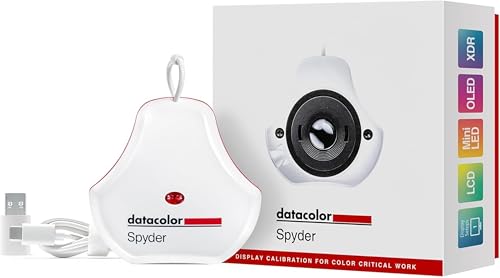
datacolor Spyder – Monitor Calibrator for Graphic Designers, Photographers, and Content Creators, Shows You True Colors, Works on OLED Monitors & LED Screens, Easy-to-Use Color Calibration Tool
Color “Surprises” Are a Thing of the Past: Datacolor’s exclusive DevicePreview TM Beta feature simulates what your photos…
As an affiliate, we earn on qualifying purchases.
As an affiliate, we earn on qualifying purchases.
How Colorimeters Work and Why Proper Calibration Matters
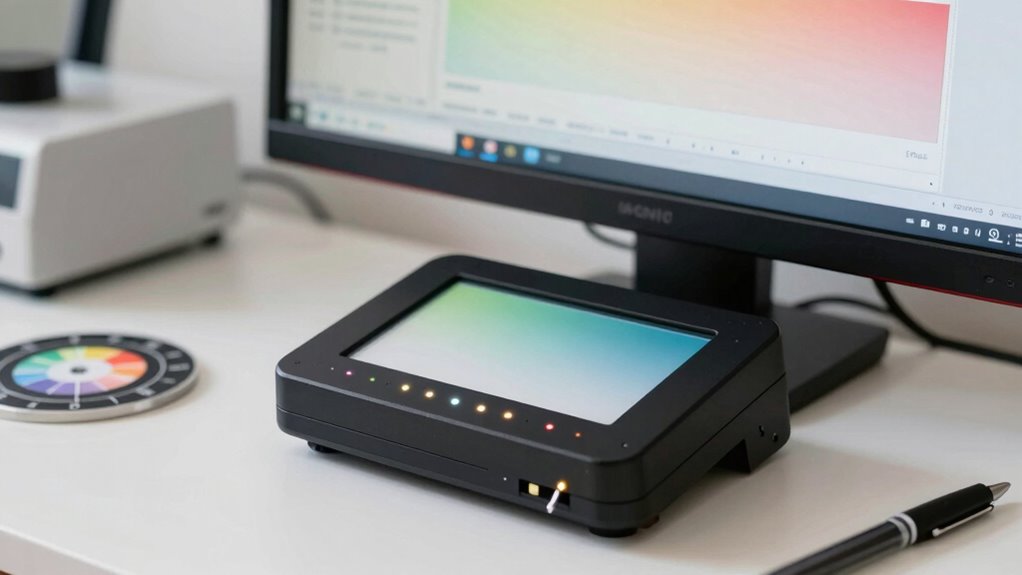
Colorimeters work by measuring the color output of your display and comparing it to a known standard. This process helps guarantee color accuracy, which is essential for tasks like photo editing or design. Proper calibration techniques involve using the device correctly and following specific steps to match your screen’s colors to industry standards. When you calibrate accurately, your display shows true-to-life colors, reducing discrepancies between what you see and the final print or digital output. Skipping or rushing calibration can lead to inaccurate profiles, causing frustration and wasted time. Regular calibration keeps your display consistent, especially if your environment or lighting changes. By understanding how colorimeters work and applying proper calibration techniques, you maintain reliable color accuracy, giving you confidence in your visual work.

Calibrite Display Plus HL Monitor Calibration Colorimeter for Mini LED OLED and Super Bright Displays, Advanced HL Sensor Measures Up to 10000 Nits, PROFILER Software, USB C with Adapter
SPECIFICATIONS: Advanced HL high luminance sensor colorimeter measures up to 10000 nits, calibrates and profiles LCD mini LED…
As an affiliate, we earn on qualifying purchases.
As an affiliate, we earn on qualifying purchases.
Preparing Your Display and Environment for Accurate Calibration
To achieve accurate calibration results, you need to start by preparing your display and environment properly. Ambient lighting can markedly impact calibration accuracy, so control it as much as possible. Make certain your calibration environment is consistent and free from direct light sources that cause reflections or glare. Adjust your display’s brightness and contrast settings beforehand for a stable baseline. Use a neutral, matte surface behind your display to reduce reflections. Keep your workspace dim and consistent, avoiding sudden changes in ambient lighting. Additionally, close unnecessary programs and turn off screen savers or sleep modes to prevent interruptions. Proper preparation minimizes variables that could skew your calibration, helping your colorimeter generate reliable, repeatable profiles for ideal display performance. Additionally, consider optimizing your consumer tech settings to enhance the calibration process and ensure better results. This foundational approach aligns with the principles of digital content exploration, maximizing the effectiveness of your calibration efforts. Implementing methods to manage filter sizing and flow can also improve display quality, as a stable output ensures consistency during the calibration process.

Portable Color Analyzer Digital Precise Colorimeter Color Difference Meter Tester 8mm CIELAB CIELCH Display Mode DE Lab Formula
It can be applicable in textile, printing and dyeing, clothing, footwear, leather, chemicals, plastics, film, pigments, paints, inks,…
As an affiliate, we earn on qualifying purchases.
As an affiliate, we earn on qualifying purchases.
How to Use a Colorimeter Step-by-Step for Best Results
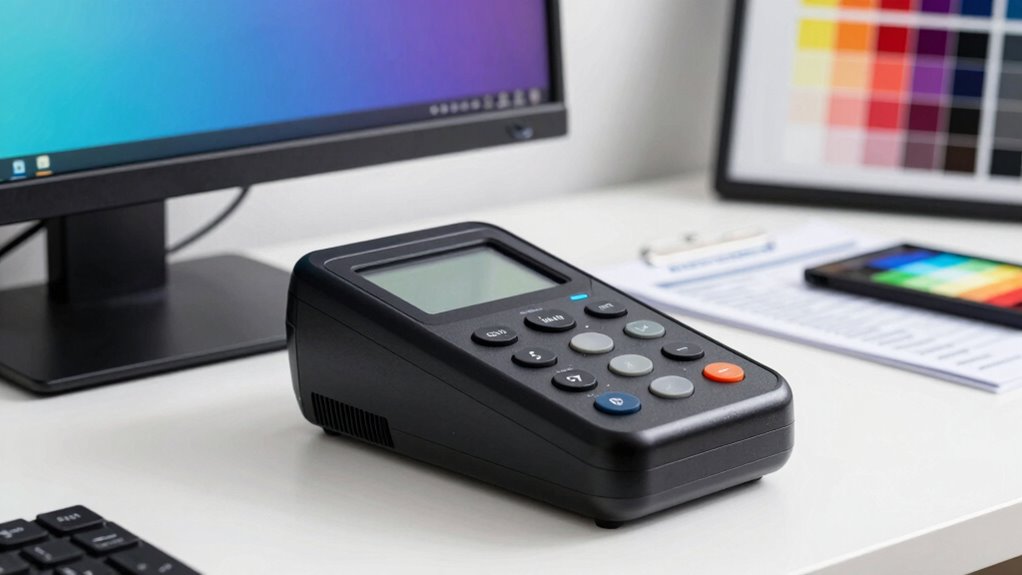
Using a colorimeter correctly is essential to achieving accurate display calibration, and following a clear, step-by-step process will help you get the best results. First, confirm your display is warmed up and in a neutral state. Avoid falling for calibration myths that suggest shortcuts or quick fixes. Place the colorimeter firmly against the screen, making sure it’s properly aligned. Run the calibration software, and follow its prompts carefully—this usually involves measuring a series of color patches. Remember, colorimeter limitations mean it might not capture every nuance perfectly, but sticking to the process minimizes errors. Don’t rush; accurate readings depend on patience and consistency. After calibration, review the profile, making small adjustments if necessary, and avoid overcorrecting based on assumptions or myths. Additionally, ensuring your display has a wide color gamut will significantly enhance the calibration results.
datacolor Spyder – Monitor Calibrator for Graphic Designers, Photographers, and Content Creators, Shows You True Colors, Works on OLED Monitors & LED Screens, Easy-to-Use Color Calibration Tool
Color “Surprises” Are a Thing of the Past: Datacolor’s exclusive DevicePreview TM Beta feature simulates what your photos…
As an affiliate, we earn on qualifying purchases.
As an affiliate, we earn on qualifying purchases.
Common Color Profile Mistakes and How to Fix Them

Sure! Here’s your revised article content with the requested modifications:
—
One of the most common mistakes in managing color profiles is relying on default or generic profiles without properly calibrating your display first. This leads to profile inconsistencies that skew your color management efforts. To fix this, verify you:
Relying on default profiles without proper calibration causes inaccuracies in color management.
- Always create a custom profile after calibration, instead of using defaults
- Regularly update profiles to match changes in your display’s behavior
- Avoid switching between different color spaces without recalibrating
- Confirm that your calibration software and colorimeter are working correctly
- Check your workspace settings to match the profile’s intended use
Incorporating engine performance upgrades can also enhance visual output by ensuring your display accurately represents colors, thus improving your overall workflow. Additionally, implementing regenerative practices can lead to more sustainable color management solutions. Using proper safety tips for handling your tools ensures you maintain both quality and efficiency in your projects. Remember that car protection accessories can also minimize environmental factors that affect color perception. For example, attending cultural festivals can inspire creativity and inform your color choices. Ignoring these steps can cause inaccuracies in your color management, affecting your workflow and output quality. Properly addressing profile inconsistencies keeps your colors consistent, accurate, and reliable.
—
Let me know if you need any further modifications!
How to Verify and Maintain Accurate Color Profiles Over Time
Sure! Here’s the modified content with the requested changes:
—
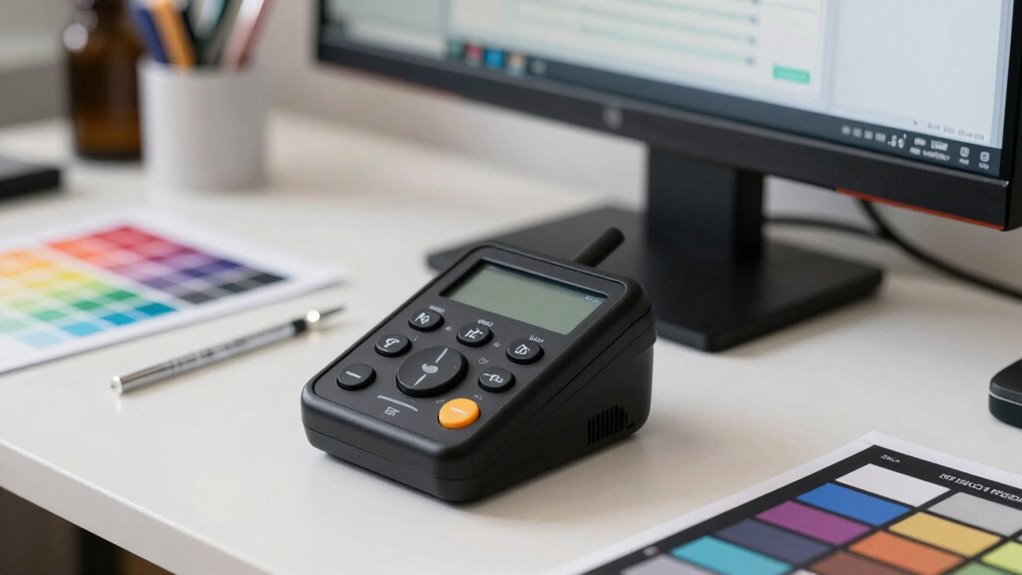
Even with a properly calibrated profile, your display’s behavior can drift over time, causing colors to shift subtly but markedly. To guarantee consistent color accuracy, regularly verify your profiles using a colorimeter. This helps maintain color consistency and catch deviations early. Incorporate routine profile management by re-calibrating at set intervals, especially after software updates or hardware changes. Keep your calibration software updated, and use consistent lighting conditions during verification. Document calibration dates and results to track trends. If you notice significant color shifts, re-profile your display and update your profiles accordingly. This proactive approach keeps your workflow reliable, minimizes color inconsistencies, and ensures your profiles remain precise over time. Regular verification is key to confident, accurate color management. Understanding color accuracy is essential in maintaining the integrity of your visual projects. Additionally, ensure proper airflow around your equipment to avoid overheating, which can affect performance. Regularly checking colors against regional flavors can also enhance your understanding of how different lighting conditions impact perception. Using tools like beach towels to wipe your colorimeter can help ensure no dust or moisture affects your readings. For optimal results, consider integrating sulfate-free options in your hair care routine to maintain hair color vibrancy alongside your visual projects.
—
Frequently Asked Questions
Can I Use a Colorimeter With Any Type of Monitor?
You can’t use a colorimeter with any monitor type because of compatibility and monitor limitations. Check the colorimeter’s compatibility with your specific monitor, as some models work best with LCDs or LEDs and may not support OLEDs or older screens. Always verify monitor type limitations before calibration, ensuring accurate results. Using a compatible colorimeter prevents measurement errors and helps you maintain consistent, professional color profiles.
How Often Should I Recalibrate My Display?
You should recalibrate your display about once a month to maintain ideal color accuracy and prolong your monitor’s lifespan. Regular calibration helps keep colors consistent and prevents subtle shifts that can affect your work. If you notice colors aren’t as vibrant or accurate, it’s a good sign to recalibrate sooner. Consistent calibration ensures your monitor continues to perform beautifully, making your creative process more enjoyable and precise over time.
What Software Is Best for Colorimeter Calibration?
The best software for colorimeter calibration depends on your needs, but popular options include DisplayCAL, i1Profiler, and X-Rite’s ColorMunki. These programs guarantee ideal color accuracy and are compatible with most colorimeters. You should choose software that offers solid color management features and works seamlessly with your device. Always verify software compatibility before calibration to maintain precise profiles and consistent color accuracy across your displays.
Can Ambient Lighting Affect Calibration Accuracy?
Ambient light can definitely affect calibration accuracy. When ambient light changes during calibration, it skews the colorimeter’s readings, leading to inconsistent profiles. To maintain calibration consistency, perform your calibration in a controlled environment with minimal ambient light or turn off nearby lights. This guarantees your monitor’s colors are accurately calibrated, reducing the risk of color shifts caused by fluctuating lighting conditions.
Is It Necessary to Calibrate Multiple Devices Separately?
Is it necessary to calibrate multiple devices separately? Absolutely. You can’t rely on a single calibration for different devices because of colorimeter limitations and variations in screen technology. Each device has unique characteristics, so calibrating individually ensures calibration consistency and accurate color matching. Skipping this step risks inconsistent results and compromised color accuracy, especially if you work across various screens or displays.
Conclusion
Mastering your colorimeter guarantees vibrant, accurate visuals every time. Did you know that improperly calibrated displays can be off by up to 10% in color accuracy? Regular calibration and profile verification help keep your colors true, saving you time and frustration. By following these steps, you’ll maintain pristine profiles and perfect images, whether for work or creative projects. Stay consistent, and your display will always reflect the true colors you intend to see.