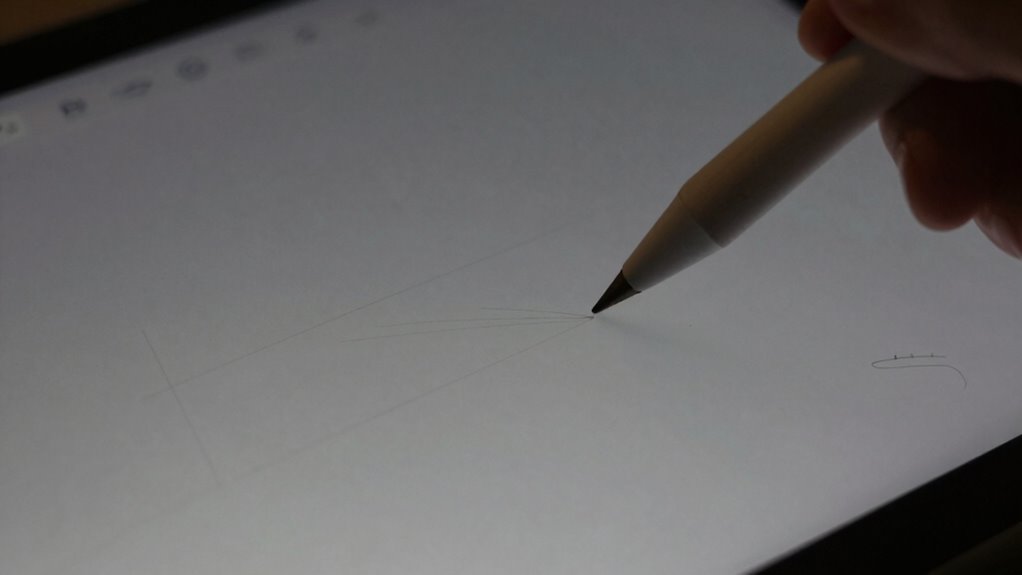

If your digital drawing feels off, it’s likely due to nib wear, parallax distortion, or lag. Worn nibs can cause uneven lines, while parallax makes strokes misalign when viewing angles change. Lag from software or hardware slows responsiveness, affecting precision. Fixing these issues involves regular nib checks, calibration, and optimizing your setup. Staying aware of these problems can considerably improve your workflow, and exploring further will help you master smoother, more accurate art.

Get art and craft supplies delivered free — and shop member deals
- Fast, free delivery on millions of items
- Access to Prime Big Deal Days deals on October 6–7
- Prime Video, Amazon Music and more included
Key Takeaways
- Worn nibs cause uneven lines and inconsistent ink flow, affecting drawing smoothness and accuracy.
- Parallax distortion results from improper viewing angles or calibration, shifting strokes relative to stylus movement.
- Lag from outdated hardware, software issues, or suboptimal brush settings delays stroke responsiveness.
- Regular nib maintenance and replacement prevent uneven wear that impacts line quality.
- Calibrating display and workspace setup minimizes parallax and enhances drawing precision.
As an affiliate, we earn on qualifying purchases.
Why Is Your Digital Drawing Lagging and How Can You Fix It?
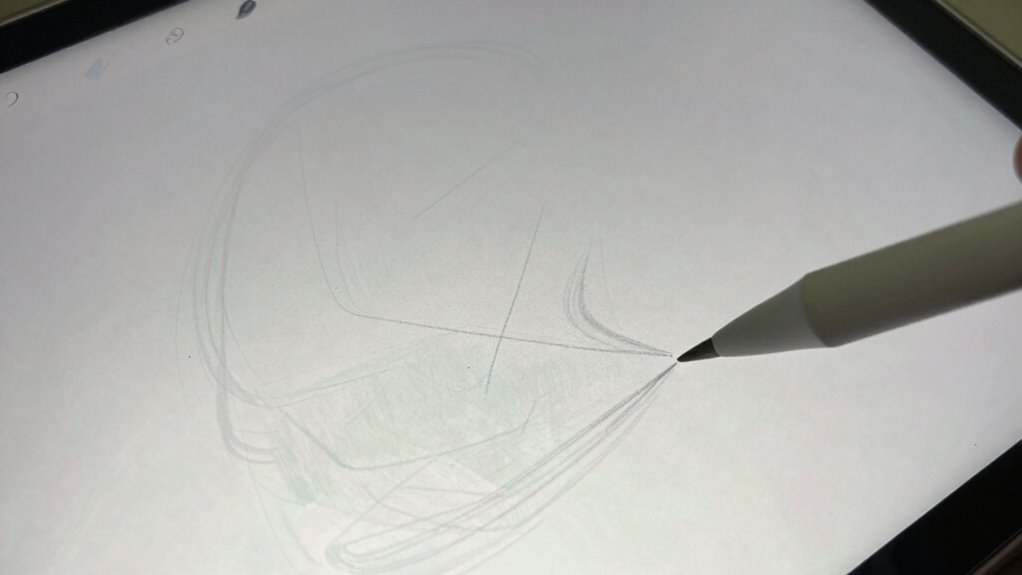
Digital drawing can lag for various reasons, often frustrating artists who rely on smooth, responsive tools. One common cause is suboptimal digital brush settings. If your brush sensitivity or pressure curves aren’t tuned properly, your strokes might feel delayed or unresponsive. Adjusting these settings can improve responsiveness. Additionally, screen calibration plays an essential role. If your display isn’t accurately calibrated, your drawing might not match your intentions, causing lag or misalignment. Ensuring your tablet or monitor is properly calibrated helps your stylus movements translate precisely on-screen. Sometimes, lag stems from software issues or insufficient hardware performance. Updating your drivers, closing background apps, or upgrading your hardware can markedly reduce lag. Regularly review and optimize your digital brush settings and screen calibration to keep your workflow smooth and responsive. Exploring content formats can also shed light on potential solutions tailored to specific drawing applications. Utilizing a projector with high refresh rates can enhance your overall experience by providing smoother visuals during your design process.
drawing tablet calibration tools
As an affiliate, we earn on qualifying purchases.
As an affiliate, we earn on qualifying purchases.
How Parallax Distorts Your Artwork and How to Correct It

Have you ever noticed your artwork shifting or appearing misaligned when you move your stylus, even though you’re sure you’re drawing in the right spot? That’s parallax at work, causing perspective distortion and messing with your depth illusion. Parallax makes your strokes seem off because the display’s viewing angle changes as you move, distorting spatial relationships. To fix this, check your screen’s angle and calibration, guaranteeing your device displays accurate alignment. Additionally, travel tips can help you optimize your workspace for creativity. The choice of battery inverter generator can also impact how you power your devices in a mobile setup. Adjust your workspace or use software settings to minimize parallax effects. Here’s a quick guide:
| Tip | Effect |
|---|---|
| Calibrate display | Improves accuracy |
| Use a screen stand | Maintains proper angle |
| Enable grid overlays | Guides perspective |
| Adjust viewing angle | Reduces perspective distortion |
| Regularly update software | Ensures correct rendering |
Correcting parallax helps restore a natural depth illusion, making your artwork feel more precise. Additionally, understanding work-life harmony can enhance your creative process by reducing stress and improving focus. Incorporating smart lifestyle tips can also help you create a more conducive environment for artistic expression.
parallax correction software for drawing tablets
As an affiliate, we earn on qualifying purchases.
As an affiliate, we earn on qualifying purchases.
How Nib Wear Affects Line Quality and Ways to Prevent It
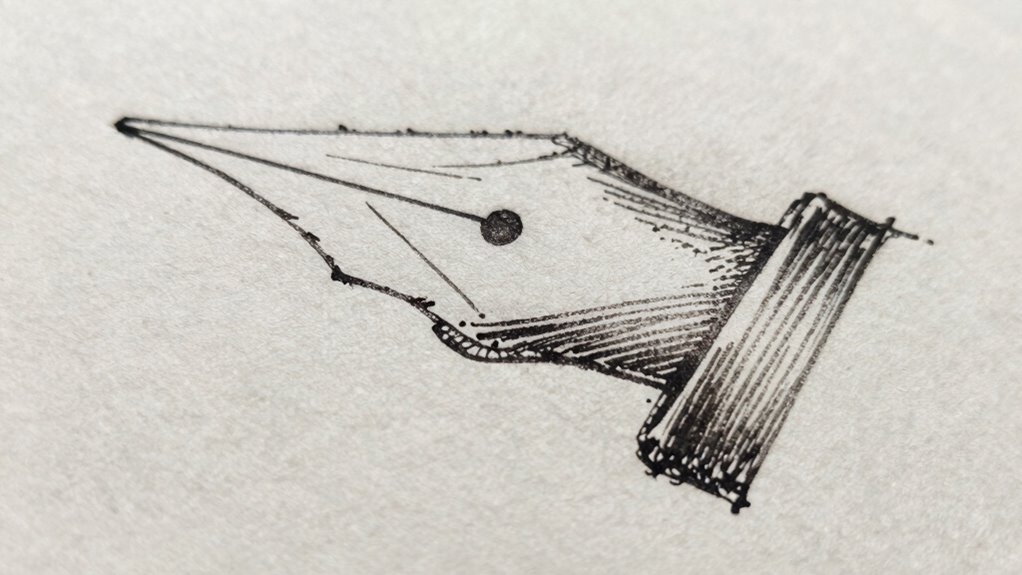
As your stylus wears down over time, it begins to impact the quality of your lines, causing them to become uneven, inconsistent, or dull. Nib wear can disrupt your ink flow, making your strokes less smooth and predictable. Regular nib maintenance is essential to keep your drawing experience consistent; inspect the tip for signs of flattening or damage and replace it when necessary. Proper cleaning removes debris that can clog ink flow, ensuring your lines stay crisp. Using a fresh nib or rotating between multiple nibs can also prevent uneven wear. By maintaining your nib and paying attention to ink flow, you’ll preserve line quality and avoid frustration caused by worn tips that hinder your precision and overall artwork.
high refresh rate drawing monitor
As an affiliate, we earn on qualifying purchases.
As an affiliate, we earn on qualifying purchases.
Frequently Asked Questions
How Does Screen Refresh Rate Influence Drawing Lag?
A higher screen refresh rate directly reduces drawing lag because it updates the display more frequently, making your strokes appear faster and smoother. When the refresh rate is low, there’s a noticeable delay between your input and what shows on the screen, causing lag. By increasing the refresh rate, you minimize this delay, providing a more responsive drawing experience that feels natural and precise, especially during detailed or fast-paced work.
Can Ambient Lighting Impact Digital Pen Performance?
Imagine trying to focus on a painting in a brightly lit room; ambient light interference can similarly affect your digital pen’s responsiveness. Bright or fluctuating lighting can cause reflections or glare on your screen, making it harder for your device to accurately track your pen’s movements. This can result in inconsistent strokes, reducing precision and making your drawing feel less natural. To optimize performance, work in stable, moderate lighting conditions.
Are There Specific Brushes More Prone to Nib Wear?
Certain brushes, especially those with fine or detailed tips, are more prone to nib wear, which affects their durability and requires more frequent nib replacements. You should pay attention to brush durability, as softer brushes tend to wear out faster. Using high-quality brushes can extend the lifespan, but eventually, nib replacement becomes necessary to maintain ideal drawing performance. Regularly check your brushes to prevent uneven wear and guarantee precise, consistent strokes.
What Are the Signs of Parallax in Different Drawing Tablets?
Think of parallax as a mirage on your tablet’s surface. You notice your strokes don’t align with your stylus pressure or hand positioning, especially at the edges or corners. When you see lines shifting or not matching your intended path, that’s a sign of parallax. These visual discrepancies can make drawing feel disconnected, and they’re often more noticeable when your hand is at awkward angles or when stylus pressure varies unexpectedly.
How Often Should I Calibrate My Drawing Device for Accuracy?
You should calibrate your drawing device regularly to maintain pen calibration and guarantee device accuracy. Generally, doing it once a month works well, but if you notice inconsistency or misalignment, calibrate immediately. Frequent calibration helps prevent issues like parallax and lag, keeping your drawing experience smooth. Always follow your device’s specific instructions for calibration, as some tablets require more or less frequent adjustments based on usage.
Conclusion
In the dance of digital art, every step matters—nip wear, parallax, and lag are the discordant notes that throw off your rhythm. By tuning up your tools, adjusting your perspective, and caring for your nibs, you restore harmony to your masterpiece. Embrace these fixes like a conductor guiding a symphony, and watch your drawing flow effortlessly once more. With patience and care, your art will sing with clarity, precision, and that sweet, seamless rhythm.
Fall Picks
fall essentials
As an affiliate, we earn on qualifying purchases.