To prevent wrist pain and strain, start by adjusting your workspace for comfort. Use an ergonomic chair that supports your lower back, set your desk height so your forearms are parallel to the floor, and place your monitor at eye level. Keep your drawing tablet aligned with your monitor, and avoid bending or twisting your wrists. Take regular breaks, stretch, and incorporate helpful accessories. Keep exploring to discover how to optimize your entire setup for long-term health and comfort.
Key Takeaways
- Adjust your desk and chair height to keep wrists aligned with the forearms and prevent strain during extended drawing sessions.
- Position your monitor at eye level and an arm’s length away to reduce neck, eye, and wrist tension.
- Support your wrists with ergonomic accessories and maintain a natural, relaxed hand posture while using a drawing tablet.
- Take regular breaks every 30-60 minutes to stretch, change posture, and prevent repetitive strain injuries.
- Ensure proper lighting to minimize eye fatigue and avoid awkward head or wrist movements caused by glare or poor illumination.
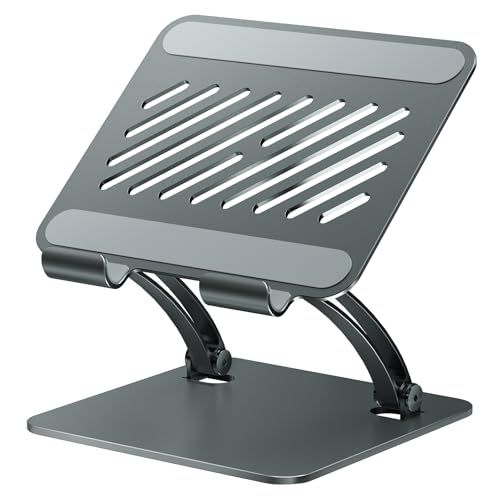
tounee Tablet Holder Stand, Dual Rod Adjustable Aluminum Desktop Stand, Compatible with 4.7-16.9" iPads, Surface Tablets, Portable Monitors, Kindle & More (Gray)
- Adjustable Viewing Angle: Secure height and angle adjustments
- Wide Device Compatibility: Supports 4.7 to 16.9-inch devices
- Durable All-Metal Construction: Sturdy, long-lasting alloy base
As an affiliate, we earn on qualifying purchases.
As an affiliate, we earn on qualifying purchases.
Why Good Ergonomics Are Essential for Digital Artists
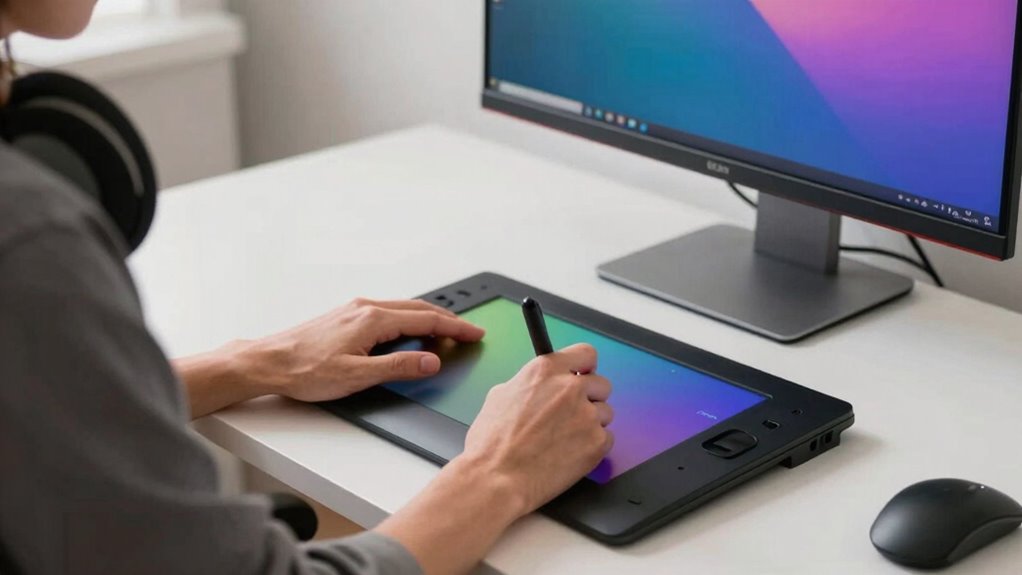
Have you ever wondered why some digital artists develop persistent pain or fatigue after long sessions? It’s often due to misconceptions about ergonomic myths and poor workspace lighting. Many believe that expensive equipment alone prevents discomfort, but true ergonomics focus on proper setup. Good posture, adjustable surfaces, and correct monitor placement matter more than fancy gear. Additionally, workspace lighting plays a crucial role in reducing eye strain and maintaining focus, preventing fatigue from overexertion. Ignoring these factors can lead to long-term health issues, like repetitive strain injuries. By understanding and applying accurate ergonomic principles, you protect your body and improve your workflow. Prioritizing your setup isn’t just about comfort—it’s about ensuring your creativity stays sustainable without risking pain or exhaustion. Remember, even essential DIY tools can contribute to a more efficient and comfortable workspace when used correctly. Furthermore, incorporating proper air circulation in your workspace can enhance overall comfort and reduce distractions, allowing for more productive creative sessions. To improve your setup, consider investing in ergonomic equipment, which is designed to support your body’s natural alignment. Moreover, integrating electric bus fleets into your community can illustrate how sustainable practices can lead to healthier environments, which is essential for fostering creativity. Additionally, understanding color accuracy can enhance your visual output, making your creative work more enjoyable and less straining on your eyes.

HOLLUDLE Ergonomic Mesh Office Chair – 3D Adjustable Lumbar Support & 3D Armrests, V-Shaped Back, Adjustable Desk Chair for Office & Home, White
- 3D Adjustable Lumbar Support: Customizable back support for comfort
- Fully Adjustable Features: Adjust headrest, armrests, and tilt lock
- Stylish V-Shaped Back Design: Modern silver V-back for aesthetic appeal
As an affiliate, we earn on qualifying purchases.
As an affiliate, we earn on qualifying purchases.
How to Recognize Wrist and Posture Strain

Recognizing wrist and posture strain early is essential to preventing long-term injuries. If you notice wrist fatigue after long drawing sessions, it’s a sign you need to pause and assess your setup. Pay attention to discomfort, numbness, or tingling in your hands or fingers, which indicate strain. Similarly, if your shoulders, neck, or back feel tense or sore, it’s time for posture correction. Maintaining good posture involves keeping your shoulders relaxed, your back straight, and your monitor at eye level. Regularly check in with your body during work; if you feel persistent discomfort, it’s a cue to adjust your position. Addressing these signs promptly helps prevent chronic pain and keeps your art sessions comfortable and sustainable. Additionally, consider incorporating ergonomic seating arrangements to further support your posture and reduce strain. Understanding the importance of proper equipment setup can also enhance your overall comfort while creating art. Implementing self-care strategies can further support your well-being and productivity during long hours of artistic work. Regular breaks and adjusting your workspace according to car repair basics can also prevent fatigue and enhance your overall comfort.

Svcouok Webcam Mount for Monitor,1/4" Screw Universal Clip-On Holder
- Protective Film Included: Acrylic bracket covered with protective film
- Universal Compatibility: Fits 90%+ webcams with 1/4" screw
- Monitor Compatibility: Supports 13-35 inch monitors
As an affiliate, we earn on qualifying purchases.
As an affiliate, we earn on qualifying purchases.
Setting Up Your Digital Art Workspace for Comfort
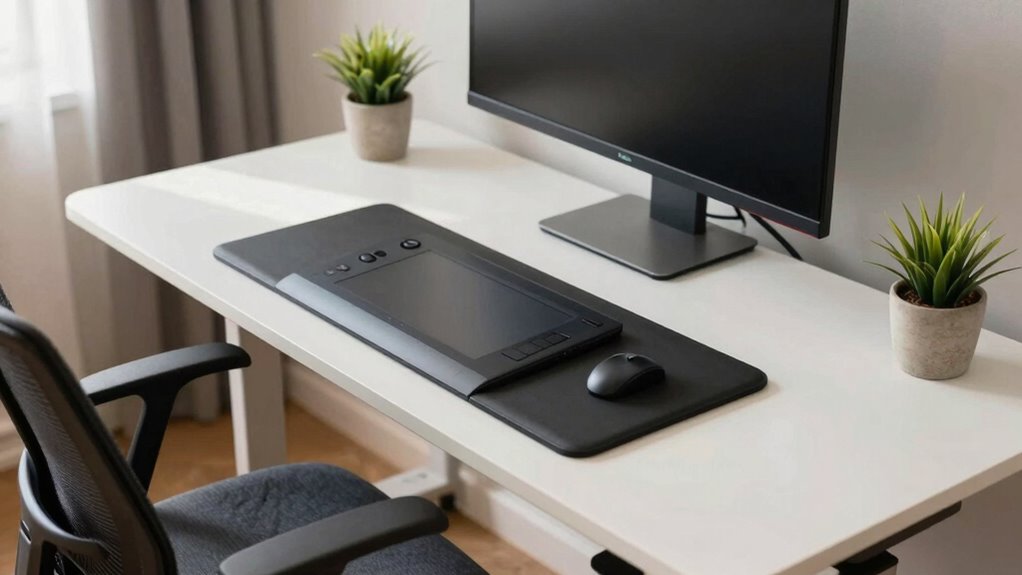
To set up your workspace for comfort, start by adjusting your desk height so your forearms are parallel to the floor. Make certain your chair supports good posture and is positioned so your feet are flat on the ground. Position your monitor at eye level to reduce neck strain and guarantee an ergonomic, pain-free working experience. Additionally, consider using remote car covers to protect your equipment from dust and damage, ensuring a clean and organized workspace. Keeping your workspace tidy can enhance cleaning and organization, which is essential for maintaining focus and productivity. Implementing soundproofing techniques can also help minimize distractions, allowing for a more immersive creative process. Furthermore, incorporating regional flavors into your breaks can rejuvenate your mind and enhance creativity while you work. Creating a well-structured workspace can lead to improved digital content quality, ensuring that your creativity is both effective and efficient.
Proper Desk Height
Setting your desk to the right height is essential for maintaining comfort and preventing strain during long digital art sessions. When your desk is at the correct level, your arms stay relaxed, and your shoulders don’t hunch. Proper desk height also supports effective desk organization and lighting optimization, reducing eye and neck strain. Make certain your surface allows your elbows to stay close to a 90-degree angle. Use this table to understand the benefits:
| Desk Height | Benefits |
|---|---|
| Slightly below elbow | Keeps shoulders relaxed, reduces fatigue |
| Equal to elbows | Promotes natural arm position, improves workflow |
| Above elbow | Causes tension, discomfort |
| Proper lighting | Enhances visibility, reduces eye strain |
| Organized workspace | Boosts efficiency, minimizes clutter |
Adjust your desk accordingly for comfort and productivity. Creating a comfortable workspace is crucial for effective design choices, as it can significantly enhance your overall artistic experience.
Ergonomic Chair Position
Ergonomic Chair Position (Setting Up Your Digital Art Workspace for Comfort)
An ergonomic chair position is key to maintaining comfort and preventing strain during long hours of digital art. Make sure your ergonomic chair supports your lower back, encouraging proper posture correction. Adjust the height so your feet rest flat on the floor, with your knees at a 90-degree angle. Keep your hips level and avoid slouching or leaning forward. Your chair’s backrest should follow your spine’s natural curve, providing lumbar support. Sit back fully, ensuring your shoulders are relaxed and not hunched. Regularly check your posture to prevent fatigue and discomfort. An ergonomic chair helps you sustain a healthy workspace, reducing the risk of strain and promoting better focus during extended creative sessions. Additionally, maintaining caregiver emotional health through proper workspace ergonomics can enhance your overall well-being. Investing in an ergonomic setup can significantly improve mood and mental health, allowing you to thrive creatively. Furthermore, using GPS trackers can help you monitor your physical activity levels, ensuring you take breaks and move around during long sessions. Moreover, incorporating AI-powered analytics can help you assess your workspace efficiency and make necessary adjustments for optimal comfort.
Monitor Placement Tips
Ensuring your monitor is positioned correctly is essential for reducing eye strain and maintaining good posture during long digital art sessions. Your monitor should be directly in front of you, with the top at eye level to prevent neck strain. Keep the screen about an arm’s length away for comfortable viewing. Proper color calibration guarantees colors appear accurately, helping you avoid unnecessary adjustments that cause eye fatigue. Use software optimization tools to fine-tune the display settings, reducing glare and enhancing contrast. Adjust brightness to match your ambient lighting for better comfort. Regularly reposition your monitor as needed, especially if you notice discomfort or color inconsistencies. An ideal setup minimizes strain, improves color accuracy, and makes your creative process more efficient.

HiRui 2-Pack Ultra-Thin Mesh Wrist Wraps – Breathable, Adjustable Wrist Support for Workouts & Daily Use – Unisex Wrist Brace for Pain Relief, Tendonitis, Carpal Tunnel – One Size Fits All (Black)
- Breathable Mesh Fabric: Ensures all-day comfort and sweat-free wear
- Pain Relief and Support: Stabilizes wrist and reduces strain
- Ergonomic Design: Promotes natural wrist alignment and recovery
As an affiliate, we earn on qualifying purchases.
As an affiliate, we earn on qualifying purchases.
Picking the Best Desk and Chair for Ergonomic Work
Picking the Best Desk and Chair for Ergonomic Work
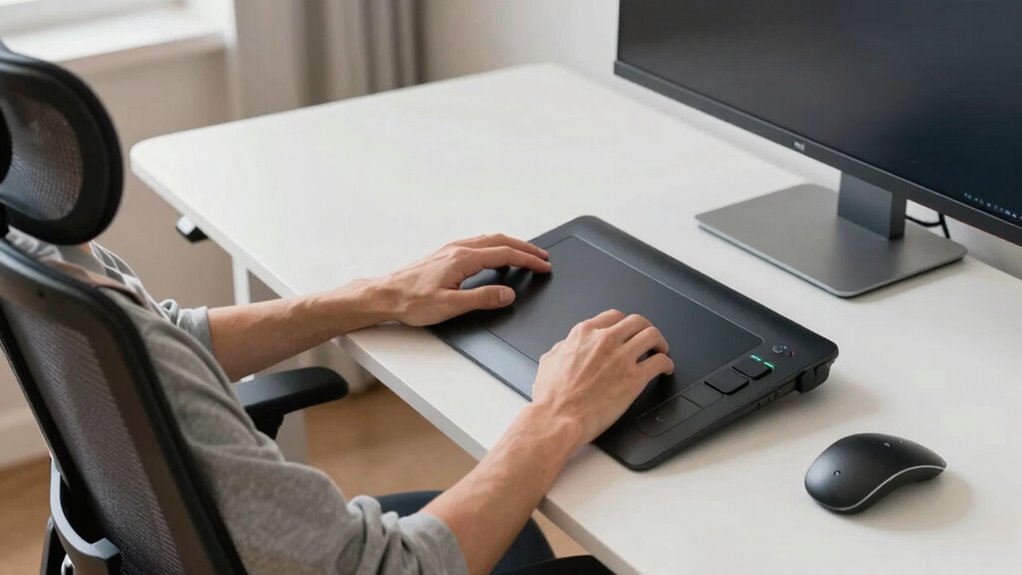
Choosing the right desk and chair is essential for maintaining good ergonomics while working as a digital artist. Your desk should be sturdy, spacious enough for your tablet, keyboard, and other tools, with adjustable height options. An ergonomic chair provides proper lumbar support, promotes good posture, and encourages movement. When selecting your setup, consider lighting optimization—good lighting reduces eye strain and minimizes the need for excessive screen brightness. Additionally, guarantee your workspace supports color calibration; proper lighting and desk placement help maintain accurate color perception on your monitor. Incorporating accessibility features can also enhance your working experience, ensuring that your tools are easy to use and reducing the likelihood of strain. A well-chosen desk and chair set the foundation for a comfortable, efficient workspace, preventing discomfort and long-term injuries. Prioritize adjustability, support, and lighting to create an environment that promotes healthy, productive art sessions. Integrating smart design into your workspace can further enhance your overall well-being and creative output. Moreover, investing in high-quality gaming gear can provide additional comfort during long creative sessions, further improving your overall experience. Additionally, consider investing in ergonomic accessories that can complement your setup and enhance your comfort while working.
How to Place Your Monitor and Drawing Tablet Properly
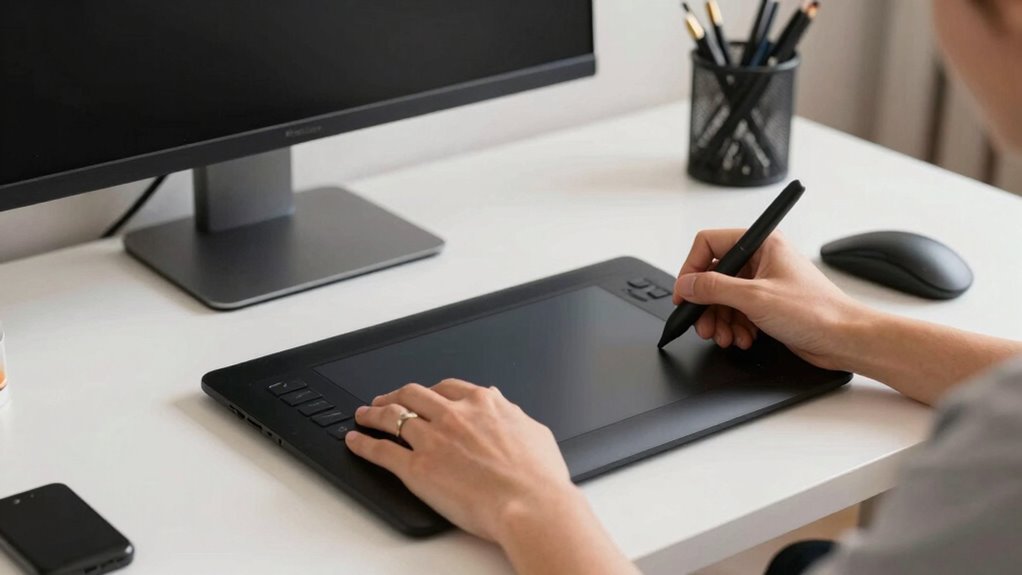
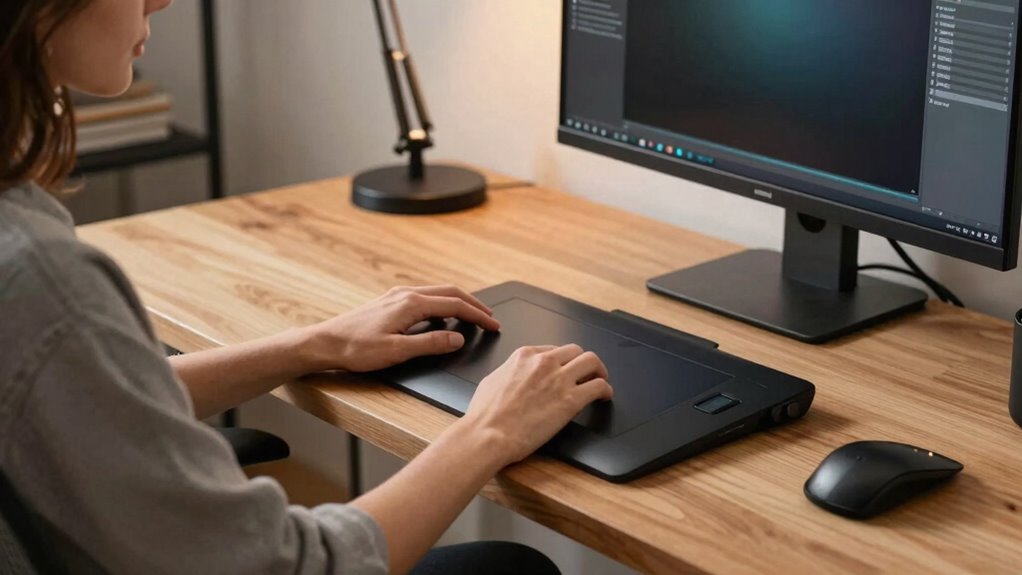
Proper placement of your monitor and drawing tablet is essential to prevent strain and improve workflow. Position your monitor at eye level, directly in front of you, to promote good drawing posture and reduce neck strain. Confirm the screen is about an arm’s length away, with minimal glare for proper monitor calibration. Your drawing tablet should be positioned comfortably, aligned with your monitor, so you don’t have to twist or stretch your neck or shoulders. Additionally, maintaining an ergonomic setup can help reduce the risk of repetitive strain injuries, which are common among digital artists. Use the table below to check your setup:
| Aspect | Ideal Setup |
|---|---|
| Monitor height | Eye level |
| Monitor distance | About an arm’s length |
| Drawing tablet position | Flat, aligned with monitor |
| Monitor angle | Slightly tilted back |
| Lighting | Soft, indirect light |
Correct placement helps maintain comfort and prevents fatigue during long sessions. Additionally, optimizing your workspace can enhance air quality benefits, contributing to a more productive environment.
Proper Hand and Wrist Positions for Digital Art

Maintaining correct hand and wrist positions while working on your digital art can considerably reduce the risk of strain or repetitive stress injuries. Proper hand positioning involves keeping your hand relaxed, avoiding unnecessary gripping or tension. Your wrist should be aligned with your forearm, not bent up or down, to prevent strain and encourage natural movement. Use a light grip on your stylus, letting your fingers rest gently. Keep your wrist straight and supported, avoiding leaning or resting it awkwardly on the desk or tablet edge. Adjust your workspace so your hand moves smoothly across the tablet without stretching or twisting. This alignment minimizes fatigue and helps maintain comfort during long sessions, ensuring your wrist stays healthy and pain-free over time.
Taking Breaks and Stretching to Prevent Pain

Taking regular breaks and stretching can help you avoid pain and fatigue during long art sessions. Learn effective stretching techniques and pay attention to signs of discomfort so you can act early. Incorporating these habits into your routine keeps you comfortable and prevents injury.
Regular Break Intervals
Have you ever noticed how quickly your muscles start to ache or your focus diminishes after sitting in the same position for too long? Regular break intervals are essential to prevent strain and fatigue. Set a timer to remind you to stand, move, and stretch every 30 to 60 minutes. During these breaks, focus on posture correction—adjust your chair, monitor, or ergonomic tools to support proper alignment. Moving around helps improve circulation and relieves tension in your muscles. Use these moments to check your setup, ensuring your workspace stays ergonomic. Consistent breaks not only reduce pain but also boost your productivity and creativity. Incorporating this habit into your routine keeps your body healthy and your mind sharp, helping you create comfortably for hours.
Effective Stretching Techniques
Incorporating effective stretching techniques into your routine can considerably reduce muscle tension and prevent discomfort during long digital art sessions. As you work on projects involving creative lighting and color theory, your muscles can become tight from maintaining static positions. Regular stretches, such as shoulder rolls, wrist flexion, and neck tilts, help keep blood flowing and muscles relaxed. Stretching also encourages better posture, reducing strain on your wrists and neck. Take short breaks to stretch every 30 minutes, focusing on areas prone to tension. These simple routines not only alleviate physical discomfort but also clear your mind, enhancing your focus on lighting and color details. Consistent stretching keeps your body prepared for the demands of digital artistry, promoting comfort and sustained creativity.
Recognizing Pain Signs
How can you tell if your body is warning you to take a break? Common signs include tingling, stiffness, or aching in your wrists, neck, or shoulders. These signals often stem from poor posture habits or misconceptions like ergonomic myths, which can lead you to overlook early pain cues. Recognizing these signs early helps prevent chronic issues. To stay ahead, incorporate regular breaks and stretches into your routine. Here’s a quick guide:
| Pain Signs | Immediate Action |
|---|---|
| Tingling or numbness | Stop, stretch, and adjust your setup |
| Stiffness or ache | Take a short walk and reset your posture |
| Burning sensation | Rest your hands and evaluate ergonomic myths |
| Persistent pain | Seek professional advice before it worsens |
Listening to your body keeps pain at bay.
Must-Have Ergonomic Accessories for Digital Artists
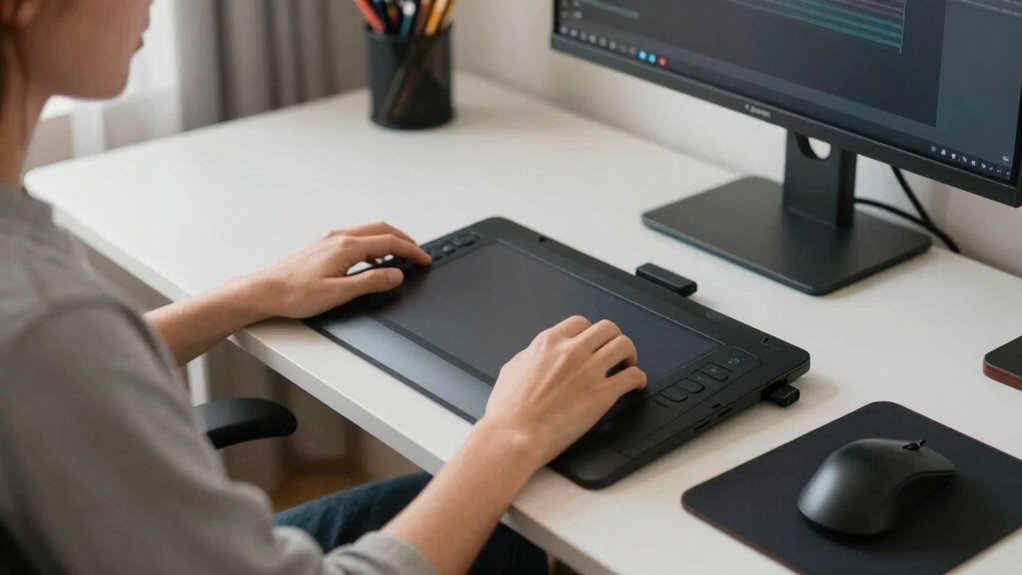
To work comfortably and prevent strain during long digital art sessions, investing in essential ergonomic accessories is crucial. These tools help create a more comfortable and efficient creative workspace, reducing fatigue and injury risk. Consider adding a supportive wrist rest to keep your wrists in a neutral position. An adjustable monitor stand ensures your screen is at eye level, minimizing neck strain. A quality ergonomic mouse or pen tablet with customizable buttons can decrease hand fatigue and improve precision. These ergonomic accessories support your body’s natural posture, allowing you to focus solely on your art without discomfort. Incorporating these items into your creative workspace not only boosts productivity but also safeguards your health in the long run.
Troubleshooting Your Workspace to Prevent Discomfort
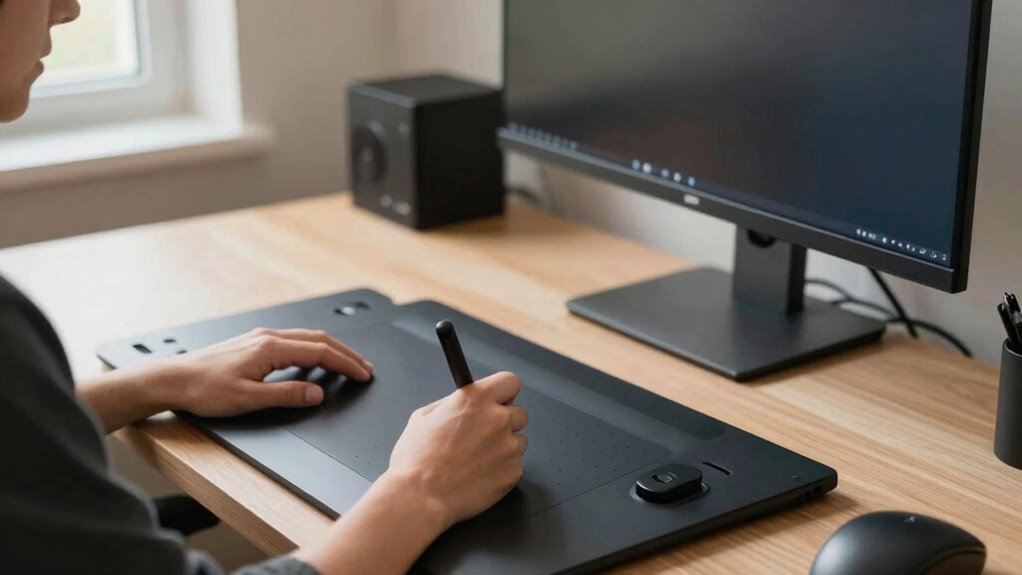
Even with the best ergonomic tools, your workspace can cause discomfort if it’s not properly set up. Poor workspace lighting can strain your eyes, leading to headaches and fatigue. Confirm your lighting is bright but diffused, avoiding glare on your screen. Keyboard placement also matters—keep it close to your body, with wrists straight and elbows at a 90-degree angle. Adjust your monitor height so you’re looking slightly downward, reducing neck strain. Use this checklist:
| Aspect | Ideal Setup | Common Mistake |
|---|---|---|
| Workspace lighting | Bright, indirect light on your workspace | Harsh glare on screen |
| Keyboard placement | Close, at elbow height, wrists neutral | Keyboard too far or too high |
| Monitor height | Top of screen slightly below eye level | Looking up or down constantly |
| Seat positioning | Feet flat, hips and knees at 90 degrees | Slouching or improper support |
Frequently Asked Questions
How Often Should I Adjust My Workspace for Optimal Ergonomics?
You should adjust your workspace about once a month to maintain ideal ergonomics. Regular workspace customization guarantees your setup remains comfortable, preventing strain during long creative sessions. Use ergonomic accessories like adjustable chairs, wrist rests, and monitor stands to support proper posture. Pay attention to how you feel—if you notice discomfort or fatigue, it’s time to tweak your workspace again. Consistent adjustments help keep you healthy and productive.
Are There Specific Ergonomic Chairs Best Suited for Digital Artists?
You should prioritize ergonomic chairs with good lumbar support, which is essential for digital artists. Chairs with adjustable height, tilt, and armrests help you maintain proper posture and reduce strain. Look for models specifically designed for long periods of sitting, featuring strong lumbar support that conforms to your lower back. This guarantees you stay comfortable during extended creative sessions, preventing future discomfort or injury.
Can Poor Lighting Contribute to Wrist or Eye Strain?
Poor lighting conditions can definitely contribute to both wrist and eye strain. When your workspace isn’t well-lit, your eyes work harder to see details, leading to visual fatigue. This extra effort can cause you to adopt awkward postures or strain your wrists as you try to compensate. Ensuring proper, consistent lighting reduces eye fatigue and helps you maintain better posture, ultimately preventing discomfort and promoting healthier habits during long art sessions.
What Are Signs I Need a Professional Ergonomic Assessment?
You need a professional ergonomic assessment when you experience persistent muscle tension, especially in your neck, shoulders, or wrists, that doesn’t improve with breaks. If workplace distractions make it hard to maintain proper posture or focus, it’s also a sign. An expert can identify underlying issues, optimize your setup, and help you reduce discomfort, preventing long-term strain and enhancing your overall productivity and well-being.
How Does Desk Height Influence Overall Posture During Long Sessions?
Your desk height directly impacts your posture alignment during long sessions. If it’s too high, you’ll strain your shoulders and neck; if too low, you’ll hunch over, causing discomfort. To maintain ideal posture, adjust your desk so your elbows form a 90-degree angle when your hands are on your workspace. Proper desk height helps distribute your weight evenly, reducing fatigue and preventing long-term musculoskeletal issues.
Conclusion
Remember, good ergonomics isn’t just a fancy term — it’s your secret weapon against wrist pain and fatigue. Take a page from the ancient Greeks and treat your workspace like a sacred temple. Adjust your setup, take breaks, and invest in the right accessories. With these tips, you’ll keep your creative flow flowing smoothly, no matter if you’re sketching on a tablet or painting with a quill. Your wrists will thank you!