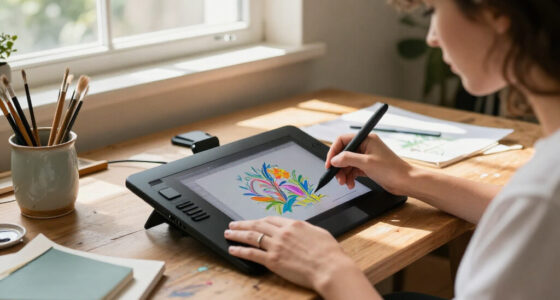
Creators comparing the Huion Kamvas 13 (Gen 3) and Wacom One 13 Touch are choosing between spending less on a capable pen display and paying more for touch input and Wacom’s established creative-tool ecosystem. Both are screen tablets: they connect to a computer, and neither is a standalone computer like an iPad. That means your laptop or desktop still runs the art software.

Get art and craft supplies delivered free with Prime
- Fast, free delivery on millions of items
- Prime Video, Amazon Music and more included
- Member-only deals all year

XP-Pen Artist 13.3 Pro Drawing Tablet with Screen
- ✔ Display: 13.3-inch full-laminated FHD
- ✔ Color gamut: 88% NTSC; Adobe RGB ≥91%; sRGB ≥123%
- ✔ Stylus: Battery-free; 16,384 pressure levels; 60-degree tilt

PicassoTab A10 10-Inch Standalone Drawing Tablet
- ✔ Display: 10-inch laminated LCD
- ✔ Native resolution: 2000 × 1200
- ✔ Operating system: Android 14

Frunsi RubensTab T11 Pro Standalone Drawing Tablet
- ✔ Display: 10.1-inch Full HD IPS touchscreen
- ✔ Resolution: 1920 × 1200
- ✔ Processor: Octa-core CPU
The practical difference is how you work at the screen. Huion focuses on drawing features for the money, including a pen designed to reduce parallax and a dedicated shortcut interface. Wacom adds multi-touch gestures, which can make zooming and rotating a canvas feel natural, but costs more. Choose Huion if pen drawing is your priority and you want to keep costs down; choose Wacom if touch gestures and software compatibility matter enough to justify the premium.
At a Glance
| Criteria | Huion Kamvas 13 (Gen 3) | Wacom One 13 Touch | Winner |
|---|---|---|---|
| Drawing and pen experience | Battery-free pen with tilt support and pen-focused features | Wacom pen experience with tilt support | Depends |
| Touch and navigation | No multi-touch; use pen, keyboard or external controls | Multi-touch gestures for canvas navigation | B |
| Shortcut controls | Dedicated adjustable shortcut interface | On-screen controls and touch gestures; workflow differs by app | A |
| Display and setup | 13.3-inch pen display; connects to a computer | 13.3-inch pen display with touch; connects to a computer | Tie |
| Compatibility and software | Works with common desktop creative applications; check current driver and OS support | Wacom driver and application support; confirm compatibility for your setup | B |
| Portability | Compact display, but requires a computer and cable connection | Compact display, though computer and cables are still required | Tie |
| Value | Typically lower cost for a feature-rich drawing display | Higher price buys touch and Wacom ecosystem benefits | A |
XP-Pen Artist 13.3 Pro Drawing Tablet with Screen
The XP-Pen Artist 13.3 Pro earns the top spot for creators who already work at a computer and want to draw directly on a dedicated display. Its 13.3-inch full-laminated FHD screen gives us more working area than the 10-inch-class PicassoTab and Frunsi, while the laminated surface is intended to reduce the visual gap between pen tip and cursor. That extra space is useful for layered compositions and interface panels, though creators working on especially detailed or expansive projects may still want a larger display.Its pen specification is the most ambitious in this group: 16,384 pressure levels and 60-degree tilt provide a broad range of input for supported brushes and software. The red dial and eight customizable display keys add a second advantage over the standalone models, since common actions can be assigned to physical controls. Those controls matter most when we have a settled workflow; beginners or casual sketchers may not use them enough to justify choosing a device that needs a computer.The tradeoff is fundamental: this is not a standalone tablet. We need a compatible computer, cables, and a suitable work surface, so spontaneous sketching away from that setup is less convenient than on either Android option. Compared with the PicassoTab, the XP-Pen offers a bigger drawing area and more specialized input, but it does not bring its own creative apps or mobile independence. Choose it for a desk-based art setup; skip it if portability means drawing without a laptop.
Pros:
- Full-laminated 13.3-inch FHD display
- Battery-free stylus with tilt support and 16,384 pressure levels
- Red dial and eight customizable display keys
- Foldable stand and replacement nibs included
Cons:
- Requires a connected computer or laptop
- 13.3-inch workspace may feel limited for large or highly detailed projects
- Its controls and compatibility depend on the connected software and setup
Best for: Creators with a compatible computer who prioritize a larger drawing surface, tilt input, and customizable shortcut controls.
Not ideal for: People who need a self-contained tablet for drawing on the move, or those who want a larger-than-13.3-inch canvas.
Bottom line: For computer-based creators, the XP-Pen combines the largest screen here with the most extensive pen and shortcut controls, provided a connected workflow suits us.
“For computer-based creators, the XP-Pen combines the largest screen here with the most extensive pen and shortcut controls, provided a connected workflow suits us.”
PicassoTab A10 10-Inch Standalone Drawing Tablet
The PicassoTab A10 is our strongest choice when we want a self-contained drawing setup with room to grow beyond basic sketching. Android 14, an octa-core processor, 6GB of RAM, and 64GB of storage let it run drawing and learning apps directly, while expandable storage up to 1TB gives us a way to keep more files and apps on the device. That makes it more flexible as an all-purpose portable tablet than the XP-Pen, which depends on a computer, and more storage-conscious than the Frunsi listing, which does not specify capacity.For drawing, the 10-inch laminated 2000 × 1200 display pairs a sharper listed resolution with reduced parallax compared with an ordinary non-laminated surface. The 4096-level pressure-sensitive pen supports expressive line weight, and included apps, tutorials, and app upgrades may help a new creator get started. This bundle of learning resources gives the PicassoTab a clearer beginner pathway than the XP-Pen’s hardware-first pitch, though app support and update longevity are not specified.There is a portability wrinkle: despite the compact screen, the stated 1.5 kg weight is substantial for a device we might expect to carry frequently. The Frunsi also has a small screen, but its adjustable stand case and stated five-hour runtime make its travel setup more explicit. The PicassoTab makes more sense when standalone apps, storage expansion, and learning extras matter most; we should skip it if light carry weight or a defined software update commitment is essential.
Pros:
- Standalone Android 14 setup with an octa-core processor and 6GB RAM
- Laminated 2000 × 1200 display
- 4096-level pressure-sensitive pen
- Expandable storage and included apps, tutorials, and accessories
Cons:
- Listed weight of 1.5 kg may limit portability
- Software update support date is unspecified
- 10-inch screen offers less workspace than the XP-Pen
Best for: New and developing creators who want Android drawing apps, learning resources, expandable storage, and no computer dependency.
Not ideal for: Creators who need a lightweight everyday carry, a larger canvas, or clear information about future software updates.
Bottom line: The PicassoTab is the most complete standalone learning and drawing package here, as long as its weight and compact canvas fit our routine.
“The PicassoTab is the most complete standalone learning and drawing package here, as long as its weight and compact canvas fit our routine.”
Frunsi RubensTab T11 Pro Standalone Drawing Tablet
The Frunsi RubensTab T11 Pro suits creators who want an independent tablet for sketching, notes, and occasional drawing sessions rather than a specialized desk display. Its 10.1-inch Full HD IPS touchscreen supports multi-touch gestures, and the included adjustable stand case gives us a ready drawing angle without buying a separate support. A battery-free pressure-sensitive pen avoids the extra step of charging the stylus, a practical convenience the supplied PicassoTab details do not explicitly promise.Compared with the PicassoTab, the Frunsi’s strongest case is its clearly travel-oriented bundle: stand case, USB-C charging, and a stated battery runtime of up to five hours. That figure gives us a useful expectation, but it also caps the appeal for long sessions away from an outlet. Its display is close in size to the PicassoTab’s and smaller than the XP-Pen’s, so neither standalone option is ideal for creators who need broad canvas space or frequently keep tool panels open beside their artwork.The Frunsi places more emphasis on accessible everyday use than on detailed hardware specifications. The product information lists an octa-core CPU and pre-installed drawing apps, but does not state RAM, storage capacity, or pen pressure level. That makes it harder to compare its headroom for demanding apps with the PicassoTab’s 6GB RAM and expandable storage. We would choose it for a simple, self-contained sketching and note-taking companion; creators planning to build a larger digital art workflow should compare its unknown memory and storage limits carefully.
Pros:
- Standalone tablet with pre-installed drawing apps
- 10.1-inch Full HD IPS touchscreen with multi-touch
- Battery-free pressure-sensitive pen
- Adjustable stand case and USB-C charging included
Cons:
- Stated battery runtime is up to five hours
- 10.1-inch canvas may feel cramped for detailed work
- RAM, storage capacity, and pressure-level count are not specified
Best for: Traveling beginners and note-takers who want a standalone drawing tablet with a built-in support case and battery-free pen.
Not ideal for: Artists who need a larger canvas, extended unplugged sessions, or clearly specified memory, storage, and pen sensitivity.
Bottom line: The Frunsi is a convenient all-in-one option for short drawing and note sessions, but its limited runtime and unspecified core capacity make it less reassuring for a growing art workload.
“The Frunsi is a convenient all-in-one option for short drawing and note sessions, but its limited runtime and unspecified core capacity make it less reassuring for a growing art workload.”
As an Amazon Associate we earn from qualifying purchases.
Key Differences
The strongest reason to choose the Wacom One 13 Touch is touch. Pinching to zoom and rotating the canvas with fingers can reduce reliance on keyboard shortcuts, especially when the tablet is positioned close to the artist. The gain depends on the software: gestures and touch behavior vary by application, and some artists prefer to keep a hand on a keyboard or shortcut remote. Huion omits touch, but its dedicated shortcut interface can provide direct access to frequent commands without paying for a feature you may not use.
For drawing itself, the contest is closer than the price difference may imply. Both are computer-connected pen displays with a 13.3-inch workspace, so neither replaces a laptop and neither offers the room of a larger monitor. Huion emphasizes pen-focused specifications and value; Wacom’s case rests more on its established driver and application support alongside touch. Compare the current bundles and confirm the exact operating-system and software compatibility before buying, since included accessories and support details can change.
That makes the decision about workflow, not simply which tablet is more capable. If you draw with a pen and use keyboard shortcuts, Huion is the stronger value for many creators. If touch gestures would become part of every drawing session, or Wacom’s support ecosystem is particularly useful for your setup, the Wacom premium can make sense. For a tablet that works independently of a computer, skip both and consider a standalone device instead.
Detailed Comparison
Drawing and pen experience (moderate difference)
Both are designed for direct-on-screen pen work and support tilt, so either can handle illustration, painting and retouching when paired with compatible software. Huion puts more emphasis on pen features at its price; Wacom’s advantage is the familiarity of its pen and driver ecosystem for artists already using Wacom devices. There is no universal winner: try the pen if possible, since grip, nib feel and pressure preferences are personal. The gap is minor for many users, but can be moderate for someone whose hand is already accustomed to one brand.
Wacom wins clearly because the One 13 Touch supports finger gestures for tasks such as zooming and rotating the canvas. Huion’s Kamvas 13 (Gen 3) is pen-focused and does not provide that multi-touch workflow. The difference is major for artists who frequently manipulate the canvas by hand; it is minor for users who prefer keyboard commands, a mouse or a shortcut remote.
Shortcut controls (Huion Kamvas 13 (Gen 3) wins — moderate)
Huion’s adjustable shortcut interface is a practical advantage for artists who want tactile access to common commands beside the screen. Wacom offers touch gestures and on-screen controls rather than the same dedicated physical interface, so its strength depends on whether those controls fit your habits. Huion wins by a moderate margin for keyboard-light workflows; Wacom may suit users who already rely on gestures.
Display and setup (minor difference)
Both use a 13.3-inch display and need a connected computer, so neither wins on workspace size or independence. Check the included cables, ports and stand requirements for the specific retail package: the real setup experience can differ with your computer. The gap is minor and mostly comes down to the exact desk arrangement and bundle.
Compatibility and software (Wacom One 13 Touch wins — moderate)
Wacom has the advantage for buyers who value a long-established driver and application-support ecosystem, particularly if they already use Wacom products. Huion supports major creative workflows too, but checking current driver availability for your operating system and art software is sensible before purchase. This is a moderate advantage for Wacom in a mixed or work-critical setup, not a guarantee that every app behaves identically.
Portability (minor difference)
Both displays are compact enough to move between a desk and a bag, but neither is a mobile workstation by itself. You must bring a compatible computer and manage the cable setup. The difference is minor; if drawing away from a computer is the priority, neither fits as well as a standalone tablet.
Value (Huion Kamvas 13 (Gen 3) wins — major)
Huion generally costs less while providing a capable pen display and physical shortcut access, so it offers better value to creators who do not need touch. Wacom’s higher price buys a specific convenience and ecosystem benefits rather than a larger drawing area. Huion wins for the typical pen-first buyer; the premium is justified when touch gestures or Wacom support solve a real workflow need.
Huion Kamvas 13 (Gen 3): Pros and Cons
Pros:
- Lower price for a dedicated pen display
- Shortcut interface supports quick commands
- Pen-focused features suit illustration and painting
Cons:
- No multi-touch canvas gestures
- Still requires a connected computer
- Driver and application support should be checked for the specific setup
Wacom One 13 Touch: Pros and Cons
Pros:
- Multi-touch gestures help zoom and rotate the canvas
- Established Wacom driver and application ecosystem
- Useful for creators who prefer gesture-based navigation
Cons:
- Higher price than Huion’s pen-focused alternative
- Touch may be redundant for keyboard-shortcut users
- Requires a connected computer and does not offer a larger workspace
Who Should Choose What
Choose Huion Kamvas 13 (Gen 3) if:
- You primarily draw with a pen and want to spend less.
- You prefer physical shortcut access over finger gestures.
- You are buying your first screen tablet and want strong features per dollar.
Choose Wacom One 13 Touch if:
- You regularly zoom, pan and rotate canvases with touch gestures.
- You already use Wacom hardware or value its support ecosystem.
- The higher price is manageable and touch will improve your daily workflow.
Skip both if: You want to draw without carrying or connecting a computer, or need a substantially larger workspace; look at standalone tablets or larger pen displays.
Value for Money
Huion is the better value for most pen-first creators because it costs less and still provides a dedicated drawing display with shortcut controls. Paying more for the Wacom One 13 Touch makes sense when touch gestures will save repeated steps in your actual drawing routine, or when Wacom’s ecosystem is a meaningful advantage for your software and hardware setup. If you would leave touch disabled, the premium buys little practical benefit. Compare current prices and included accessories, since bundles can shift the value calculation.
Final Verdict
For most creators choosing a first 13-inch pen display, choose the Huion Kamvas 13 (Gen 3). It keeps the focus on drawing and shortcut access while avoiding a premium for touch that many artists can replace with keyboard commands. Choose the Wacom One 13 Touch if multi-touch canvas navigation is central to your process or if Wacom’s ecosystem matters enough to you to justify the extra cost. The deciding factor is simple: pay more for Wacom when you will use touch or its support advantages regularly; otherwise, Huion is the more sensible buy.
Frequently Asked Questions
Are these tablets standalone devices?
No. Both are pen displays that connect to a computer running your drawing software. If you want a tablet that runs art apps on its own, compare standalone tablets instead.
Is the Wacom One 13 Touch worth the extra cost?
It can be if you regularly use finger gestures to navigate your canvas or value Wacom’s ecosystem for your setup. If you draw with a pen and use keyboard shortcuts, Huion offers better value.
Which is better for a beginner?
Huion is a strong starting point for a beginner who wants a computer-connected drawing display without spending as much. Wacom may suit a beginner who expects to rely on touch gestures or already uses Wacom products.
Do I need to check compatibility before buying?
Yes. Confirm that the current driver supports your computer’s operating system and that your drawing application works with the tablet’s pen and touch features. Also check the specific package for cables and accessories that suit your setup.