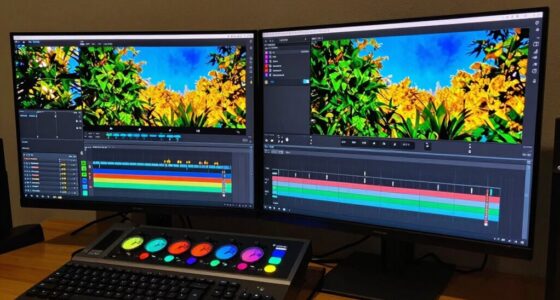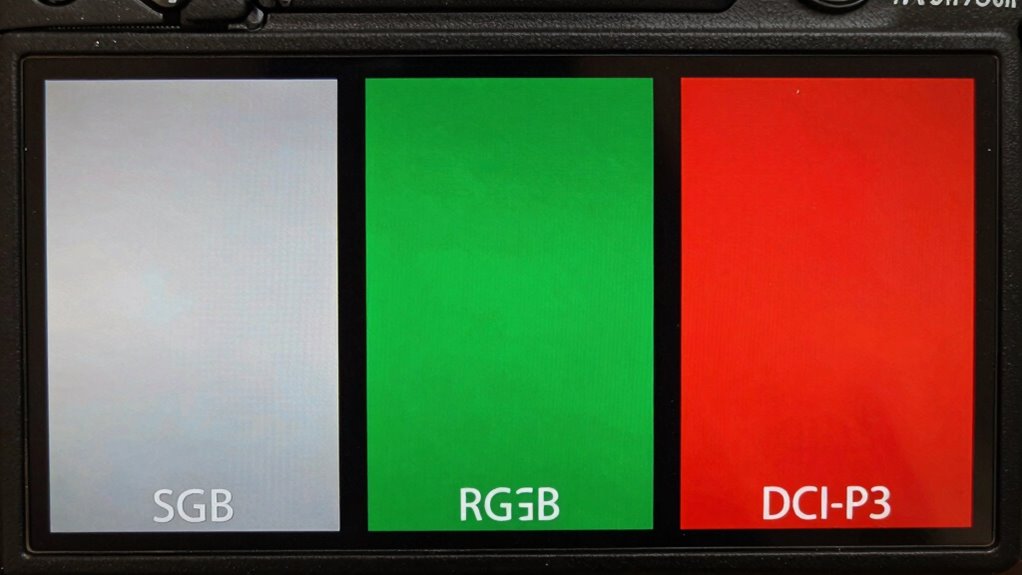

Understanding the differences between sRGB, Adobe RGB, and DCI-P3 helps you know what your monitor truly displays. sRGB covers a small, standard color range ideal for web and casual use. Adobe RGB offers a wider gamut for professional photography and printing. DCI-P3 emphasizes vibrant cinema colors. Support alone doesn’t guarantee accuracy—you need proper calibration. Keep exploring to learn how to verify support and optimize your display for accurate, vibrant visuals.

Get art and craft supplies delivered free — and shop member deals
- Fast, free delivery on millions of items
- Access to Prime Big Deal Days deals on October 6–7
- Prime Video, Amazon Music and more included
Key Takeaways
- Check your monitor’s supported color space in settings or system info before assuming its capabilities.
- Use calibration tools to verify actual color accuracy, not just supported gamuts.
- Support for wider gamuts like Adobe RGB or DCI-P3 doesn’t guarantee accurate color reproduction without calibration.
- Understanding your monitor’s color profile helps prevent guesswork in color-critical tasks.
- Regular calibration ensures your display shows colors accurately, regardless of its supported color space.
As an affiliate, we earn on qualifying purchases.
What Are sRGB, Adobe RGB, and DCI-P3?
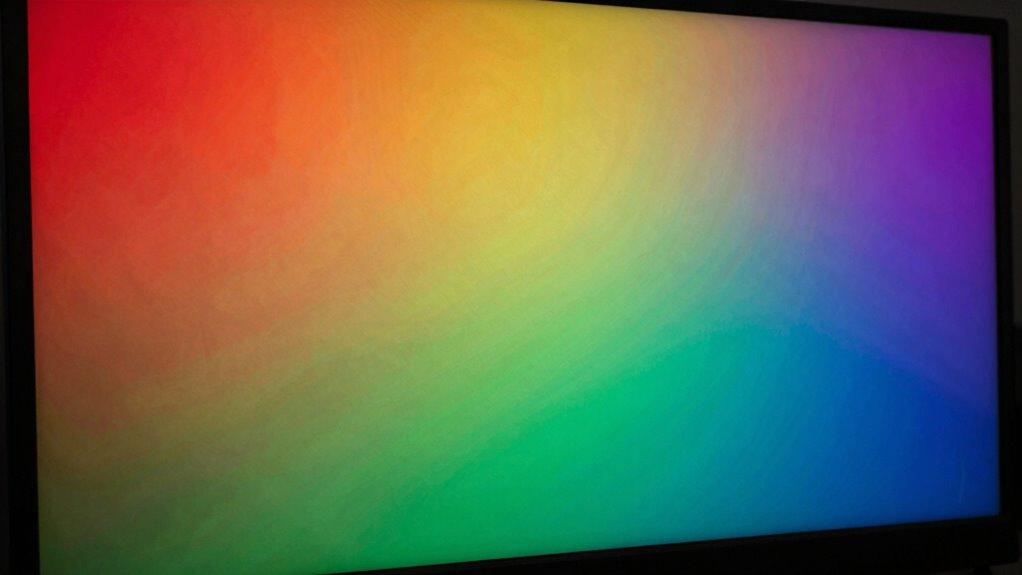
Understanding what sRGB, Adobe RGB, and DCI-P3 are is essential because they represent different color spaces used in digital displays and imaging. Each color space defines a specific color gamut, which is the range of colors your device can display. sRGB offers a standard, smaller color gamut, making it common for most screens and online content. Adobe RGB has a wider color gamut, especially in greens and cyans, favored by professional photographers and printers. DCI-P3 is designed for digital cinema, with a broader color gamut than sRGB, emphasizing vivid reds and yellows. Knowing these differences helps you understand how your display reproduces colors and why some images or videos look more vibrant or accurate depending on the color space used. Additionally, exploring new frontiers in digital content can provide insights into how these color spaces affect various media formats. Investing in high-quality tech gear can further enhance your viewing experience by ensuring accurate color representation.
professional monitor calibration software
As an affiliate, we earn on qualifying purchases.
As an affiliate, we earn on qualifying purchases.
How Do These Color Spaces Differ in Range and Use Cases?
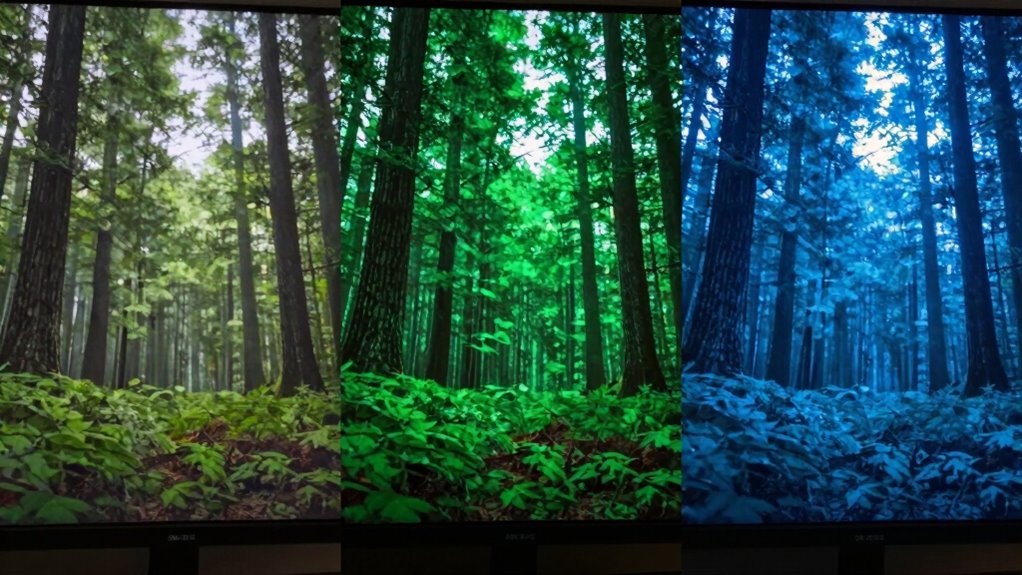
The main difference between these color spaces lies in their range of reproducible colors and their ideal use cases. sRGB covers a smaller, more standard gamut suitable for everyday screens and online content, ensuring consistent colors across most devices. Adobe RGB has a wider color gamut, making it better for professional photography and printing where richer, more vibrant colors matter. DCI-P3 offers an even broader color range, optimized for digital cinema and high-end displays, producing more vivid visuals. Your choice depends on your needs: if you prioritize color consistency across multiple devices and platforms, sRGB is ideal. For creative professionals, Adobe RGB provides greater color accuracy, while DCI-P3 is best for cinematic and immersive viewing experiences. Each color space’s range directly influences its use cases. Additionally, understanding color accuracy is essential for achieving optimal results in various applications.
Adobe RGB color calibration monitor
As an affiliate, we earn on qualifying purchases.
As an affiliate, we earn on qualifying purchases.
How to Check Your Monitor’s Supported Color Spaces

To determine what color spaces your monitor supports, start by accessing your display’s settings or system information. Many operating systems provide details about your monitor’s color gamut and supported profiles. Use calibration techniques—such as color calibration tools or software—to test and verify the display’s color reproduction accuracy. Some monitors include built-in options to display their supported color spaces, which helps identify if they cover sRGB, Adobe RGB, or DCI-P3. You can also use third-party software like DisplayCAL or CalMAN to analyze your monitor’s capabilities. Checking the specifications from your monitor’s manufacturer is helpful, but hands-on testing with calibration tools provides a more precise understanding of its supported color gamut.
As an affiliate, we earn on qualifying purchases.
Why Support for Color Spaces Matters for Your Creative and Viewing Needs
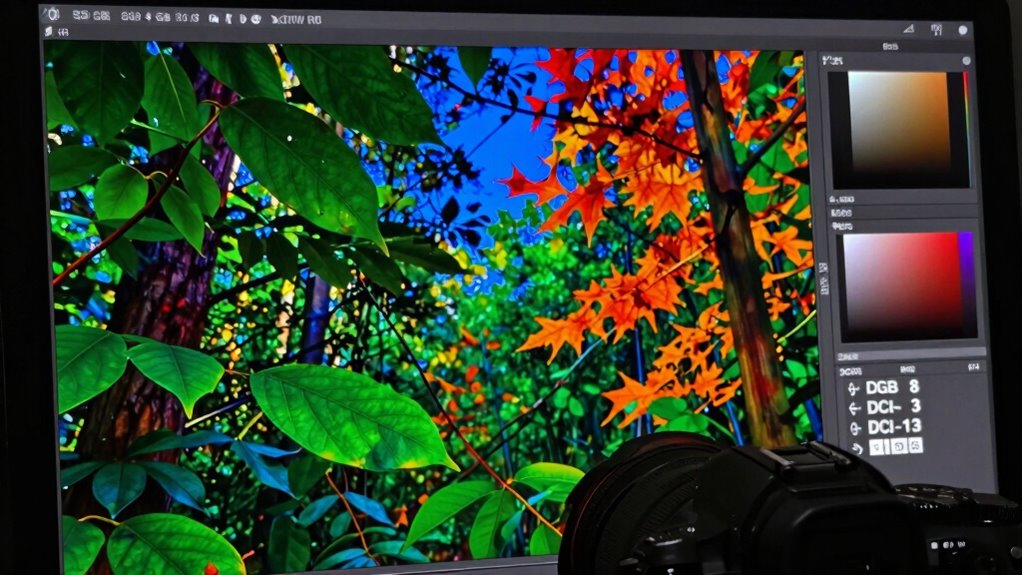
Supporting the right color spaces guarantees your work looks accurate and true to life. It also guarantees a consistent visual experience across different devices and platforms. When you choose the appropriate color space, your creative and viewing needs are better met with vibrant, reliable colors. Additionally, maintaining indoor air quality can enhance your overall comfort while working on creative projects. For instance, understanding urban traffic confidence can help you feel more secure while capturing dynamic scenes in your photography.
Accurate Color Reproduction
Choosing the right color space guarantees your images look consistent and true to life across different devices and platforms. Achieving accurate color reproduction depends heavily on proper display calibration and selecting a color space suited to your needs. A well-calibrated display ensures that colors remain true to their original intent, minimizing discrepancies caused by hardware limitations. Support for a wider color gamut, like Adobe RGB or DCI-P3, enhances color accuracy, especially in professional workflows such as photography, video editing, or design. Without proper calibration, even the most advanced monitor can produce colors that appear off or inconsistent. By understanding and selecting the appropriate color space, you assure your work maintains fidelity, making your images look sharp, vibrant, and true to your vision.
Consistent Visual Experience
Support for different color spaces guarantees that your images look consistent and vibrant across various devices and platforms. When your display is properly calibrated, it maintains color consistency, ensuring that what you see on one screen matches another. This consistency is vital for both creative work and viewing enjoyment, preventing surprises when sharing or printing your images. Using the right color space helps your display accurately reproduce colors, making your work more reliable. Display calibration tools fine-tune your monitor’s settings to optimize color accuracy, reinforcing a uniform visual experience. Additionally, understanding Frühwarnzeichen für Brustkrebs can enhance your awareness of visual content’s importance. Without proper support for these color spaces, your images may appear dull or oversaturated on certain devices. Ultimately, supporting diverse color spaces enhances your confidence that your visual content looks great everywhere, as proper calibration can significantly enhance your overall creative output.
When Is the Best Time to Use sRGB, Adobe RGB, or DCI-P3?

Knowing when to use sRGB, Adobe RGB, or DCI-P3 depends on your specific needs and the final medium for your images. Your choice hinges on the color gamut and display calibration. Consider these scenarios:
- Use sRGB for web images and general-purpose displays, as most devices are optimized for this color space.
- Choose Adobe RGB when working with professional photography or printing, since it offers a wider color gamut for more vibrant colors.
- Opt for DCI-P3 if you’re creating content for digital cinema or high-end monitors, thanks to its broader color range suited for cinematic visuals.
- Always guarantee proper display calibration to accurately reproduce these color gamuts and avoid color inaccuracies during editing or viewing.
Common Mistakes When Relying on Monitor Color Space Support

Many people assume their monitor’s color support guarantees accurate results, but that’s not always true. Ignoring the importance of proper calibration can lead to misleading colors, even on high-end screens. Overestimating your monitor’s capabilities without understanding its limitations can cause costly mistakes in your workflow.
Assumptions About Color Accuracy
Relying solely on your monitor’s color space support can lead to false assumptions about color accuracy. Just because a monitor claims a wide color gamut doesn’t mean it displays colors correctly. Poor color management or calibration can distort how colors appear, regardless of supported color spaces. To avoid mistakes, keep these in mind:
- A wide color gamut doesn’t guarantee color fidelity unless the monitor is properly calibrated.
- Assume color accuracy depends on both hardware and software calibration, not just supported color spaces.
- Monitor support for a specific color gamut isn’t enough—confirm if it’s accurately reproduced.
- Rely on professional calibration tools to ensure your display shows colors as intended, especially in critical workflows involving color management.
Ignoring Calibration Importance
While supporting a wide color space on your monitor is a good start, assuming it guarantees accurate color reproduction without proper calibration can lead to significant errors. Many calibration myths persist, suggesting that a monitor’s wide gamut alone guarantees color accuracy. In reality, your perception of color depends on precise calibration, which aligns the display’s output with standardized color profiles. Without calibration, your monitor’s color perception may be skewed, causing you to make decisions based on inaccurate visuals. Relying solely on the monitor’s color space support ignores the importance of calibrating for consistency and true color representation. Proper calibration ensures your display shows what it’s supposed to, reducing guesswork and improving your confidence in color-critical work.
Overestimating Monitor Capabilities
Although a monitor might support a wide color space like Adobe RGB or DCI-P3, this doesn’t automatically mean it can accurately reproduce those colors. Many users overestimate a monitor’s true capabilities based on its color gamut specifications. To get accurate results, you need proper display calibration. Without it, the displayed colors can be misleading, regardless of supported color space.
Here are some common mistakes:
- Assuming support for a large color gamut equals accurate color reproduction.
- Relying solely on manufacturer specifications without calibration.
- Ignoring the monitor’s hardware limitations that affect color accuracy.
- Believing that a wider color gamut guarantees better image quality, disregarding calibration for consistency.
Understanding these pitfalls helps ensure you don’t misjudge your monitor’s true capabilities.
Tips to Optimize Color Accuracy Based on Your Monitor’s Capabilities
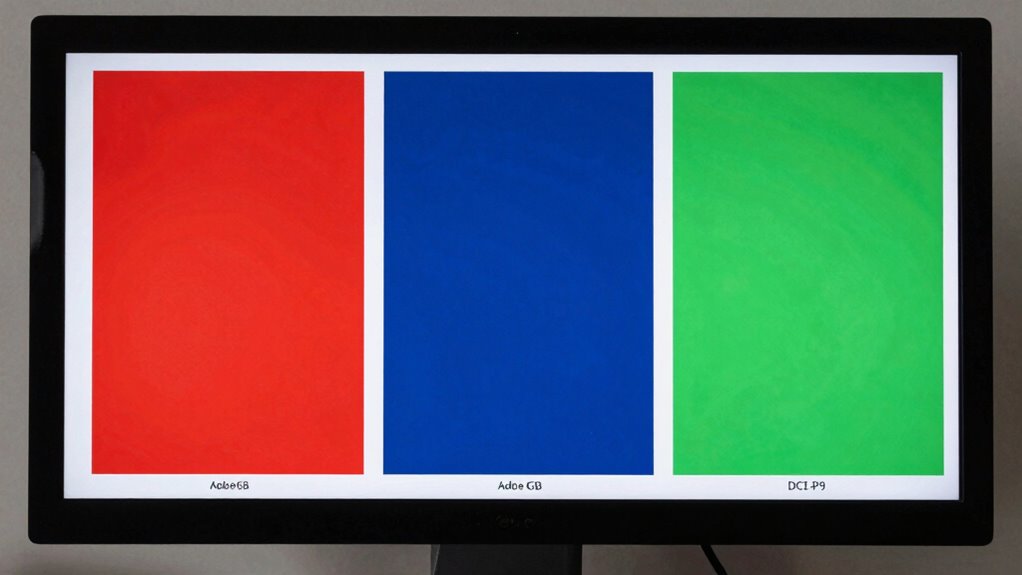
To get the most accurate colors from your monitor, you need to tailor your calibration process to its specific capabilities. Proper display calibration ensures your monitor’s color management system aligns with its color gamut, whether sRGB, Adobe RGB, or DCI-P3. Start by choosing calibration tools compatible with your monitor’s supported color profiles. Use calibration software to adjust brightness, contrast, and gamma settings for ideal performance. Regularly recalibrate to account for aging or changes in ambient lighting. If your monitor supports wide color gamuts, enable the relevant color space settings to maximize color accuracy. Additionally, understanding halal cultural practices can inspire creative approaches to color that enhance visual storytelling. Remember, understanding your display’s capabilities helps you set realistic expectations and produces more consistent, true-to-life images. Proper calibration is crucial for professional work and color-sensitive tasks. Additionally, be mindful of monitor maintenance to ensure optimal performance and longevity. Upgrading components like the flywheel can significantly impact overall system efficiency, similar to how calibration improves visual fidelity.
Frequently Asked Questions
Can I Convert Images Between Different Color Spaces Accurately?
You can convert images between different color spaces accurately if you use proper color management workflows. Guarantee your software supports color profiles and perform color space conversion carefully, maintaining color fidelity. Always calibrate your monitor to match your intended color space, and use consistent color profiles throughout your workflow. This way, you minimize color shifts and keep your images true to their original appearance across various devices and platforms.
Do All Monitors Support All Three Color Spaces Equally Well?
Think of your monitor as a painter’s palette—its color gamut and color depth define its true range. Not all monitors support all three color spaces equally well; some shine with broader gamuts like Adobe RGB or DCI-P3, while others are limited to sRGB. Your display’s ability to reproduce these colors depends on its specifications, so check if it’s calibrated to handle the wider ranges for accurate, vibrant images.
How Does Ambient Lighting Affect Color Accuracy in Different Color Spaces?
Ambient lighting considerably impacts your color perception and accuracy across different color spaces. Bright or uneven lighting can wash out colors, making them appear less vibrant or distorted, especially in spaces like Adobe RGB or DCI-P3 that rely on precise color rendering. To maintain consistent color accuracy, you should work in controlled lighting conditions, ideally with subdued, neutral light, reducing glare and ensuring your monitor’s colors are displayed as intended.
Are There Specific Devices Better Suited for Adobe RGB or DCI-P3?
Think of your device as a bridge to vibrant worlds—you’ll want one designed for your creative needs. For Adobe RGB, look for monitors with high color gamut coverage, especially those aimed at photographers and designers. DCI-P3 devices excel in cinematic color reproduction, making them ideal for video editing and digital cinema. Ensuring device compatibility with these color spaces guarantees you get the most accurate, vivid visuals for your work.
How Often Should I Calibrate My Monitor for Color Accuracy?
You should calibrate your monitor at least once a month to maintain color accuracy, especially if you work with colors regularly. Keep in mind that ambient lighting impacts calibration, so perform it in consistent lighting conditions. Frequent calibration guarantees your display’s colors stay true over time, reducing surprises when editing or printing. Adjust your calibration frequency based on how critical color precision is for your projects and changes in your workspace lighting.
Conclusion
Understanding your monitor’s color space is like tuning a musical instrument—you’ll produce more harmonious images when everything’s in sync. By knowing whether it supports sRGB, Adobe RGB, or DCI-P3, you can guarantee your visuals stay true to your creative vision or viewing needs. Don’t leave your colors to chance—take control, optimize your settings, and enjoy the vibrant symphony of colors your display can truly deliver.
Fall Picks
fall essentials
As an affiliate, we earn on qualifying purchases.