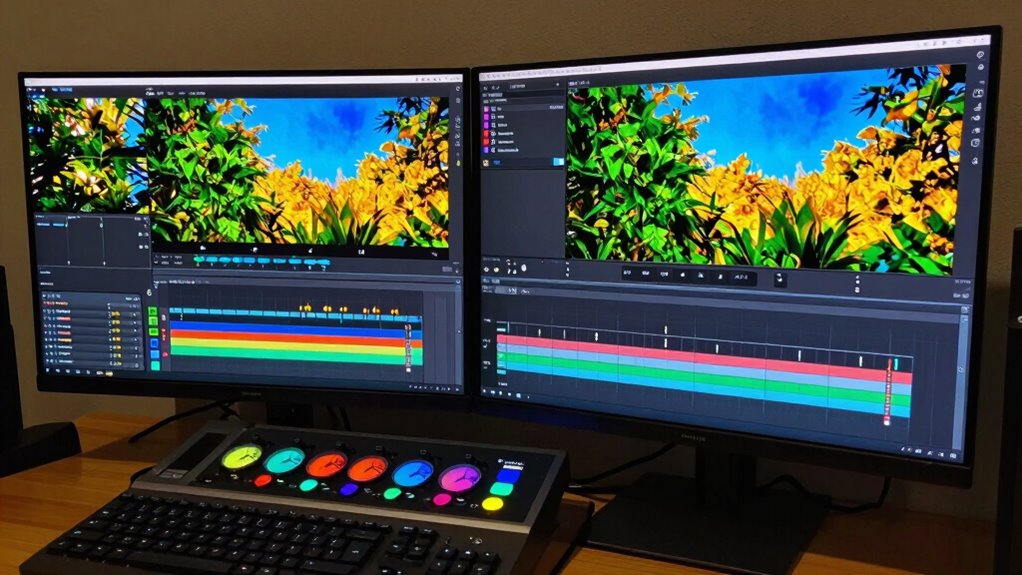
To guarantee color accuracy with HDR, you should calibrate your display regularly using high-quality tools, set appropriate peak brightness, and choose the right color space like Rec. 2020 or DCI-P3. Select the HDR format that matches your workflow, such as HDR10 or Dolby Vision, based on device compatibility. Managing gamma, metadata, and ambient lighting also plays a vital role. Maintain confidence in your setup by implementing these essential tips—more detailed guidance awaits those who continue exploring.
Key Takeaways
- Calibrate your display regularly using hardware colorimeters to ensure accurate color reproduction and consistent HDR viewing.
- Choose the appropriate HDR format (HDR10, Dolby Vision, HLG) based on your device compatibility and project needs.
- Set peak brightness levels and gamma carefully to balance highlights, shadows, and overall luminance for true-to-life colors.
- Use correct color spaces (Rec. 2020, P3 D65) aligned with your HDR format to maximize color fidelity and vibrancy.
- Maintain controlled ambient lighting and verify calibration with test patterns to prevent color shifts and ensure consistent results.

Calibrite Display 123 Monitor Calibration Colorimeter for Photo Editing and Color Accurate Viewing, Easy 1 2 3 Software Workflow, USB C Connection, and Before and After Check, Supports 2 Displays
SPECIFICATIONS: Monitor calibration colorimeter with Easy 1 2 3 software workflow, USB C connection, compact body approx. 34mm…
As an affiliate, we earn on qualifying purchases.
As an affiliate, we earn on qualifying purchases.
How HDR Impacts Color Accuracy in Video Editing
High Dynamic Range (HDR) has transformed video editing by expanding the range of colors and contrast available on screen. With HDR, you can achieve more precise color grading, capturing subtle shades and details that standard formats might miss. However, to guarantee color accuracy, display calibration becomes essential. Properly calibrated displays allow you to see true-to-life colors and contrast, which is critical when working with HDR content. If your monitor isn’t calibrated, you risk making adjustments based on inaccurate visuals, leading to color inconsistencies in the final product. By combining HDR with accurate display calibration, you maintain consistency across your edits, assuring your colors are true to the artist’s intent. This setup helps you produce high-quality, visually stunning content with reliable color fidelity. Additionally, expert recommendations can guide you in selecting the right calibration tools to enhance your workflow. Understanding early detection methods can also help you appreciate the importance of precision in visual media. To further improve your process, consider investing in lightweight foundations that enhance your overall workflow efficiency.

LG 24G411A-B 24-inch Ultragear Full HD (1920 x 1080) IPS Gaming Monitor, 144Hz (O/C), 1ms MBR, NVIDIA G-Sync Compatible, AMD FreeSync, HDR10, HDMI, DisplayPort, Slim Stand, Black
Vivid Color, Fast Response, Total Control – The 24" UltraGear FHD gaming monitor delivers vivid HDR10 color, ultra-smooth…
As an affiliate, we earn on qualifying purchases.
As an affiliate, we earn on qualifying purchases.
Which HDR Format Is Best for Your Workflow?
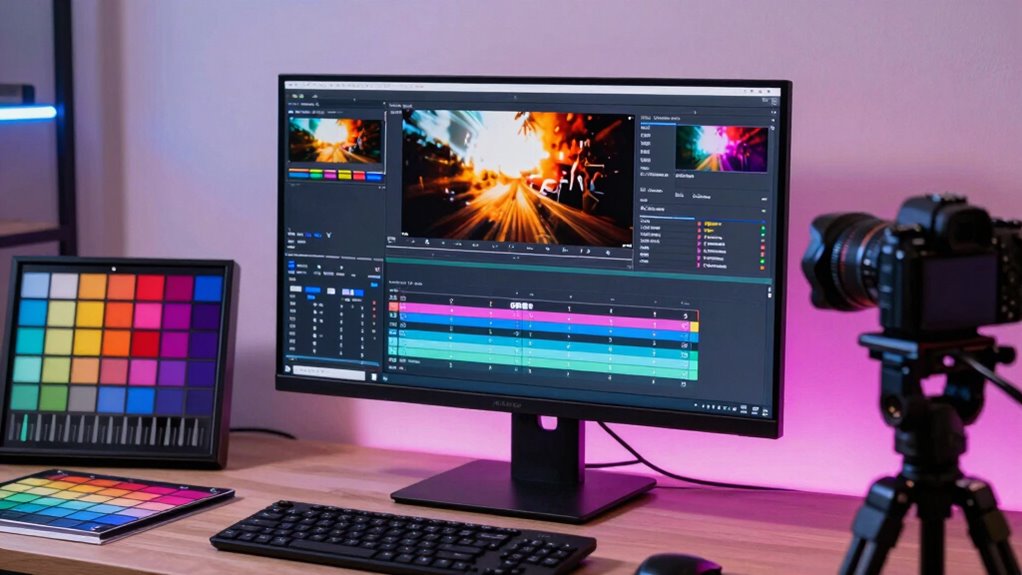
Choosing the right HDR format depends on your device compatibility and the range of colors you need to work with. You should also consider how easily the format integrates into your workflow to avoid delays. Evaluating these factors helps you select an HDR option that guarantees consistent color accuracy and smooth editing processes. Additionally, understanding color profiles in video editing can enhance your workflow and ensure optimal results. Implementing techniques from color accuracy can further elevate your projects by ensuring that the colors you see on screen match your creative vision. Furthermore, exploring new frontiers in digital content can provide additional insights into enhancing your overall production quality.
Compatibility With Devices
With so many HDR formats available, selecting the right one for your workflow can seem intimidating. Your choice depends heavily on device compatibility and software integration. If you primarily work with consumer devices like TVs or monitors, HDR10 is widely supported and offers broad compatibility. For professional workflows, Dolby Vision provides better dynamic metadata, but make certain your editing software and hardware support it. HDR formats like HLG are designed for live broadcasting and streaming, making them suitable for real-time content. Always verify that your devices—cameras, monitors, editing hardware—support the HDR standard you choose. This guarantees smooth workflow integration and consistent color accuracy, avoiding compatibility issues that could hinder your editing process or final output quality. Additionally, consider how eco-friendly natural pools can inspire unique visual aesthetics in your projects. Understanding Victorian fashion trends can also influence your creative choices, ensuring that your visuals resonate well with your audience. In navigating these complexities, it’s helpful to apply active listening techniques when discussing preferences with collaborators to ensure everyone is on the same page. Achieving work-life harmony is essential, as it can enhance your creativity and productivity in the long run.
Color Gamut Range
Understanding the color gamut range of HDR formats is essential because it determines the spectrum of colors your display and content can reproduce. A wider gamut allows for more vibrant, accurate color grading, which is crucial for professional work. Different formats offer varying levels of gamut expansion, impacting your workflow. Consider the following:
| HDR Format | Gamut Range | Best For |
|---|---|---|
| HDR10 | Rec. 2020 | General use |
| Dolby Vision | P3 D65 | Creative projects |
| HLG | Rec. 2020 | Live content |
| Advanced HDR | Extended Rec. 2020 | High-end grading |
| SMPTE ST 2084 | P3 | Broadcast |
Choosing the right format depends on your need for color accuracy and the scope of gamut expansion for precise color grading.
Workflow Integration Tips
Selecting the right HDR format for your workflow can considerably streamline your color grading process and guarantee your final output meets your creative vision. To optimize software integration, choose an HDR format that’s compatible with your editing tools and delivery platforms. For example, Dolby Vision and HDR10+ offer broad support and are ideal for streaming, while HLG fits well with live broadcasts. Consider your project’s end use—if you’re aiming for detailed color grading and high fidelity, formats like Dolby Vision provide extensive metadata control. Ensuring your software supports your chosen HDR format simplifies color grading and minimizes compatibility issues. This alignment helps you maintain accurate color representation throughout your workflow, reducing guesswork and saving time on adjustments. Proper format selection is essential for seamless integration and high-quality results.

Datacolor SpyderExpress
QUICK & EASY COLOR CALIBRATOR: Whether you're editing photos, designing graphics, or producing content, SpyderExpress helps you view…
As an affiliate, we earn on qualifying purchases.
As an affiliate, we earn on qualifying purchases.
Key HDR Settings to Ensure Accurate Colors
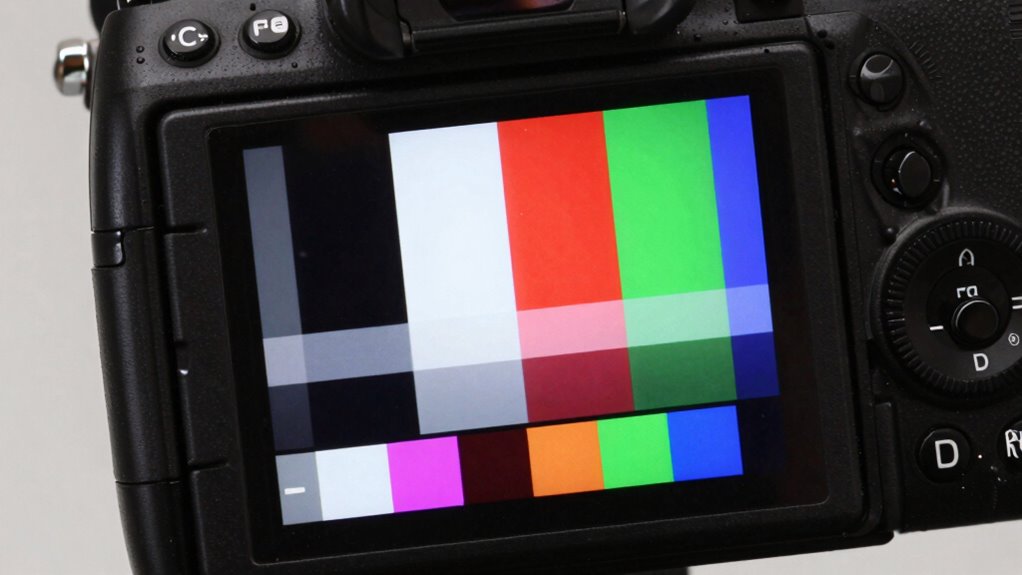
To guarantee your colors stay accurate in HDR, focus on setting the right peak brightness levels, calibrating your color space, and adjusting gamma properly. These key settings directly impact how your content appears across different displays and lighting conditions. Properly balancing these elements helps you achieve consistent, true-to-life colors in your videos. Additionally, maintaining indoor air quality can enhance your viewing environment, as pollutants and humidity levels can affect color perception. Understanding the role of regional flavors in visual storytelling can also inspire unique color palettes that resonate with your audience. Furthermore, having a well-designed whole-home water system can ensure that your workspace is free from contaminants that may otherwise obscure color accuracy. Emphasizing body-based methods in your creative process can also help you stay grounded and focused, ultimately enhancing your color perception and decision-making. Engaging with modern family dynamics can provide valuable insights into how color preferences evolve based on cultural influences.
Peak Brightness Settings
Peak brightness settings play a crucial role in achieving accurate colors in HDR video production. Properly setting peak brightness ensures that highlights are vivid without sacrificing overall color accuracy. Too high, and you risk washing out details; too low, and highlights appear dull. Adjusting peak brightness helps you match the display’s capabilities to the content’s intent, maintaining the integrity of colors and contrast. Use the table below to understand common peak brightness ranges and their impact:
| Peak Brightness Range | Effect on Color Accuracy |
|---|---|
| 100-300 nits | Suitable for SDR content |
| 400-600 nits | Good for standard HDR |
| 700-1000 nits | Preserves vivid highlights |
| 1000+ nits | Ideal for high-end HDR |
| Custom Settings | Tailored for specific projects |
Color Space Calibration
Adjusting your display’s color space calibration guarantees that the colors you see closely match the original content, maintaining fidelity across your project. Proper calibration is essential for effective color grading and seamless color management. Start by selecting the correct color space for your workflow, such as Rec. 709 for HD or DCI-P3 for HDR content. This assures your monitor displays colors accurately, aligning with industry standards. Use calibration tools or hardware devices to fine-tune your display’s color settings, eliminating color casts and inconsistencies. Accurate color space calibration provides a reliable foundation for editing, so your final output will look consistent across different screens and platforms. Prioritizing this step helps you achieve true-to-life colors and professional-quality results in your video projects.
Gamma Adjustment Techniques
Gamma adjustment is a crucial step in guaranteeing your video displays accurate and consistent colors, especially in HDR workflows. Proper gamma correction balances luminance levels, preventing colors from appearing washed out or overly dark. To achieve this, adjust your display’s gamma settings to match the target curve, typically around 2.2 or 2.4 for HDR content. This enhances contrast enhancement, making details more visible in shadows and highlights without sacrificing color accuracy. Fine-tuning gamma ensures that your footage’s tonal range remains true to the source, preserving the artist’s intended look. Regular calibration with a colorimeter helps maintain consistent gamma correction over time. Additionally, achieving optimal engine performance can similarly rely on precise adjustments to ensure the best results. Furthermore, understanding color spaces is essential, as it can significantly impact how colors are rendered in your video projects. The nail biology of color perception can also influence how viewers interpret your visuals. In the realm of digital publishing, staying informed about emerging trends can further enhance your technical approach. Accurate media literacy allows artists to better comprehend the implications of their color choices. Ultimately, precise gamma adjustments lead to more reliable color reproduction and a better viewing experience across different devices.

BZBGEAR 1080P FHD/4K UHD HDMI 2.0 18Gbps Portable Signal Test Generator and Analyzer – BG-AVTPG-MINI
4K Support – up to 4K2K @60hz 4:4:4 8bit, HDR 10 bits,12 bits 16 bits
As an affiliate, we earn on qualifying purchases.
As an affiliate, we earn on qualifying purchases.
How to Calibrate Your Display for HDR Color Precision

To guarantee your display delivers accurate HDR colors, proper calibration is crucial. Effective display calibration ensures your color grading reflects true hues and luminance levels, essential for professional work. First, use a high-quality calibration tool, like a hardware colorimeter. Then, follow these key steps:
Proper HDR calibration with the right tools ensures accurate colors and luminance for professional-grade display performance.
- Set your display’s brightness to match HDR standards.
- Adjust contrast to optimize highlight detail without clipping.
- Calibrate white point to 6500K for accurate color temperature.
- Fine-tune gamma settings for proper tonal response.
- Verify calibration with test patterns to ensure color consistency. Additionally, understanding color accuracy can help you assess if your display is performing optimally. Incorporating sustainable practices in the creative process can also enhance the environmental impact of your work.
Additionally, incorporating balance training can enhance your spatial awareness, which is vital for achieving precise visual outcomes. Considering door swings can help you understand spatial dynamics, enhancing your overall visual presentation. This understanding can also improve your ability to create genuine connections in various artistic contexts.
Common HDR Color Problems and How to Fix Them
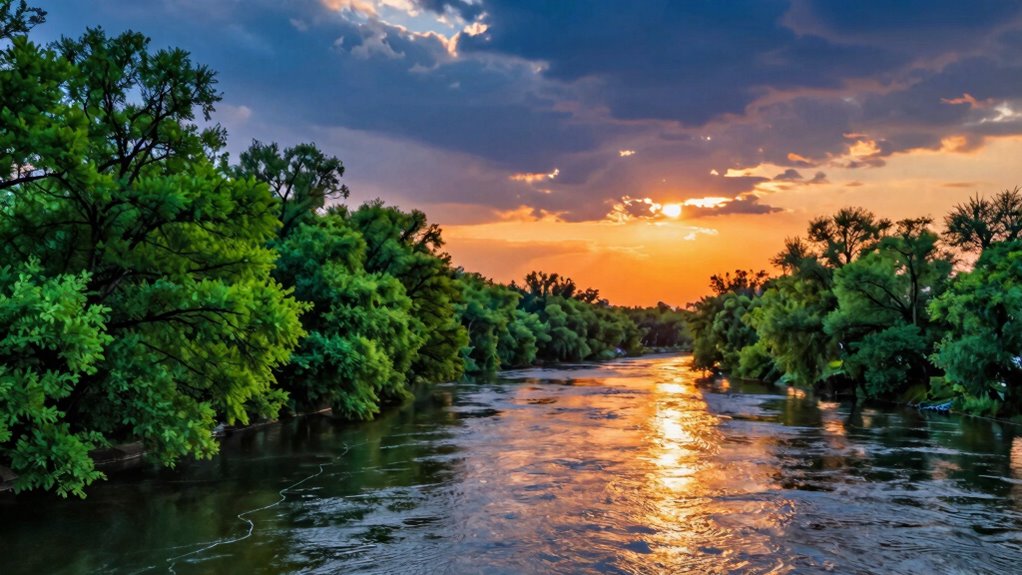
Even after calibrating your display for accurate HDR colors, you might still encounter some common issues that affect your work. One problem is inconsistent color grading, where colors appear washed out or overly saturated. This often stems from incorrect or missing HDR metadata, which guides how colors and contrast are displayed. If your HDR metadata isn’t properly set, colors may not render correctly across devices, leading to mismatched visuals. Another issue is clipping, where highlights or shadows lose detail because the display isn’t interpreting the metadata correctly. To fix these problems, double-check your HDR metadata settings and verify your color grading process aligns with the display’s capabilities. Properly managing these factors helps maintain consistent, accurate colors throughout your project.
Tips to Maintain Consistent Color Across Devices
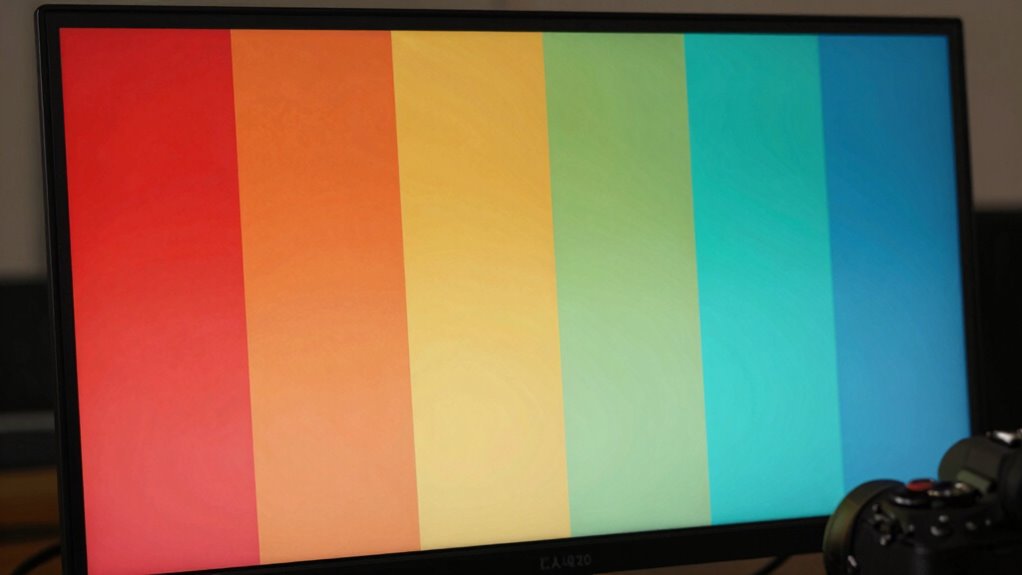
Achieving consistent color across devices can be challenging, but it’s essential for professional video work. To do this, focus on proper display calibration and consistent color grading practices. Start by calibrating each display regularly to ensure accurate color reproduction. Use calibration tools and software tailored for your monitors. Keep your workflow consistent by applying similar color grading techniques across devices. Additionally, maintain a controlled environment with neutral lighting to prevent color shifts. When switching between screens, compare color tones and adjust as needed. Remember, keeping your calibration up-to-date ensures your colors stay true.
- Perform regular display calibration
- Use standardized color profiles
- Keep ambient lighting consistent
- Document your color grading settings
- Cross-check colors on multiple devices
Frequently Asked Questions
How Often Should I Recalibrate My HDR Display?
You should recalibrate your HDR display every 4 to 6 weeks to maintain ideal color accuracy. Regular display calibration ensures your color grading tools remain precise, especially when working on critical projects. Environmental changes, software updates, or hardware shifts can affect display performance. Consistent calibration helps you catch these issues early, ensuring your HDR settings stay accurate and your work looks consistent across different devices.
Can HDR Settings Affect My Editing Software’s Performance?
Yes, HDR settings can impact your editing software’s performance. Incorrect HDR configurations may cause inconsistent display calibration, leading to color inaccuracies and poor color consistency. When HDR settings are fine-tuned, your software can process colors more accurately, ensuring better editing precision. Keep your display calibrated regularly, especially when adjusting HDR, to maintain peak performance and consistent color reproduction, which is essential for high-quality video editing.
What Hardware Is Essential for Accurate HDR Color Grading?
To guarantee accurate HDR color grading, you need a high-quality monitor with an HDR color space support like Dolby Vision or HDR10+. For example, a professional-grade monitor calibrated with precise tools like colorimeters guarantees consistent results. Calibration tools are essential to fine-tune your display’s color output, matching it accurately to industry standards. Investing in such hardware helps you achieve reliable, professional-grade HDR content without color discrepancies.
Are There Specific Color Spaces Recommended for HDR Editing?
For HDR editing, you should prioritize using a wide color space like Rec. 2020 or DCI-P3, as they capture more colors and provide better color accuracy. During editing, pay attention to color space conversion, guaranteeing your workflow maintains color integrity across devices. Proper color space selection helps you achieve true HDR visuals, and understanding conversion processes ensures your final output remains vibrant and accurate across screens.
How Do I Test if My HDR Colors Are Accurate Post-Calibration?
Testing your HDR colors post-calibration is like tuning a fine instrument. You should use professional display profiling tools and color calibration software to verify accuracy. Check against industry-standard test patterns or color targets designed for HDR. Confirm your display’s color calibration is consistent and your settings match those standards. If colors look vibrant and true to the reference, your HDR calibration is spot-on. Regular testing keeps your color workflow precise.
Conclusion
Don’t let hesitation hold you back from mastering HDR. With the right settings and calibration, you’ll achieve stunning, accurate colors that elevate your work. Sure, it might seem complex at first, but the payoff is worth it—your videos will look more vibrant and professional. Embrace the challenge, and remember, every great artist started where you are now. Keep experimenting, and soon, color accuracy will become second nature.