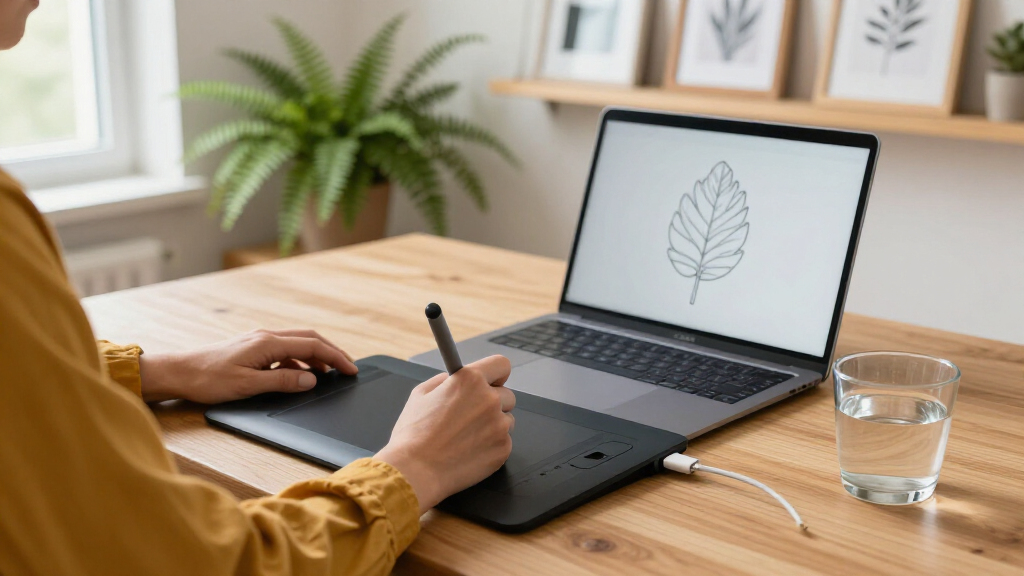

For most beginners using a computer, I’d start with the Wacom Intuos Small for its straightforward setup and established software support. The XPPen Deco 01 V3 gives you a larger work area and more room to grow, while the PicassoTab A10 suits learners who want to draw without connecting a computer. The main choice is between a simple screenless tablet, which takes some hand-eye adjustment, and a screen tablet or standalone device that costs more but feels more direct. Size, shortcut controls, and computer compatibility also matter more than headline pressure figures alone. Read on for my full comparison and picks by beginner type.

Get art and craft supplies delivered free — and shop member deals
- Fast, free delivery on millions of items
- Access to Prime Big Deal Days deals on October 6–7
- Prime Video, Amazon Music and more included
Key Takeaways
- The Wacom Intuos Small is my easiest computer-connected starting point, while its small active area is less suitable for broad arm movements.
- The XPPen Deco 01 V3 offers a larger workspace than compact models such as the Star G640, making it a better fit for longer drawing sessions at a desk.
- Screen tablets and standalone tablets solve different problems: the XP-PEN Artist12 and Kamvas 13 need a computer, while the PicassoTab models can work without one.
- Small tablets favor portability and desk space, but the H420X, H640P, and Star G430S leave less room for full-page gestures than larger pen tablets.
- Shortcut keys and dials can reduce repetitive tool changes, though beginners should prioritize a comfortable drawing area and compatible setup before paying for extra controls.
| HUION Inspiroy H420X Drawing Tablet with 8192-Level Pen Pressure |  | Best Compact Starter | Active area: 4.17 × 2.6 inches | Dimensions: 6.77 × 4.3 inches | Thickness: 7 mm | VIEW LATEST PRICE | See Our Full Breakdown |
| HUION Inspiroy H1060P Graphics Drawing Tablet, 10 x 6.25 in, 12+16 Hot Keys |  | Best for Shortcut-Driven Workflows | Working area: 10 × 6.25 inches | Stylus: Battery-free PW100 | Tilt support: ±60° | VIEW LATEST PRICE | See Our Full Breakdown |
| GAOMON M10K Drawing Tablet, 10 × 6.25 in |  | Best for Hands-On Controls | Active area: 10 × 6.25 inches | Stylus: Battery-free AP31 | Pressure sensitivity: 8192 levels | VIEW LATEST PRICE | See Our Full Breakdown |
| XPPen StarG640 Digital Graphic Tablet, 6 x 4 Inch, Battery-Free Stylus, for Mac, Windows, and Chromebook |  | Best for Chromebook Beginners | Active area: 6 × 4 inches | Thickness: 2 mm | Stylus: Battery-free PN01 | VIEW LATEST PRICE | See Our Full Breakdown |
| XP-PEN Artist12 11.6-Inch FHD Drawing Monitor with Battery-Free Stylus |  | Best First Pen Display | Display size: 11.6 inches | Resolution: 1920 × 1080 | Display type: IPS | VIEW LATEST PRICE | See Our Full Breakdown |
| HUION Kamvas 13 (Gen 3) 13.3″ Drawing Tablet with Screen, Dual Dial, Black |  | Best Screen Display for Beginners | Screen size: 13.3 inches | Pen pressure: 16,384 levels | Initial activation force: 2 g | VIEW LATEST PRICE | See Our Full Breakdown |
| Wacom Intuos Small Wired Graphic Drawing Tablet with Pen and Software |  | Best for Guided First Steps | Product line: Intuos | Size: Small | Connection: Wired | VIEW LATEST PRICE | See Our Full Breakdown |
| HUION Inspiroy H640P 6 × 4-Inch Drawing Tablet with 8192-Level Pressure Sensitivity |  | Best Compact Practice Tablet | Active area: 6 × 4 inches | Pen pressure: 8,192 levels | Resolution: 5,080 LPI | VIEW LATEST PRICE | See Our Full Breakdown |
| XPPen Deco 01 V3 Drawing Tablet |  | Best Value for a Large Drawing Area | Active area: 6.25 × 10 inches | Pen pressure: 16,384 levels | Tilt support: 60° | VIEW LATEST PRICE | See Our Full Breakdown |
| XPPen Deco 01 V3 Drawing Tablet, 10 x 6.25 in, 16K Pressure, Battery-Free Stylus, 8 Keys |  | Best for Left- or Right-Handed Beginners | Active area: 10 × 6.25 inches | Pen pressure: 16,384 levels | Tilt support: Up to 60° | VIEW LATEST PRICE | See Our Full Breakdown |
| PicassoTab A10 10-Inch Standalone Drawing Tablet |  | Best Starter Standalone Tablet | Display size: 10 inches | Display type: Laminated | Stylus pressure sensitivity: 4096 levels | VIEW LATEST PRICE | See Our Full Breakdown |
| HUION Inspiroy 2 Small Drawing Tablet with Scroll Wheel, 6.3 x 3.9, Pink |  | Best Compact Shortcut Tablet | Active area: 6.3 × 3.9 inches | Stylus: PW110 battery-free pen | Shortcut keys: 6 customizable keys | VIEW LATEST PRICE | See Our Full Breakdown |
| XPPen Star G430S Drawing Tablet with Battery-Free Stylus |  | Best for OSU! and Basic Practice | Active area: 4 × 3 inches | Pen pressure levels: 8192 | Stylus: Battery-free PN01 | VIEW LATEST PRICE | See Our Full Breakdown |
| PicassoTab X11 11″ Standalone Drawing Tablet – No Computer Needed |  | Best Standalone Screen | Screen size: 11 inches | Display: 2K, fully laminated, paper-like, anti-glare | Stylus pressure sensitivity: 4096 levels | VIEW LATEST PRICE | See Our Full Breakdown |
| Frunsi RubensTab T11 Pro Standalone Drawing Tablet |  | Best for Drawing and Everyday Use | Display: 10.1-inch Full HD IPS touchscreen | Resolution: 1920 × 1200 | Processor: Octa-core CPU | VIEW LATEST PRICE | See Our Full Breakdown |
| drawing tablets for beginner | Compatibility | Active area | Stylus |
|---|---|---|---|
| HUION Inspiroy H420X Drawing T | Windows 7 or later, macOS 10.12 or later, Android 6.0 or later; no iOS support | 4.17 × 2.6 inches | Battery-free, 2 customizable buttons |
| HUION Inspiroy H1060P Graphics | Windows 7 or later, macOS 10.12 or later, Android 6.0 or later, Linux Ubuntu | — | Battery-free PW100 |
| GAOMON M10K Drawing Tablet | Windows 7 or later, macOS 10.12 or later, supported Android 11–14 devices | 10 × 6.25 inches | Battery-free AP31 |
| XPPen StarG640 Digital Graphic | Mac, Windows, Chromebook | 6 × 4 inches | Battery-free PN01 |
| XP-PEN Artist12 11.6-Inch FHD | Windows 7/8/10/11, macOS 10.10 or later, Linux | — | — |
| HUION Kamvas 13 | Windows 10+, macOS 10.12+, compatible Android devices, Ubuntu 20.04 LTS | — | — |
| Wacom Intuos Small Wired Graph | — | — | — |
| HUION Inspiroy H640P 6 × 4-Inc | Mac, Windows, Linux, Android 6.0 or later; no iPhone or iPad support | 6 × 4 inches | Battery-free PW100 |
| XPPen Deco 01 V3 Drawing Table | Windows 7+, Android 10.0+, macOS 10.13+, Chrome OS 88+, Linux | 6.25 × 10 inches | — |
| XPPen Deco 01 V3 Drawing Table | Windows 7+, Android 10.0+, macOS 10.13+, Chrome OS 88+, Linux | 10 × 6.25 inches | Battery-free |
| PicassoTab A10 10-Inch Standal | — | — | — |
| HUION Inspiroy 2 Small Drawing | Windows 7 or later, macOS 10.12 or later, Linux Ubuntu, Android 6.0 or later, ChromeOS 88 or later | 6.3 × 3.9 inches | PW110 battery-free pen |
| XPPen Star G430S Drawing Table | Windows 7 or later; Mac OS X 10.10 or later | 4 × 3 inches | Battery-free PN01 |
| PicassoTab X11 11" Standalone | — | — | — |
| Frunsi RubensTab T11 Pro Stand | — | — | — |
More Details on Our Top Picks
HUION Inspiroy H420X Drawing Tablet with 8192-Level Pen Pressure
The Inspiroy H420X suits beginners who want a small, easy-to-carry tablet for sketches, notes, or trying digital art without giving up a desk. Its battery-free pen and 8192 pressure levels provide pressure-sensitive input, while compatibility with Windows, macOS, and Android gives it more device options than the computer-focused XPPen StarG640. The tradeoff is its 4.17 × 2.6-inch active area: it takes less room than the larger HUION H1060P, but leaves less space for broad strokes and detailed work. It connects by USB-C, so it is not as convenient to move around as a wireless setup, and iOS is unsupported. I’d choose it for portable practice, not as a tablet to grow into for large illustrations.
Pros:- Battery-free pen supports 8192 pressure levels
- Compact, 7 mm-thin body is easy to carry
- Works with Windows, macOS, and Android
- Compatible with major creative applications
Cons:- Small active area can constrain detailed or large-scale drawing
- Wired USB-C connection limits untethered use
- Not compatible with iOS
Best for: New artists who want a lightweight tablet for basic drawing, notes, or practice on a compatible computer or Android device.
Not ideal for: Beginners planning detailed illustrations or large gestures who need a roomy drawing surface, or anyone drawing on an iPhone or iPad.
- Active area:4.17 × 2.6 inches
- Dimensions:6.77 × 4.3 inches
- Thickness:7 mm
- Weight:167 g
- Pen pressure:8192 levels
- Report rate:300 PPS
- Stylus:Battery-free, 2 customizable buttons
- Connectivity:USB-C
- Compatibility:Windows 7 or later, macOS 10.12 or later, Android 6.0 or later; no iOS support
Our verdict“Choose the H420X for portable, small-scale practice; pick the HUION H1060P if you need more room to draw.”
HUION Inspiroy H1060P Graphics Drawing Tablet, 10 x 6.25 in, 12+16 Hot Keys
The HUION Inspiroy H1060P gives beginners room to build a more involved drawing routine: its 10 × 6.25-inch work area is far less cramped than the H420X, and its 12 press keys plus 16 soft keys can put common actions within reach. The battery-free PW100 pen supports ±60° tilt, which can help supported apps respond to the angle of a stroke. That extra control comes with a learning curve: configuring many shortcuts may feel like busywork to someone still learning the basics. Compared with the GAOMON M10K, it offers more listed keys and broad OS support including Ubuntu Linux, while the M10K adds a touch ring. It requires a computer or supported Android setup, and Linux use has specific Xorg limitations.
Pros:- Large 10 × 6.25-inch working area
- Battery-free pen with ±60° tilt support
- 12 press keys and 16 soft keys are programmable
- Symmetrical design supports left-handed use
Cons:- Large shortcut set can take time to configure and learn
- Does not support iPhone or iPad
- Linux support requires Xorg and excludes Wayland
Best for: Beginners with a computer who want a large drawing surface and programmable shortcuts for a growing illustration workflow.
Not ideal for: Casual sketchers seeking a simple compact tablet, or Linux users relying on Wayland and Samsung Galaxy S cursor support.
- Working area:10 × 6.25 inches
- Stylus:Battery-free PW100
- Tilt support:±60°
- Press keys:12 programmable
- Soft keys:16 programmable
- Thickness:10 mm
- Design:Symmetrical, with left-handed support
- Compatibility:Windows 7 or later, macOS 10.12 or later, Android 6.0 or later, Linux Ubuntu
Our verdict“Pick the H1060P if you want a roomy beginner tablet with extensive shortcuts; the GAOMON M10K is the alternative if a touch ring matters more.”
GAOMON M10K Drawing Tablet, 10 × 6.25 in
The GAOMON M10K pairs a full-size 10 × 6.25-inch textured surface with a programmable touch ring, giving beginners tactile controls for tasks such as changing brush size alongside ten shortcut keys. Its battery-free AP31 pen offers 8192 pressure levels, matching the pressure sensitivity listed for the HUION H1060P. The distinction is in the controls: the H1060P supplies substantially more keys and tilt support, while the M10K keeps the shortcut set smaller and adds a ring. That can make the M10K appealing to learners who want a few direct controls without assigning a key to every command. It needs driver installation, and Android support is limited to supported devices running versions 11–14. For fewer setup constraints, the compact H420X has a broader listed Android version range, though much less drawing space.
Pros:- Large, textured 10 × 6.25-inch active area
- Battery-free stylus with 8192 pressure levels
- Programmable touch ring plus 10 shortcut keys
- Supports Windows, macOS, and selected Android devices
Cons:- Driver installation is required
- Android support is limited to supported devices running versions 11–14
Best for: Beginners who want a large tablet, pressure-sensitive pen, and a physical control ring for common adjustments.
Not ideal for: People who want plug-and-play setup or need assured compatibility across a wide range of Android devices.
- Active area:10 × 6.25 inches
- Stylus:Battery-free AP31
- Pressure sensitivity:8192 levels
- Shortcut keys:10
- Touch ring:Programmable
- Connectivity:USB
- Compatibility:Windows 7 or later, macOS 10.12 or later, supported Android 11–14 devices
- Warranty:1 year
Our verdict“Choose the M10K for a roomy beginner workspace with a touch ring; choose the HUION H1060P for more shortcut keys and tilt support.”
XPPen StarG640 Digital Graphic Tablet, 6 x 4 Inch, Battery-Free Stylus, for Mac, Windows, and Chromebook
The XPPen StarG640 is a straightforward entry point for beginners who want to draw, take notes, or teach on a Mac, Windows computer, or Chromebook. Its 6 × 4-inch area offers more room than the H420X’s 4.17 × 2.6-inch surface, while the listed 2 mm thickness makes it especially easy to slip into a bag. The battery-free pen keeps charging out of the routine. Unlike the HUION H1060P, this model’s appeal is simplicity and portability rather than a large canvas and a bank of programmable keys; the supplied details do not list shortcut keys or pressure sensitivity. It also depends on a compatible computer or Chromebook, so it is not a standalone drawing device. Choose it for basic practice and productivity, not complex work that benefits from more controls.
Pros:- Compatible with Mac, Windows, and Chromebook
- Battery-free PN01 stylus
- Slim 2 mm design is easy to carry
- Supports drawing, signatures, note-taking, and teaching tasks
Cons:- 6 × 4-inch area can feel cramped for larger artwork
- Requires a compatible computer or Chromebook
- Supplied product details do not list pressure sensitivity or shortcut controls
Best for: Beginners using a Chromebook or computer who want a slim tablet for basic sketching, handwriting, or online teaching.
Not ideal for: Artists who want a large surface, programmable controls, or a standalone tablet that works without a computer.
- Active area:6 × 4 inches
- Thickness:2 mm
- Stylus:Battery-free PN01
- Compatibility:Mac, Windows, Chromebook
- Recommended uses:Drawing, painting, sketching, e-signatures, online teaching, remote work, photo editing, OSU gaming
- Supported applications:Microsoft Office, Word, PowerPoint, OneNote, Zoom, Xsplit, Google Jamboard, Google Keep, Google Canvas
Our verdict“Pick the StarG640 for portable beginner practice on a Chromebook; choose the HUION H1060P for a larger canvas and listed shortcut keys.”
XP-PEN Artist12 11.6-Inch FHD Drawing Monitor with Battery-Free Stylus
For a beginner who wants to draw directly on the image, the XP-PEN Artist12 is a different kind of step up from the H1060P and M10K: its 11.6-inch Full HD IPS screen puts the artwork under the pen instead of mapping strokes from a blank surface to a separate monitor. That direct visual link can feel more intuitive when learning hand-eye coordination. The battery-free pen includes an eraser, and six customizable keys plus a touch bar provide shortcut access. The tradeoff is setup and portability: it needs a computer and both HDMI and USB-A connections, or suitable adapters. Compared with the standalone PicassoTab A10 in this roundup, the Artist12 has a listed computer requirement, so it is a display accessory rather than an all-in-one device. Screen-based drawing may suit some beginners, but it costs desk space and connection convenience.
Pros:- 11.6-inch Full HD IPS display
- Battery-free stylus includes an eraser
- Six customizable keys and a touch bar
- Broad color coverage listed as 100% sRGB
Cons:- Requires a computer to operate
- Needs HDMI and USB-A ports or suitable adapters
- Screen-based setup is less portable than a compact pen tablet
Best for: New artists who prefer drawing directly on a screen and have a computer with HDMI and USB-A ports or suitable adapters.
Not ideal for: Beginners who need a standalone tablet, a wireless setup, or a simple device to carry and use without a computer.
- Display size:11.6 inches
- Resolution:1920 × 1080
- Display type:IPS
- Color gamut:72% NTSC (100% sRGB)
- Pen:Battery-free stylus with eraser
- Pressure sensitivity:8192 levels
- Controls:6 customizable keys and touch bar
- Connection requirements:HDMI and USB-A ports; computer required
- Compatibility:Windows 7/8/10/11, macOS 10.10 or later, Linux
Our verdict“Choose the Artist12 if drawing directly on-screen matters more than portability; opt for the PicassoTab A10 if you need standalone use.”
HUION Kamvas 13 (Gen 3) 13.3″ Drawing Tablet with Screen, Dual Dial, Black
The Kamvas 13 (Gen 3) is the pick for a beginner who wants to draw directly on a screen and can connect the tablet to a computer or laptop. Its 13.3-inch laminated display puts the artwork beneath the pen tip, while the included color figures and factory calibration suit learners who also care about how their work looks. Compared with the screenless XPPen Deco 01 V3, this feels more like drawing on the canvas itself, but it costs the convenience of a separate display setup and a computer connection. The dual dials and five shortcut keys give new users room to build efficient habits. The tradeoff is a more involved desk setup: the adjustable stand may be sold separately, and this is not a tablet for drawing away from a connected device.
Pros:- 13.3-inch laminated screen lets beginners draw directly over their artwork.
- Factory-calibrated 99% sRGB coverage supports more dependable color work.
- Dual dials and five programmable keys offer useful workflow controls.
- Single USB-C cable connection can simplify compatible setups.
Cons:- Requires a connected computer or laptop and does not work standalone.
- Adjustable stand may be sold separately depending on configuration.
- A screen display requires more desk space and setup than a screenless tablet.
Best for: New digital artists who want a pen display for a computer-based desk setup and value color accuracy.
Not ideal for: Beginners seeking a portable standalone tablet or a low-clutter setup without a connected computer.
- Screen size:13.3 inches
- Pen pressure:16,384 levels
- Initial activation force:2 g
- Color gamut:99% sRGB, Rec.709
- Color accuracy:Average ΔE<1.5
- Connection:Single USB-C cable
- Controls:5 programmable keys, 2 dials, 3 pen side buttons
- Compatibility:Windows 10+, macOS 10.12+, compatible Android devices, Ubuntu 20.04 LTS
Our verdict“Choose the Kamvas 13 if drawing on-screen matters more to you than portability or a simple screenless setup.”
Wacom Intuos Small Wired Graphic Drawing Tablet with Pen and Software
The Wacom Intuos Small suits a beginner who wants a familiar pen tablet and a way into creative software and training resources. Its battery-free EMR pen avoids charging, and broad software compatibility lets a learner try drawing, photo editing, or design without committing to one app. Unlike the screen-equipped HUION Kamvas 13 (Gen 3), the Intuos keeps the desk setup compact and does not require a display built into the tablet; the tradeoff is learning to watch the computer screen while drawing. Its small active area is convenient for casual practice but can feel limiting for sweeping strokes or larger compositions. The wired connection is straightforward, though less flexible than a wireless setup, and access to the included software may require registration.
Pros:- Battery-free EMR pen needs no charging.
- Works with major creative software programs.
- Included software access and online training can help beginners get started.
- Small footprint suits a crowded desk or a simple practice setup.
Cons:- Small drawing area can constrain larger projects and sweeping strokes.
- Wired connection limits placement flexibility.
- Software access may require registration.
Best for: First-time digital artists who want a compact pen tablet with access to software and online training.
Not ideal for: Learners who want to draw directly on a screen or need a larger area for broad arm movements.
- Product line:Intuos
- Size:Small
- Connection:Wired
- Pen technology:Battery-free EMR
- Included accessory:Pen
- Software compatibility:Works with all major creative software programs
- Included benefits:Creative software access and online training
Our verdict“Pick the Intuos Small if guided software access and a compact setup matter more than a large drawing area or on-screen drawing.”
HUION Inspiroy H640P 6 × 4-Inch Drawing Tablet with 8192-Level Pressure Sensitivity
The Inspiroy H640P is a compact way to learn pen-tablet basics without giving up pressure control or shortcut keys. Its 6 × 4-inch active area works well for short practice sessions, note-taking, or a small desk, and the battery-free stylus removes charging from the routine. Compared with the larger XPPen Deco 01 V3, it takes up less room and is easier to carry, but offers substantially less space for long strokes and detailed compositions. Six customizable keys give beginners shortcuts to learn, while compatibility across Mac, Windows, Linux, and Android offers flexibility. The main limitation is physical size: working on a small surface can feel cramped as projects grow. It also does not support iPhone or iPad, which rules it out for learners centered on those devices.
Pros:- Compact 6 × 4-inch active area fits small desks and travel bags.
- Battery-free stylus supports 8,192 pressure levels.
- Six customizable shortcut keys support faster repeated actions.
- Includes replacement nibs and supports left-handed use.
Cons:- Small active area can feel restrictive for detailed or expansive work.
- Does not support iPhone or iPad.
- Requires a connected compatible device rather than working standalone.
Best for: Beginners who need an inexpensive-to-carry, compact tablet for basic drawing, notes, or photo edits on supported devices.
Not ideal for: Artists who want room for large gestures or users who plan to draw on an iPhone or iPad.
- Active area:6 × 4 inches
- Pen pressure:8,192 levels
- Resolution:5,080 LPI
- Report rate:233 PPS
- Shortcut keys:6 customizable keys
- Stylus:Battery-free PW100
- Dimensions:0.3 inches thick; 0.61 lbs
- Compatibility:Mac, Windows, Linux, Android 6.0 or later; no iPhone or iPad support
- Included accessories:Pen holder with 8 replacement nibs, USB cable, cleaning cloth, quick start guide
Our verdict“Choose the H640P for portable practice and everyday tasks if you are comfortable drawing on a small surface.”
XPPen Deco 01 V3 Drawing Tablet
The Deco 01 V3 gives beginners a generous screenless workspace and a pressure-sensitive, tilt-capable pen, making it a strong fit for learning longer strokes and brush control. Its 6.25 × 10-inch active area is much roomier than the compact HUION Inspiroy H640P, so it is less likely to feel cramped as projects become more ambitious. Eight programmable keys and included accessories add practical support without requiring a display tablet. The tradeoff is that drawing still happens on the tablet while the image appears on a connected device, which can take practice for newcomers. Android support also depends on a compatible USB-C connection and may require adjusting the screen aspect ratio. This is a capable screenless starting point, but setup can be less immediate than using a display tablet.
Pros:- Large active area leaves room for longer strokes and broad gestures.
- Battery-free stylus supports 16,384 pressure levels and 60° tilt.
- Eight programmable keys provide quick access to common actions.
- Includes a stylus stand, glove, protective film, and connection adapters.
Cons:- Screenless design requires coordinating hand movement with a separate display.
- Android use requires a compatible USB-C connection and aspect ratio adjustment.
- Best performance may require newer Windows or macOS versions.
Best for: Beginners who want a larger drawing surface, shortcut controls, and broad computer compatibility in a screenless tablet.
Not ideal for: Learners who want to draw directly on the display or expect plug-and-play Android use without setup adjustments.
- Active area:6.25 × 10 inches
- Pen pressure:16,384 levels
- Tilt support:60°
- Shortcut keys:8 programmable keys
- Body thickness:8 mm
- Connectivity:USB-C to USB-A cable and USB to USB-C adapter included
- Compatibility:Windows 7+, Android 10.0+, macOS 10.13+, Chrome OS 88+, Linux
- Included accessories:Stylus, 10 nibs, stylus stand, glove, protective film, cable, adapter
Our verdict“Choose the Deco 01 V3 if a large practice area and shortcut controls matter more than drawing on a built-in screen.”
XPPen Deco 01 V3 Drawing Tablet, 10 x 6.25 in, 16K Pressure, Battery-Free Stylus, 8 Keys
This Deco 01 V3 is a screenless tablet for beginners who want a roomy drawing surface and controls arranged to suit either hand. The 10 × 6.25-inch area and eight customizable keys leave space for practice while keeping common commands close at hand. Its battery-free pen supports 16,384 pressure levels and up to 60° tilt, giving learners options for varying line weight and brush angle. Compared with the smaller HUION Inspiroy H640P, it provides more room to work; compared with the HUION Kamvas 13 (Gen 3), it keeps the setup slim but lacks a built-in screen. USB-C connectivity and broad operating-system support help it fit different setups, though drivers or an Android app may be needed. It also remains wired and depends on another device to show the artwork.
Pros:- Large 10 × 6.25-inch area supports broader strokes and compositions.
- Eight customizable keys accommodate left- and right-handed users.
- Battery-free stylus offers 16,384 pressure levels and tilt support.
- Slim 8 mm body and included accessories suit portable setups.
Cons:- Needs a computer, tablet, or phone to operate and display artwork.
- Wired USB-C connection does not offer wireless use.
- Setup may require drivers, an Android app, or operating-system updates.
Best for: Left- or right-handed beginners who want a slim, larger-area tablet for drawing or notes across several operating systems.
Not ideal for: Artists who want a standalone device, wireless drawing, or a screen beneath the pen.
- Active area:10 × 6.25 inches
- Pen pressure:16,384 levels
- Tilt support:Up to 60°
- Stylus:Battery-free
- Shortcut keys:8 customizable, left- and right-handed use
- Connectivity:USB-C
- Compatibility:Windows 7+, Android 10.0+, macOS 10.13+, Chrome OS 88+, Linux
- Thickness:8 mm
- Included accessories:Stylus, 10 nibs, stylus stand, glove, protective film, USB-C to USB-A cable, adapter
Our verdict“Pick this Deco 01 V3 if you want a slim, roomy screenless tablet with controls that work for either hand.”
PicassoTab A10 10-Inch Standalone Drawing Tablet
For beginners who want to draw without connecting a computer, the PicassoTab A10 bundles a 10-inch laminated screen, a pressure-sensitive pen, and five creative apps in one portable setup. Its 6GB RAM and expandable 64GB storage give newcomers room to start drawing and save work, while the included tutorials and accessories reduce the amount of setup needed. Compared with the PicassoTab X11, the A10 has a smaller display and less included storage, so it is easier to carry but gives less space for a growing project library. The 4096-level pen sensitivity supports varied strokes, though buyers seeking a large workspace may prefer a computer-connected tablet with a larger active area. The storage can expand, but that requires a separate compatible card.
Pros:- Draws independently without a computer
- Laminated 10-inch display limits the gap between pen tip and image
- Five creative apps and beginner tutorials are included
- Case, glove, adapter, and screen protector come with the tablet
Cons:- The 10-inch screen can feel cramped for larger or detailed projects
- Expandable storage requires a separate compatible card
Best for: New artists who want an all-in-one tablet, basic drawing apps, and tutorials without needing a computer
Not ideal for: Beginners who want a roomy canvas for detailed work or prefer to manage files without buying a separate storage card
- Display size:10 inches
- Display type:Laminated
- Stylus pressure sensitivity:4096 levels
- Processor:Octa-core
- RAM:6GB
- Storage:64GB, expandable up to 1TB
- Included apps:5 creative apps
- Computer required:No
Our verdict“Choose the A10 if you want a portable standalone starting point with apps and tutorials included.”
HUION Inspiroy 2 Small Drawing Tablet with Scroll Wheel, 6.3 x 3.9, Pink
The HUION Inspiroy 2 Small suits beginners who will draw on a computer or supported Android device and want a few controls close at hand. Its scroll wheel and six programmable keys can make common actions easier to reach, while the battery-free pen avoids charging another accessory. The 6.3 by 3.9-inch active area is compact enough for a school bag, but it offers less drawing room than larger computer-connected options such as the HUION Inspiroy H1060P. That smaller workspace can also be a hurdle for beginners learning broad, confident strokes. Unlike the standalone PicassoTab A10, this model needs a wired host device and has no screen of its own; it makes most sense for someone comfortable looking at a monitor while drawing.
Pros:- Battery-free PW110 stylus
- Programmable scroll wheel and six customizable shortcut keys
- Compact size works well for carrying between home and school
- Supports Windows, macOS, Linux, ChromeOS, and supported Android devices
Cons:- Requires a wired connection to a compatible host device
- Small active area can restrict detailed or broad-stroke work
- No built-in display or standalone power
Best for: Students and first-time digital artists who draw at a computer and value portable shortcut controls
Not ideal for: Buyers who need a screen, wireless or standalone use, or a larger area for detailed drawing
- Active area:6.3 × 3.9 inches
- Stylus:PW110 battery-free pen
- Shortcut keys:6 customizable keys
- Scroll wheel:Programmable
- Compatibility:Windows 7 or later, macOS 10.12 or later, Linux Ubuntu, Android 6.0 or later, ChromeOS 88 or later
- Included nibs:10 replacement nibs
- Connection:Wired USB-C
- Warranty:1-year limited warranty
Our verdict“Pick the Inspiroy 2 Small if portability and shortcut controls matter more than a large workspace or standalone drawing.”
XPPen Star G430S Drawing Tablet with Battery-Free Stylus
The XPPen Star G430S is the most stripped-down choice here: its 4 by 3-inch surface keeps the tablet very compact, and its battery-free pen works without charging. That footprint can suit OSU!, signatures, and simple drawing practice, but it gives a beginner little room to make broad gestures or work on detailed illustrations. Even the HUION Inspiroy 2 Small offers a larger active area and extra shortcut controls, while the standalone PicassoTab models provide a screen and apps without a computer. The G430S instead depends on a compatible Windows or Mac computer, and it does not work with iOS or iPadOS. Its 8192 pressure levels provide input variation, but they do not compensate for the limited workspace when a project needs more precise hand movement.
Pros:- Battery-free PN01 stylus requires no charging
- Very thin, compact design is easy to carry
- Supports right- and left-handed use
- Includes 10 replacement nibs
Cons:- 4 × 3-inch active area is restrictive for illustration
- Not compatible with iOS or iPadOS
- Older Mac computers without USB-A may need an adapter
Best for: Beginners who want a tiny computer-connected tablet mainly for OSU!, signatures, or trying basic drawing
Not ideal for: Illustrators who need room for detailed work, or anyone planning to draw on an iPhone or iPad
- Active area:4 × 3 inches
- Pen pressure levels:8192
- Stylus:Battery-free PN01
- Tablet thickness:2 mm
- Report rate:266 RPS
- Compatibility:Windows 7 or later; Mac OS X 10.10 or later
- Interface:Micro USB to USB-A
- Included nibs:10 replacement nibs
Our verdict“Choose the G430S for compact OSU! or basic computer practice, but look to a larger tablet for learning detailed illustration.”
PicassoTab X11 11″ Standalone Drawing Tablet – No Computer Needed
Among these five picks, the PicassoTab X11 gives beginners the largest stated standalone workspace: an 11-inch, 2K laminated display with an anti-glare, paper-like surface. It runs without a computer and includes five creative apps, while 128GB of expandable storage offers more room for projects than the PicassoTab A10’s 64GB. Those benefits make setup straightforward for someone learning at home or taking a tablet to class. The tradeoff is that its 4096-level pen and beginner-focused software package are aimed at entry-level creative work; buyers pursuing a more advanced computer-based workflow may prefer a drawing monitor such as the XP-PEN Artist12. The screen is larger than the A10’s, but it is still a compact tablet workspace, and the 2K resolution may not satisfy buyers seeking a sharper premium display.
Pros:- Works without a computer
- 11-inch laminated screen with paper-like, anti-glare finish
- 128GB storage expandable up to 1TB
- Five creative apps and bonus accessories are included
Cons:- 2K resolution may fall short for buyers seeking a sharper premium display
- Beginner-focused setup may not suit advanced professional workflows
Best for: Beginners who want a larger standalone drawing screen, included apps, and space for projects without a computer
Not ideal for: Artists who need a high-resolution premium display or want a computer-connected workflow with more advanced drawing features
- Screen size:11 inches
- Display:2K, fully laminated, paper-like, anti-glare
- Stylus pressure sensitivity:4096 levels
- Processor:Octa-core
- RAM:6GB
- Storage:128GB, expandable up to 1TB
- Preloaded apps:5 creative apps
- Warranty:1 year
Our verdict“Pick the X11 if a standalone setup and larger screen matter more than premium resolution or advanced workflow features.”
Frunsi RubensTab T11 Pro Standalone Drawing Tablet
The Frunsi RubensTab is a standalone option for beginners who want one tablet for drawing, notes, and everyday tasks. Its 10.1-inch Full HD IPS touchscreen offers a familiar tablet format, and the adjustable stand case supports drawing at a more comfortable angle or propping the device up for other uses. Unlike the computer-dependent HUION Inspiroy 2 Small, it needs no separate host device; compared with the PicassoTab X11, it has a smaller screen and its listed storage capacity is unspecified. The battery is rated for up to five hours, which may limit longer sessions away from a charger. The included battery-free pressure-sensitive pen avoids stylus charging, but the supplied details do not specify its pressure level, so buyers cannot compare pen sensitivity directly with the PicassoTab models.
Pros:- Operates without a computer
- Full HD IPS touchscreen supports drawing and everyday tablet use
- Adjustable stand case suits drawing and note-taking
- Battery-free pressure-sensitive pen is included
Cons:- Battery is rated for up to five hours of use
- 10.1-inch screen may feel small for larger workflows
- Pen pressure level is not specified in the supplied product data
Best for: Beginners who want a standalone drawing tablet that can also handle notes and general tablet tasks
Not ideal for: Artists who need long sessions away from a charger, a larger drawing surface, or clearly specified pen sensitivity
- Display:10.1-inch Full HD IPS touchscreen
- Resolution:1920 × 1200
- Processor:Octa-core CPU
- Battery:5,800 mAh; up to 5 hours of use
- Charging:USB-C
- Pen:Battery-free pressure-sensitive pen
- Connectivity:Wi-Fi
- Included accessories:Digital pen, stylus, glove, cleaning cloth, adjustable stand case
- Warranty:12 months
Our verdict“Choose the RubensTab if you want one portable standalone device for drawing and daily tasks and can work around its rated battery life.”

How We Picked
I compared these tablets by how well they address the first hurdles a new digital artist faces: getting a working setup, controlling strokes, finding a comfortable drawing area, and learning without unnecessary friction. I considered whether a model connects to a computer or works on its own, the stated active area, pen and shortcut controls, and the practical implications of each format. A feature only mattered when it could change how a beginner draws or learns.
My ranking favors approachable choices that fit common beginner setups, then distinguishes products by the tradeoffs they ask buyers to accept. The Wacom Intuos Small leads for a simple computer-connected start; larger screenless models earn consideration for workspace and controls, while display and standalone tablets rank for buyers who specifically value drawing on-screen or working without a computer. Compact size, setup dependencies, and the limited ability to verify long-term support from product details count against a pick. Similar Deco 01 V3 listings are treated as one family of option, since their names overlap and the supplied details do not establish a clear distinction.
| drawing tablets for beginner | Stylus |
|---|---|
| HUION Inspiroy H420X Drawing T | Battery-free, 2 customizable buttons |
| HUION Inspiroy H1060P Graphics | Battery-free PW100 |
| GAOMON M10K Drawing Tablet | Battery-free AP31 |
| XPPen StarG640 Digital Graphic | Battery-free PN01 |
| XP-PEN Artist12 11.6-Inch FHD | — |
| HUION Kamvas 13 | — |
| Wacom Intuos Small Wired Graph | — |
| HUION Inspiroy H640P 6 × 4-Inc | Battery-free PW100 |
| XPPen Deco 01 V3 Drawing Table | — |
| XPPen Deco 01 V3 Drawing Table | Battery-free |
| PicassoTab A10 10-Inch Standal | — |
| HUION Inspiroy 2 Small Drawing | PW110 battery-free pen |
| XPPen Star G430S Drawing Table | Battery-free PN01 |
| PicassoTab X11 11" Standalone | — |
| Frunsi RubensTab T11 Pro Stand | — |
Factors to Consider When Choosing Drawing Tablets For Beginners
Before choosing a model, I’d match the tablet to the way you plan to learn and the devices you already own. A beginner’s comfort often depends more on setup, workspace, and screen arrangement than on a single pen specification.
Choose between a pen tablet and a screen
A screenless tablet asks you to draw on one surface while watching another, which can feel unfamiliar for the first few sessions. That hand-eye adjustment is a normal part of learning digital art, and it can become comfortable with practice. A display tablet puts the cursor beneath the pen, but it still depends on a connected computer and a workable desk arrangement. Beginners sometimes assume that drawing directly on a screen automatically makes the whole process simpler; software setup, cables, and display placement still matter. If you want the least extra hardware, compare standalone models separately from pen displays. Choose by the setup you will actually use regularly, rather than by how closely a device resembles paper.
Match the active area to your drawing habits
The active area is the part of the tablet that responds to the pen, and it shapes how much your hand can move for a given stroke on screen. A compact surface can be convenient for a small desk or travel, but broad strokes may feel cramped. A larger surface gives your hand more room, though it needs more desk space and may be less convenient to carry. New artists often compare the outside dimensions instead of checking the active area. Think about whether you make small sketches, use broad gestures, or work on detailed illustrations. If possible, measure the space where you will draw and leave room for your keyboard and mouse.
Check the whole setup before buying
Computer-connected tablets need to work with your operating system, drawing software, and available ports. Screen models can add further requirements, since their display connection and power arrangement may differ from a basic USB pen tablet. A standalone tablet avoids the computer connection during drawing, but you should check its included software, file transfer options, and app support against your intended workflow. A common mistake is to focus on a compatibility claim such as “works with Mac” without checking the specific model, software, or connection needs. Write down your computer or standalone preference and the programs you plan to use before comparing products. This quick check can rule out a mismatch before size or shortcuts sway the decision.
Treat pressure figures as one part of pen feel
Pressure sensitivity describes how a pen can vary a stroke as you press, but the number alone does not tell you whether drawing will feel natural. Pen shape, software settings, nib behavior, and your own hand pressure all contribute. Beginners may spend too much time comparing pressure levels when their first challenge is learning to control line weight. Look for a battery-free pen if avoiding charging is a priority, and check what replacement nibs or pen accessories are available. After setup, a few minutes adjusting pressure response in your drawing app can make a larger difference than chasing a higher specification. Favor a pen that fits your habits and software over a headline figure.
Decide whether shortcut controls will help
Express keys, dials, and scroll wheels can put undo, brush size, or zoom within reach. They are most useful when you already know which actions you repeat and can assign controls to match your workflow. At the beginning, a long row of buttons can add choices without teaching drawing fundamentals. Shortcut layouts also vary, so check whether controls sit where your non-drawing hand can reach them comfortably. You can learn with keyboard shortcuts on many setups, then decide later whether dedicated controls would save time. Pay more for them when you expect to use them often, not just because a larger key count looks like an upgrade.
Pay for a format you will use, not room to grow alone
A beginner can learn core skills on a basic pen tablet, so a more advanced display or standalone device is not a prerequisite. Paying more can make sense when a screen-based workflow, independent use, or extra controls solve a real obstacle for you. A screenless model may offer a larger drawing area without adding a display, while a standalone tablet trades dependence on a computer for its own hardware and app environment. Do not assume an upgrade will make practice easier if it creates a more complex setup. Consider where you will draw, whether you need to carry the device, and how you plan to save or move artwork. The best upgrade is the one that removes a specific friction point in your routine.
Frequently Asked Questions
Should I learn on a screenless tablet or start with a drawing display?
A screenless tablet is a practical starting point if you already draw comfortably while looking at a computer monitor and want a simpler device. It takes practice to coordinate the pen on the tablet with the cursor on screen, but that adjustment does not prevent you from learning. A display can feel more direct, though it adds connection and desk setup needs. Choose the format that makes you more likely to practice in the space you have. You do not need a display to build drawing fundamentals.
Can I use a drawing tablet without owning a computer?
Yes, but you need a standalone drawing tablet rather than a typical pen tablet or computer-connected display. The PicassoTab A10, PicassoTab X11, and Frunsi RubensTab T11 Pro are presented as standalone options in this lineup. Before choosing one, check its drawing apps, storage, file export, and whether it supports the tools you want to learn. Standalone use can simplify where you draw, but it may offer a different software environment from your computer. If you already rely on desktop apps, confirm that moving artwork between devices fits your workflow.
Is a small tablet too limiting for a first drawing tablet?
Not necessarily: a small tablet can suit a compact desk, travel, or sketches that use limited hand movement. The tradeoff is less room for broad strokes and gestures, which some artists prefer for illustration. Beginners often find that a small model helps them get started, then later discover that their style needs more space. Consider the active area rather than the tablet’s overall footprint. If you have room and expect to draw for longer sessions, a larger surface may feel less constrained.
Do I need a pen with very high pressure sensitivity to learn?
No. Pressure response can help vary line weight, but it will not replace practice or a drawing app with useful brush controls. A comfortable pen and a pressure curve that suits your hand are more relevant to early learning than comparing large figures in product names. Check whether the pen is battery-free if charging would be an annoyance, and confirm that the tablet works with your preferred software. You can learn shapes, values, and line control on a wide range of tablets. Adjusting the app’s pressure settings is often a sensible first step.
What should I check before choosing a tablet as a gift?
Start by finding out whether the recipient has a computer they plan to use for art, since many tablets in this lineup depend on one. If they want to draw without a computer, focus on standalone models and check which apps and file options they support. Desk space and portability can help narrow the choice between compact and larger surfaces. Also check operating system compatibility and the drawing software they already use. When those details are unknown, a straightforward computer-connected tablet may be easier to fit into an existing setup than a more specialized device.
Conclusion
For most beginners drawing on a computer, I recommend the Wacom Intuos Small as the best overall starting point for its straightforward role, while noting that its compact surface will not suit every style. The XPPen Deco 01 V3 is my best value direction for buyers who want a larger workspace and shortcut controls, and the HUION Kamvas 13 (Gen 3) is my best premium pick for someone specifically seeking a display and its added controls. If you are brand new and want a compact, screenless device, compare the HUION Inspiroy H640P and Wacom Intuos Small against your computer setup and preferred drawing area. For drawing without a computer, consider the PicassoTab A10, X11, or Frunsi RubensTab T11 Pro; for a small portable tablet, look at the Star G640 or Inspiroy 2 Small. Choose the format that fits your space and software first, then decide how much workspace and control you want.
Fall Picks
fall essentials
As an affiliate, we earn on qualifying purchases.